Documentation
0-Obtaining and Activating the Serial
Context and objective
This chapter concerns the setup of a new client with a Yooz X3 connector. The customer's Sage X3 integrator (VAR) is able, via a website, to retrieve the connector patches and also the installation procedure.
However, the Yooz X3 connector will only be functional if the dedicated serial number is installed in Sage X3. This serial number can only be generated by the connector's publisher. Furthermore, this serial number requires an input key, which is the serial number of the client's Sage X3 solution.
This chapter details the operating procedures for: - Retrieving the serial number of a Sage X3 solution - Serial integration for the Yooz X3 connector
This document addresses these phases of implementation:
| ▼ | ||||||
|---|---|---|---|---|---|---|
| Pre-sales | Initialization | Framing | Installation | Setting | Recipe | Production launch |
Operating procedure
1. Retrieving the serial number of a Sage X3 solution
Connect to the Sage X3 solution with an ADMIN user or a user who has an ERPDEV badge.
Open the function License details via the menu Administration > License data
Click on the Sage X3 product line. Copy the contents of the area Serial number
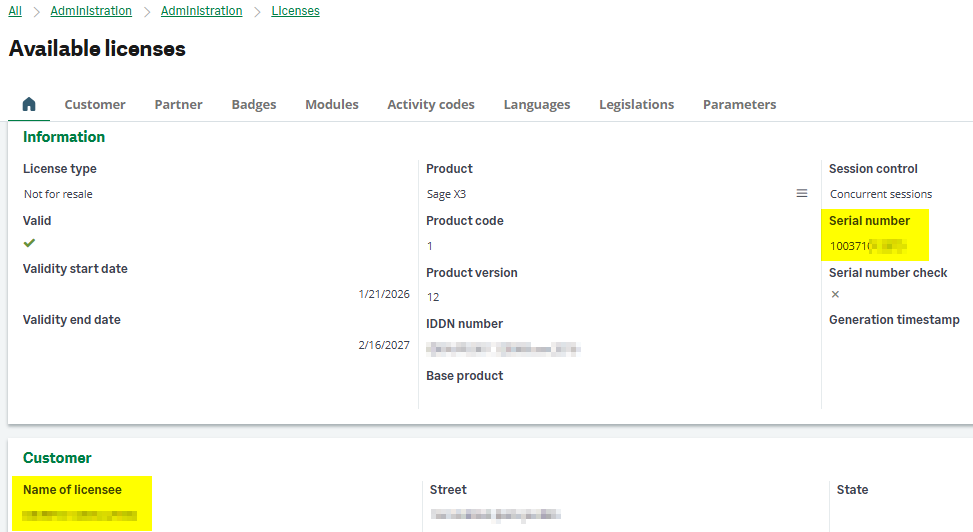
License Datas – 2026R1
This information must be sent to your contact Yooz commercial who will be able to send you the serial file. When sending this, please also specify the name of the end customer.
You must therefore provide your Yooz sales contact with:
- The serial number of the client's Sage X3 solution
- The name of the license holder
Internal note: Yooz requests for a serial file go through a Jira ticket.
2. Serial integration for the Yooz X3 connector
You have received the serial file (file <license-xxxxxxxxxxx-YOOZ-1-1-2-xxxxxxxxxxxxxx.json>), so you can integrate it into your client's Sage X3 solution.
Connect to the Sage X3 solution with an ADMIN user or a user who has an ERPDEV badge.
Open the function License upload via the menu
Administration > License upload
Click on the button Select the file
In the file selection window that opens, point to the serial file you received for the Yooz X3 connector.
Then click on the option Upload licence (or use the button Actions to find this option).
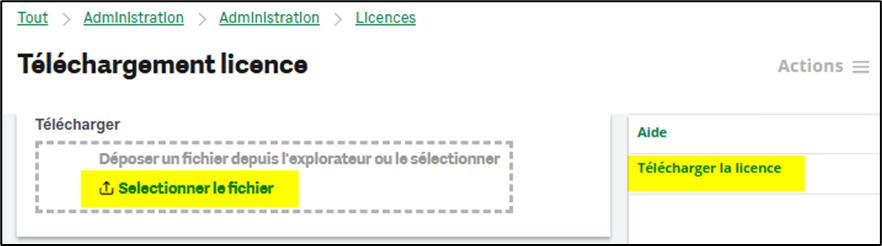
licenses – 2026R1
This will create a new YOOZ badge.
You must Add this badge to the roles users who use the Yooz X3 connector.
And don't forget to also add this badge to the service account used for the recurring task (XRJ31EXE) of the connector.
3. Serial update for the Yooz X3 connector
The serial number has an expiration date; the default validity period is one year. You will receive an extended serial number file to integrate into your client's X3 solution, at the same email address you registered for the first file. This update will be sent two weeks before the expiration date.
Internal note: extended serial files will be sent to Yooz via Jira ticket.
1-Methodology and Project Scope
Context and objective
This chapter concerns the methodology for implementing the connector. The elements presented here are drawn from feedback gained from implementation experience with a significant number of clients.
This is therefore only a proposal; each partner/integrator is completely free to choose their implementation methodology.
This chapter addresses these phases of implementation:
| ▼ | ▼ | |||||
|---|---|---|---|---|---|---|
| Pre-sales | Initialization | Framing | Installation | Setting | Recipe | Production launch |
1. Key points🚨IMPORTANT
Here is a list of the most crucial points to consider to facilitate implementation.
-
The connector must be integrated from the very beginning of the project. The Yooz implementation process saves time and increases efficiency, as the connector will be used to retrieve all master data/repositories from Sage X3. This eliminates the need to manually import data files into Yooz. Another advantage is that the client learns the system earlier and immediately integrates the connector as a component of the Yooz solution.
-
Inform the client of the technical prerequisites as soon as possible. This allows the client to have more time to organize themselves.
-
Operating through skills transfer as opposed to doing it for the client. The most obvious issue concerns the migration of master and reference data; it's certainly faster for the integrator to take charge of this and do the work. However, this isn't the best solution, because after the testing phase, the connector will be plugged into the production environment, and the migration will have to be repeated.
It is therefore advisable to explain how the connector works to the client, and to set up a few practical examples to demonstrate that the connector is functional. Then, inform the client that they can proceed with the data migration. It is the integrator's responsibility to provide support and answer any questions or address any problems. -
Regarding the Yooz application, we proceed as usual with a Sage X3 startup: we keep the same Yooz instance, and we perform a data reset in order to replay the data synchronization with the Sage X3 production folder. And if the client needs to continue project activity for other deployments or scopes, we should advise them to request a 2nd Yooz instance which will then be connected to the test folder.
2. The steps
The proposal is a 12-step implementation methodology.
- The framing workshop
- Determining the test file
- Assigning a badge ERPFULL
- The opening of network flows
- The technical installation on the test folder
- Yooz's basic settings
- The first functional workshop
- Data recovery test
- User Acceptance Testing (UAT)
- Installation on the production file
- Data recovery in production
- Post-startup support
The framing workshop
Required participants: Yooz Project Manager, Client Project Manager, Integrator Project Manager, Client Project Manager, Client Tech, Client Functional Engineer
The duration is a maximum of one hour (30 minutes in a smooth context).
During this framing workshop, the following topics are addressed in detail:
- Explain the architecture, prerequisites, and connectivity to the client. All the details are in this chapter.
- Emphasize the 3 prerequisites which are specified in the following paragraphs (test file, badge, network)
- Clearly define the scope of the connector: Finance only or Finance + Purchasing? And sales invoices or not?
- Define the schedule, the stakeholders, and the target start date
To track the implementation of prerequisites and avoid "ping-pong" emails, it is possible to use a shared table.
Example here, available in French and English, delete the lines that are not useful.
Determining the test file
The test folder that will be used for the connector implementation must be determined. This folder must be sufficiently up-to-date; the principle is to request confirmation from the client functional team.
This folder will need to be frozen (do not refresh it with a new copy). And there's no reason to dedicate the test folder to the Yooz connector; other topics can be addressed in parallel.
Assigning a badge ERPFULL
A new user account needs to be created in the Sage X3 solution. This account serves as a service account for transactions processed by Yooz. A permanent badge must be assigned to this new user. It must be an ERPFULL badge (an ERPFIN badge is also possible, subject to future connector updates). Alternatively, any other user account, such as the ADMIN account, can be used, but in that case, Yooz transactions cannot be identified.
The opening of network flows
The connector operates in API mode, with direct communication between the two applications, Sage X3 and Yooz. Opening network connections is essential; all the details are in this paragraph “Connectivity between Yooz and X3 applications”. Depending on the context, these operations are to be ensured by Sage's SSC service, by the integrator, by the client's IT department or their infrastructure provider.
Note that this can be a sensitive point if the client is not very competent, or if their infrastructure is far from good practices, or due to a lack of availability.
The technical installation on the test folder
This operation is very often performed by the integrator, and the client can of course be involved to monitor the process. It takes approximately one hour; it's faster if the client is using the latest version of Sage X3 because in that case there are no manual updates, everything is done via X3 patch files.
It's usually done remotely via screen sharing.
It is also possible to entrust this installation to the client in the case of client teams already competent in patch installation and/or Sage X3 development. This client-led approach is fully justified if the production deployments are also handled by the client.
The detailed step-by-step procedure is available in this paragraph.
It should be noted that during the connector deployment phase, it may be necessary to install a connector update to benefit from a new feature or a bug fix. In this case, it is advisable to use the connector's automatic update function; its use is described at the end of the section on installation.
Yooz's basic settings
Before activating the connector, it is necessary to configure these settings in Yooz:
- Creation of organizations
- Creation of reference frameworks for analytical axes
These elements cannot be generated by the connector, and these Yooz organization code and analytical repositories will have to be entered in the Sage X3 settings.
The first functional workshop
Required participants:
For the integrator: The functional consultant (who leads the session) and possibly the project manager.
For Yooz: The Yooz project manager or the certified integration partner.
For the client: The business stakeholders or key users (finance director, accounts payable manager) who will use the solution daily, as well as the technical manager or the Sage X3 administrator (IT director, IT lead) to ensure a proper understanding of the application settings.
The duration is approximately 2 hours.
The format is generally remote with screen sharing. It is strongly recommended to record the session (or keep a transcript) so that the client can refer to it later to independently reproduce the settings when moving to their production environment.
Content and topics covered:
- General explanation: Presentation of the complete scope of the project and the overall functioning of the connector.
- Connection setup: Configure settings directly within Sage X3 to establish the connection and communication with the Yooz application.
- Sending master data (Sage X3 to Yooz): Detailed explanation of the process, followed by a practical demonstration of repository synchronization, using a low-volume entity as a case study. The client will subsequently be responsible for performing all data migrations.
- Integration test: Performing a test export of an invoice from Yooz to Sage X3 to validate that the incoming data flow is working correctly.
- Defining the next steps: Planning the next phase of the deployment, specifically defining the strategy and support needs for the overall data recovery
Data recovery test
The task of data recovery (also called synchronization or initialization of repositories) on the test environment is part of an overall skills transfer approach.
The goal is to send all active history of master data from Sage X3 to Yooz so that the two systems are aligned before starting flow tests.
Here is a description of this task, its procedure, and the role of each person involved:
1. Principle and distribution of roles
Introduction by Deveho: During the first functional workshop, the Deveho consultant explains how the screens work and demonstrates, using an example, how to initiate the initial data import.
This session is recorded to serve as a tutorial.
Client autonomy: Once the explanations have been provided, the client must complete the rest of the data migration themselves. This practice is intentional: it ensures that the client understands the procedure, since they will have to repeat it independently when switching to the production environment.
2. Scope of the data concerned: The standard objects sent in bulk from Sage X3 to Yooz during this step are:
Suppliers (BPS) and possibly customers (BPC).
Accounting plans (GAC).
Analytical axes and sections (CCE).
Tax profiles/codes (TVT) and payment terms (TPT).
3. Operating procedure in Sage X3
The client performs the transfer using three dedicated functions of the connector:
Yooz reference data retrieval (XRJ31YOOZREP): It allows you to select the objects to send and to filter in order to massively load the active records of X3 into the interface table.
Yooz Interfaces (XRJ31YOOZINT): This is the monitoring dashboard that allows you to view the number of records awaiting transmission, successfully sent, or with errors.
Yooz web service (XRJ31EXE): This is the manual launch or recurring task (batch) which reads the tracking table and actually executes the requests to send to the Yooz API.
4. The integrator's assistance.
During data migration, it is common for some records to be rejected by Yooz (often due to non-compliant X3 data, such as an invalid SIRET/VAT number or an incomplete address).
Client analysis: The client is asked to analyze the error logs in X3 and correct the data directly in Sage X3. Note that these data corrections in the test environment must be replicated to the production environment. Alternatively, a partial replication in the test environment can be accepted, and the focus can be on data quality in the production environment.
Consolidated support: The client compiles their questions or unresolved issues in a shared report or tracking spreadsheet. If neither the client nor the integrator can resolve the situation, contact your Yooz representative for level 2 support.
User Acceptance Testing (UAT)
This is a mandatory step in the deployment process, occurring after the data has been retrieved for testing and just before the production installation (Go-Live). It is part of a skills transfer approach, requiring autonomy from the client.
Procedure and distribution of roles
The client (functional / key users): They are the main player in this phase and are responsible for executing the tests.
He uses a test sheet provided by the integrator as a working basis and adapts it to its own context
Throughout the process, the client is invited to consolidate all of their questions and sticking points into a single report, in order to facilitate understanding and consideration by the integrator.
The Yooz Project Manager or integrator: They are responsible for actively monitoring the progress of these tests. If the client encounters errors or issues that their functional team cannot resolve, they can contact their Yooz representative for level 2 support.
Go-Live's authorization
The objective of this phase is to obtain comprehensive validation of the data flows. This formal validation by the client and the Integrator Project Manager acts as Go-Live authorization, thus triggering the planning of the final technical installation in the production environment.
Link to the standard test tracking file.
Installation on the production file
Technical installation of the connector on the production file.
The installation of the connector patches on the production folder is carried out by the client's technical team, or the Sage X3 integrator (depending on what was decided during the scoping phase). This step is purely technical.
A period of user inactivity must be anticipated. The technical installation in production requires all Sage X3 users to disconnect for approximately 30 minutes (this is a sub-part of the installation).
This allows standard tables to be revalidated safely without risk of data loss.
Reproduction of the settings by the client
The client must manually replicate all functional settings that were implemented and validated in the test environment (entering URLs, API passwords, organization codes, etc.). The integrator does not directly modify the production configuration due to data security concerns, but remains available for support.
Master Data Migration: Once configured, the client must manually launch the "Data Migration" function. The goal is to send the entire production history (suppliers, chart of accounts, analytical axes, etc.) from Sage X3 to the Yooz production environment to synchronize the two systems.
To activate the automatic task and finalize the production deployment, the client must activate the batch server subscription (the recurring task XRJ31EXE). This action allows the connector to operate in the background and automatically synchronize invoices, payment vouchers, and new repositories.
Post-startup support
The integrator can implement a "hyper-care" system for the initial days of the connector's launch in the production environment. This can be aligned with the Yooz production rollout.
The integrator remains available to ensure a short stabilization period. In the event of errors or first-level roadblocks that they cannot resolve on their own, the issue is escalated to the Yooz contact point.
The switch to Yooz support
Once the solution is stable and running smoothly, Level 1 support (daily use, functional questions within Yooz) is then fully provided by Yooz's support service (or by the integration partner). If Yooz support encounters a technical anomaly or bug originating directly from the connector's infrastructure layer in Sage X3, Yooz support will escalate the issue to the connector's developer.
2-Architecture, Prerequisites, and Connectivity
Context and objective
This chapter deals with the topics of Architecture, of Prerequisites, of Perimeter, of Outside the Perimeters, the Opening network flows and the Connectivity settings.
It is essential to share the network flow opening information with the person or team who will be in charge; this is crucial to ensuring the connector functions correctly. Refer to the section opening network flows.
Regarding connectivity settings, upon receiving the Yooz instance, you can check if you have the rights to generate the API token codes (client id and client secret), or if you need to contact your Yooz representative.
Setting up the prerequisites involves several points that are the responsibility of the client or their integrator.
Here is an example of a shared deliverable that allows progress to be tracked during implementation.
Link to the prerequisites tracking sheetYoozConnectorX3-Prerequisites
This chapter addresses these phases of implementation:
| ▼ | ▼ | |||||
|---|---|---|---|---|---|---|
| Pre-sales | Initialization | Framing | Installation | Setting | Recipe | Production launch |
1. Architecture
This is an add-on module for Sage X3, installed as Sage X3 patches and fully compatible with native 4GL. Specific developments are implemented in the 4GL vertical layer. Therefore, no additional technical infrastructure is required; the module is 100% integrated into the existing Sage X3 solution. All objects are protected by an 'XRJ31' activity code.
For data flows from X3 to Yooz, Sage X3 uses Yooz's REST web services. Conversely, Yooz calls Sage X3's SOAP web services. Both flows are available as standard in Sage X3. The only deviation from the X3 standard is the addition of a CURL binary and library to handle a specific aspect of the Yooz API for exporting purchase orders (encapsulating a JSON file within the REST request is required).
No middleware is needed. The connector does not allow communication via files, nor via FTP or SFTP servers.
2. Prerequisites
Version Sage X3
The connector is available for all versions of Sage X3 12, starting with patch 21 (2020 R1). Previous versions are not supported due to changes in compiled processing (ADX).
Network connectivity
Bidirectional access is required between Sage X3 and the Yooz platform. Specifically, the Yooz application must be able to reach the Sage X3 web service endpoint, which requires opening an inbound communication channel from the internet. Detailed information is available in the Connection paragraph.
Licence (badge) Sage X3
An ERPFULL badge must be available to be allocated to a new user account dedicated to Yooz web services.
3. Perimeter
The Yooz X3 connector covers the X3 Purchasing, Finance and Sales scopes, in connection with Yooz functionalities.
Table of features
| Typology | Functionality | Sage X3 Function |
|---|---|---|
| Connector settings | Parameter values | ADPVAL |
| Data restrictions | At the level of each function | |
| Sending via API to Yooz | X3 Users | GESAUS |
| Articles | GESITM | |
| Analytical axes | GESCCE | |
| Accounting records | GESGAC | |
| Tax rates | GESTVT | |
| Payment terms | GESTPT | |
| Suppliers | GESBPS | |
| Payment confirmation | ||
| Purchase order | GESPOH | |
| Reception | GESPTH | |
| Returns | GESPNH | |
| Purchase invoice validation | FUNPIH | |
| Validation of third-party supplier invoices | ||
| Clients | GESBPC | |
| Sales invoices and credit notes | GESSIH | |
| Third-party customer invoices | GESBIC | |
| Received via Yooz API | Purchase invoice on order | including line management, order and receipt matching, and billing elements |
| Third-party supplier invoices | ||
| Good to pay | ||
| Utilities | Force timestamp on Yooz interfaces | XRJ31YOOZFLG |
| Yooz reference data retrieval | XRJ31YOOZREP | |
| Yooz Connector Update | XRJ31UPD | |
| Custom fields (10 max) | X3 Users | |
| Site X3 | ||
| Analytical axes | ||
| Accounting records | ||
| Tax rates | ||
| Payment terms | ||
| Suppliers | ||
| Purchase order | ||
| Reception | ||
| Purchase invoice | ||
| Third-party supplier invoice | ||
| Clients | ||
| Sales invoices and credit notes | ||
| Third-party customer invoices |
Diagram of the different possible flows:
- Sage X3 Finance & Purchasing, with purchasing workflow in Sage X3
- Sage X3 Finance & Purchasing, with purchasing feed in Yooz
- Sage X3 Finance
- Sage X3 Sales Invoices
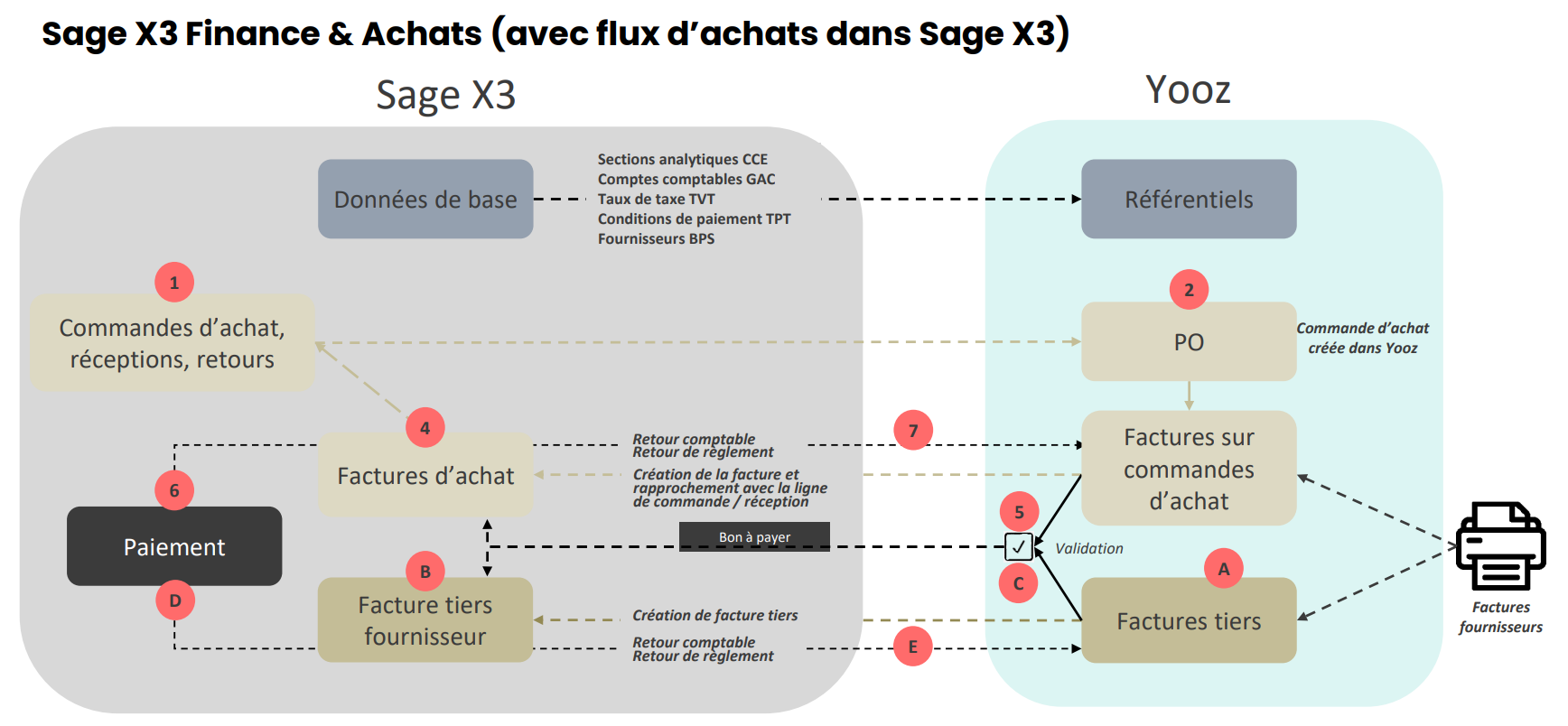
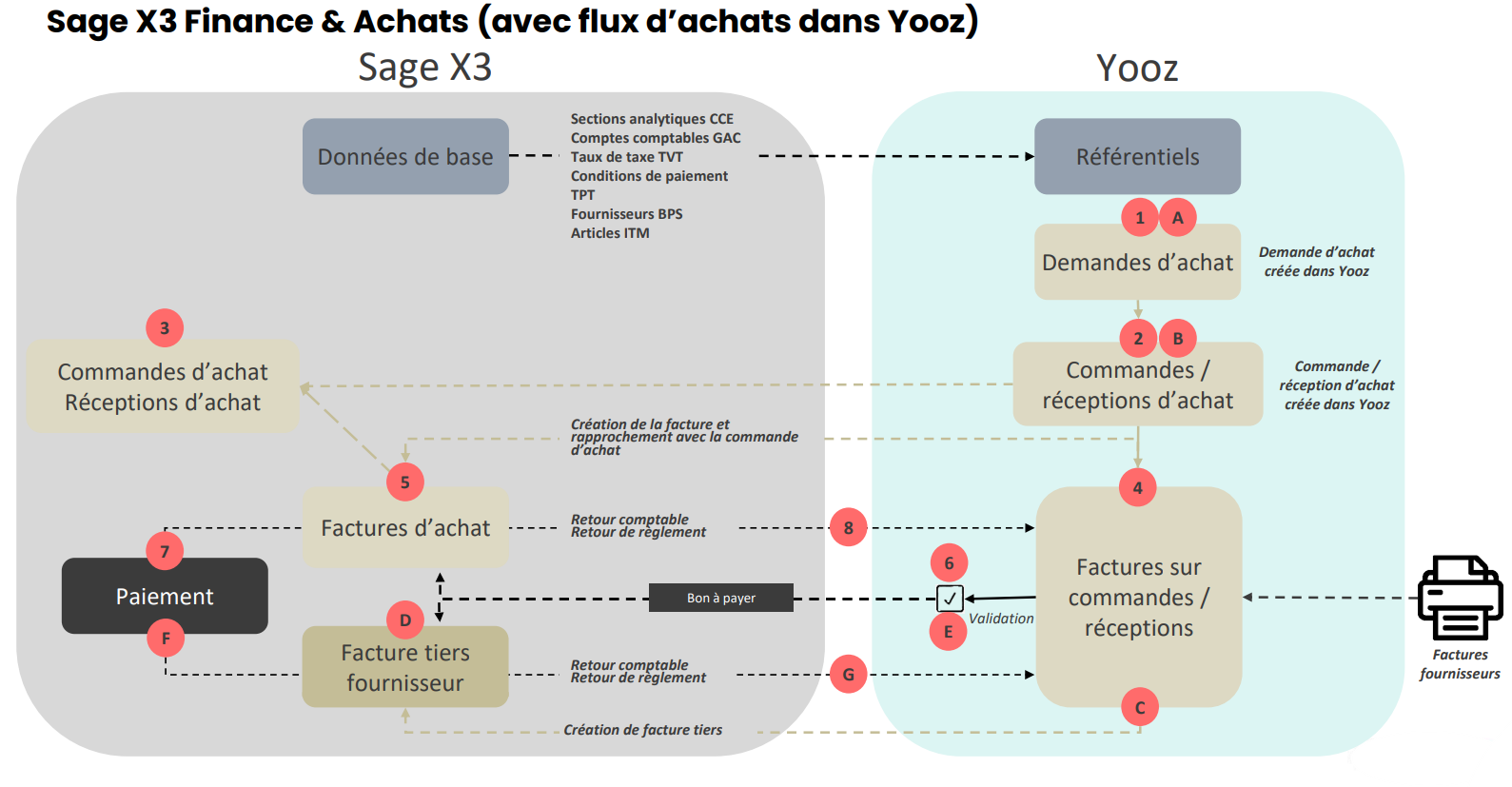

4. Outside the perimeter
Specific adaptations
Certain modifications or specific adaptations to the Purchasing, Finance, and Sales modules of Sage X3, particularly concerning purchase and sales invoices, may not be compatible with the standard scope of the Yooz connector. We are referring, of course, to significant or highly impactful modifications. Any incompatibilities can be detected during connector installation and will be highlighted during acceptance testing.
Foreign laws
Local legal requirements or the specificities of foreign legislation are outside the scope of this service. The only exceptions are Switzerland (QR code management) and Spain (supplier withholdings on purchase invoices), which are fully supported.
Additional invoices
Additional invoices are not handled by the connector. This is being considered for a future update of the connector.
Direct receptions
The PTHDIR (direct receipt) parameter must be set to "No"; direct receipts are not permitted. The same rule applies to the PNHDIR (direct supplier return) parameter, which must also be set to "No". This management rule is justified by the fact that the Yooz application cannot manage received quantities without an order. An order is mandatory in Yooz.
Sage X3 Saas
The connector is not currently compatible with the new Sage X3 SaaS offering.
5. Connectivity between Yooz and X3 applications
5.1 Introduction: Context and security philosophy
Sage X3 is an integrated management software package (ERP) designed with high native security standards. It incorporates robust authentication protocols and role-based access control to ensure data integrity within your internal network.
However, activating a connector with an external SaaS platform like Yooz requires opening an inbound communication channel from the internet. While Sage X3 is secure, best practices recommend implementing additional perimeter protection layers when exposing a service to the web.
The goal of this document is to define a scalable security framework for this data flow. We offer cumulative security options designed to scale with your organization's size and IT capabilities. Whether you're a small or medium-sized business seeking effective protection or a large enterprise requiring strict compliance, this document presents architectures ranging from simple network filtering to advanced application inspection. These layers can be combined to align with your organization's internal risk management policy.
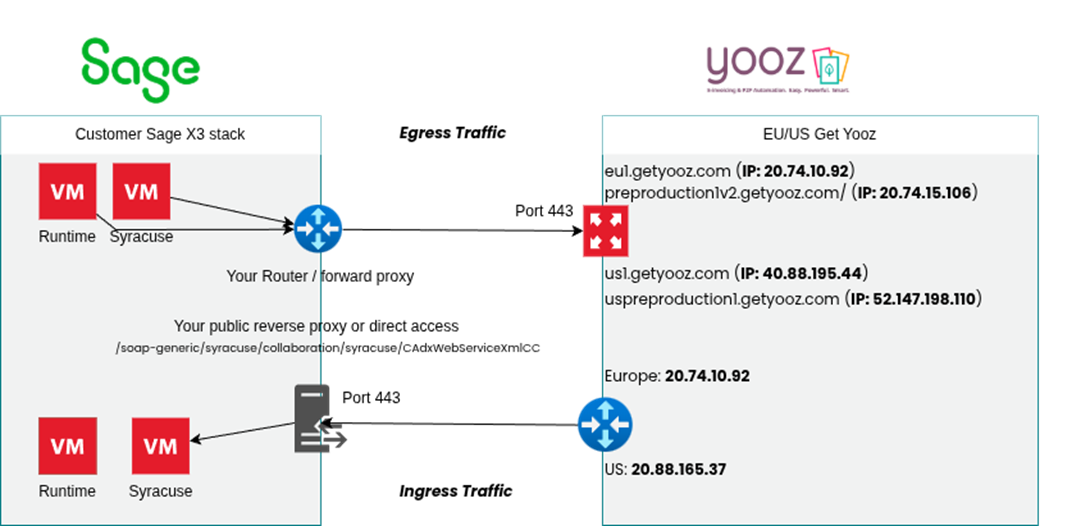
5.2 Mandatory web exposure for Sage X3
It seems appropriate to start with a simple basic reminder: the Sage X3 solution must be accessible from the Internet.
Of course, it's perfectly possible to apply IP address restrictions, use a reverse proxy, or a WAF. However, the following rules are mandatory:
- A valid domain name must be used (for example:.with, .fr, .net, .org...).
- A valid SSL certificate must exactly match the public URL.
Conversely, local IP addresses and insecure (HTTP) connections will not work.
Examples of configurations
- Correct: https://x3.XXXX.domain.com (URL protected by a valid certificate with a recognized public domain name).
- Incorrect: https://45.36.87.96/ (Public IP addresses cannot have a valid SSL certificate for this type of use).
- Incorrect: http://myawesomedomain.com (The site is not secured with the HTTPS protocol).
- Incorrect: https://myawesomesite.local or https://erp-server/ (local domain names or simple machine names. They are not publicly recognized on the Internet; the extensions.andor.localare not covered).
- Incorrect: https://localhost or https://127.0.0.1 (local addresses, completely inaccessible from the outside).
- Invalid, self-signed or expired certificate: Even with a correct HTTPS URL, if the certificate is not issued by a recognized certificate authority or if it does not exactly match the domain name of the URL, the connection will systematically be rejected.
5.3 Technical prerequisites and flow specifications
Before implementing a specific security architecture (described in Chapter 4), several fundamental requirements must be met to establish a functional and secure connection between the Yooz platform and the Sage X3 server. These prerequisites apply to all security scenarios (options A, B, and C).
5.3.1 End-to-end encryption (Protocol)
To guarantee the confidentiality of data in transit (invoices, accounting entries), the communication channel must be fully encrypted.
- Requirement: The connection must use the HTTPS protocol with TLS 1.2 (or higher).
- Certificate: A valid public SSL certificate (e.g., issued by DigiCert, Let's Encrypt, or similar) must be installed on the public entry point (firewall or reverse proxy). Self-signed certificates are not compatible because they cause validation errors on the Yooz application side.
5.3.2 Whitelist of destination domains/IP addresses (outgoing traffic)
Although Yooz pushes data to Sage X3, the Sage X3 server must also be able to initiate outbound connections to Yooz. If your organization restricts outbound internet traffic by default, you must configure your firewall to allow the Sage X3 server to reach the Yooz infrastructure.
- Requirement: Allow outbound HTTPS traffic (port 443) from the Sage X3 server to the following Yooz endpoints, depending on your hosting region:
Environments Europe
- API production / App Gateway: eu1.getyooz.com (IP: 20.74.10.92)
- Pre-production API / App Gateway: preproduction1v2.getyooz.com (IP: 20.74.15.106)
US Environments
- API production / App Gateway : us1.getyooz.com (IP: 40.88.195.44)
- Pre-production API / App Gateway:uspreproduction1.getyooz.com (IP: 52.147.198.110)
5.3.3 Considerations regarding the outgoing proxy (Direct Proxy / Forward Proxy)
The following specifications pertain to advanced network architectures involving restrictive proxies and SSL inspection. Because these configurations are highly dependent on your organization's specific security stack and technical infrastructure, the implementation process is considered collaborative. Some adjustments may be necessary during the initial connectivity phase to ensure seamless alignment with your internal network policies and proxy heuristics.
If your organization routes outbound Internet traffic through a restrictive proxy (e.g., a forward proxy with strict rules, SSL interception, or data leak prevention [DLP]), specific configurations are required to ensure that the Sage X3 server can communicate with Yooz endpoints.
The connector initiates outbound requests via two distinct mechanisms: native calls to Sage X3 web services and server-side curl commands. Both methods support routing through an enterprise proxy.
Target URLs: The proxy must explicitly allow outbound traffic to the Yooz endpoints corresponding to your hosting region:
- Europe: https://eu1.getyooz.com And https://preproduction1v2.getyooz.com .
Media types and file exchange: Communication relies on standard HTTPS requests. For outgoing data (from Sage X3 to Yooz), the connector calls Yooz's REST APIs. The data exchanged consists exclusively of JSON payloads and CSV files (for reference data exports). The connector does not trigger downloads of executable files, scripts, or binary file types that are typically blocked.
Proxy details specification: Proxy details are entered differently depending on the IT component:
- For web service requests (Syracuse): The proxy settings are configured natively in the Sage X3 interface.
- For Curl queries: The proxy details (host, port, and authentication) can be passed directly as arguments (via the option-x) in a specific parameter value of the connector in Sage X3.
Example of a Curl configuration for a proxy with SSL certificates:
-x https://proxy.yourdomain.com:443 --proxy-user user:password --cacert /path/to/your/proxy-ca-bundle.crt
Note: This configuration is managed in the connector's internal settings by our technical team.
SSL Interception and Certificate Stores: If your proxy performs an SSL inspection, it will present its own internal certificate. The connector components do not rely solely on the operating system's global certificate store. Therefore, your proxy's trusted root certificate authority (Root CA) must be recognized at the application level.
- For Syracuse: The proxy's Root CA certificate must be imported via the Sage X3 certificate management interface (Administration > Certificates > Certificates).
- For Curl: The path to your proxy's certificate bundle (CA bundle) must be provided to our team so that it can be referenced in the command arguments using the option--cacert.
Data Exfiltration Control / Content Inspection: Proxy systems that monitor file exfiltration can flag or block outgoing JSON or CSV payloads. Since proxy rules vary between organizations, a brief testing phase is recommended to observe the proxy logs and implement the necessary exceptions for legitimate connector traffic.
5.3.4 Whitelist of source IPs (incoming traffic)
The connector operates in "Push" mode, meaning that Yooz initiates the connection to send data to Sage X3. To secure this connection, the implementation of a strict IP address whitelisting policy is required.
- Requirement: The customer is responsible for configuring and maintaining an access control list (ACL) on their edge firewall. This list defines which external IP addresses are allowed to connect to the dedicated port.
- Configuration Yooz: To activate the connector, the official IP address of the Yooz infrastructure must be added to this whitelist.
- Authorized IP address for Europe: 40.89.133.43 and 40.89.178.3 (This IP address corresponds to the Yooz Gateway hosted on Microsoft Azure for the production environment, European instances).
- Authorized IP address for the United States: 20.88.165.37 (This IP address corresponds to the Yooz Gateway hosted on Microsoft Azure for the production environment, US instances).
5.3.5 Availability of the target service (Sage X3 Web Services)
The Yooz connector does not interact with the standard user interface used by your employees. It communicates specifically with the Classic SOAP web services engine of Sage X3.
- Requirement: "Classic SOAP web service pools" must be properly configured to handle the incoming data flow.
- Implementation note: The configuration and startup of these specific web service pools will be carried out during the installation and configuration of the connector.
- Separation of flows: This ensures that incoming traffic is handled by the automated interface layer, separate from the interactive user session layer.
5.3.6 Network Address Translation (NAT)
Since the Sage X3 server is hosted on-premises (within your private network), it is not directly visible from the Internet.
- Requirement: A port forwarding rule (port forwarding / NAT) must be created on your peripheral network equipment in order to translate the public request to the internal IP address of the Sage X3 server (or reverse proxy, depending on the security option chosen).
- Port configuration: Although the standard HTTPS port (443) is recommended for simplicity and compliance reasons, the use of a custom external port (e.g.,8443, 4443) is fully supported if your internal network policy requires it.
5.4 Security implementation options
We offer a scalable security framework. Depending on the size of your organization, your internal resources, and your risk management policy, you can select the appropriate level of protection. These options are cumulative: Option B includes the requirements of Option A, and Option C requires an architecture compatible with both A and B.
5.4.1 Option A: Network access control (layers 3/4)
Recommended context: Small and Medium Enterprises (SMEs).
This option relies on your existing perimeter firewall to filter traffic based solely on the sender's IP address.
Implementation
- Create a NAT (port forwarding) rule on your firewall.
- Apply a strict access control list (ACL) that rejects all traffic by default (Deny All).
- Allow only the dedicated Yooz IP address (defined in chapter 5.5).
Security perimeter
- This configuration blocks all unauthorized connections from the general public on the Internet.
- Limitation: Although secure against external network scans, this method allows traffic to reach the Sage X3 web server interface if it originates from the authorized IP, without the possibility of inspecting the specific URL (URI) requested.
5.4.2 Option B: Application filtering and Reverse Proxy (Layer 7)
Recommended context: SMEs and medium-sized enterprises (ETIs).
This architecture introduces an intermediary component (reverse proxy, such as Nginx, HAProxy, or IIS) to isolate the ERP server from direct network traffic. This option is highly recommended to reduce the attack surface.
Implementation
- The firewall redirects traffic to the reverse proxy (located in a DMZ or a specific VLAN), and not directly to the Sage X3 server.
- The reverse proxy completes the SSL connection (decryption) and inspects the HTTP request.
Security policy (URI filtering)
- Allow: Only the exact path for the web service: /soap-generic/syracuse/collaboration/syracuse/CAdxWebServiceXmlCC.
- To block: The root path/the login page/auth and all other system paths should be rejected with an HTTP 403 Forbidden error code.
Security perimeter
- Even if a network connection is established from the Yooz IP, the general user interface and the Sage X3 login portal remain technically inaccessible.
- Only the endpoint specific to automatic data import is open.
5.4.3 Option C: Web Application Firewall (WAF) and Content Inspection (Payload)
Recommended context: Large companies and corporate environments.
For organizations equipped with dedicated security appliances (e.g., Fortinet, F5, Palo Alto) or complying with strict standards (such as ISO 27001), a WAF can be added to inspect the deep content of data packets.
Implementation
- Integration of network traffic into the company's WAF appliance.
- Security Policy (Deep Packet Inspection): The WAF analyzes the XML/SOAP payload to detect and block malicious code injections (SQL injections, XSS) within the data stream.
Important note regarding calibration
- Sage X3 uses complex SOAP XML messages. To avoid "false positives" (unintentional blocking of legitimate invoices), we recommend an initial phase in Learning Mode.
- We can provide a sample XML payload to help your security team calibrate WAF rules and allow standard characters used in billing.
5.5 Implementation complexity and operational impact
Choosing the right security architecture is a balancing act between risk mitigation and available IT resources. The following comparative table highlights the effort required for configuration and maintenance.
Option A: Network Access Control
- Complexity: Weak.
- Required skills: Standard network administration.
- Configuration: Rapid deployment (usually < 1 hour). Requires only the configuration of a standard firewall rule.
- Maintenance: No ongoing maintenance is required, except in the event of a change to the infrastructure's IP addresses.
Option B: Application filtering (Reverse Proxy)
- Complexity: Moderate.
- Required skills: System administration / web server management (Nginx, IIS, HAProxy).
- Configuration: Requires the installation and configuration of a proxy service, SSL termination management, and the writing of specific URL filtering rules.
- Maintenance: Low. Once the configuration is stabilized, it requires very little intervention.
Option C: WAF and content inspection
- Complexity: High.
- Required skills: Senior Security Engineer / NetSecOps.
- Configuration: Complex integration. Requires a learning phase to profile legitimate application traffic.
- Maintenance: High security level. Requires continuous monitoring to manage "false positives" (legitimate invoices blocked for security reasons). Any update to the Yooz format or the Sage X3 patch level may require rule adjustments.
5.6 Implementation roles and responsibilities
Security is a shared responsibility. The table below shows the distribution of tasks between the client (or their IT provider), the integrator, and Yooz.
| Component / Perimeter | Task description | Responsible party |
|---|---|---|
| SSL Certificate | Provision and installation of a valid public SSL certificate on the point of entry (firewall/proxy). | Customer IT department |
| Network security | Configuring firewall rules (NAT) and access control lists (IP whitelisting). | Customer IT department |
| Application security | Configuring the rules of the reverse proxy (option B) or the WAF (option C). | Customer IT department |
| Configuration Sage X3 | Activation and configuration of "classic SOAP web service" pools within the ERP. | X3 integrator |
| Connectivity tests | Validation of the secure channel (Telnet/Ping) and functional tests of connector transfer. | Yooz or Client |
| WAF calibration | Providing example XML payloads to help with WAF rule tuning (if option C is chosen). | Yooz or X3 integrator |
5.7 Conclusion
By implementing the security measures described in this document, the automated connection between Yooz and Sage X3 can be established permanently without compromising the integrity or security of your ERP system.
For on-premise customers
For customers managing their own infrastructure or servers, the responsibility for securing incoming traffic lies entirely with your internal IT department or your managed service provider.
Although option A (Network access control) provides a functional starting point, we strongly recommend implementing at least option B (Reverse Proxy) for any production environment. This architecture offers the best balance between security and operability by making the ERP user interface and login portal completely inaccessible from the Internet.
Please select your preferred architecture (A, B or C) and forward these technical specifications (including the information in Chapter 3) to your network administrator.
6. X3 secure connection settings to Yooz
The goal is to establish secure communication between the Sage X3 ERP system and the Yooz platform. The old login/password authentication method is obsolete; it has been replaced by the OAuth 2.0 protocol, which requires three mandatory parameters.
Step 1 - Retrieve the Application ID
This is the Yooz environment identifier. The application ID allows the connector to tell the API which client (tenant) folder to point to.
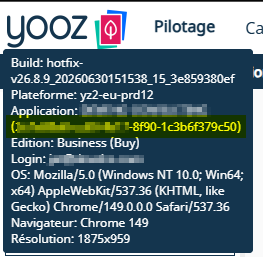
Log in to the Yooz client application. Place your mouse cursor (without clicking) on the Yooz logo in the top left corner of the screen.
A tooltip appears: locate the Application line and Copy the identifier in UUID format (ex: 82f7576c-c88e-4868-bb51...)
You can press CTRL+C when the tooltip is displayed; this copies the information, then paste it into a text document.
Step 2: Retrieve the API keys (Client ID and Client Secret)
These two keys constitute the secure credentials that authorize Sage X3 to interact with Yooz. There are two ways to obtain them:
Option A (recommended): Request them directly from the Yooz project manager. For security reasons, they will generally be sent to you via a one-time-use link (such as a One-Time Secret).
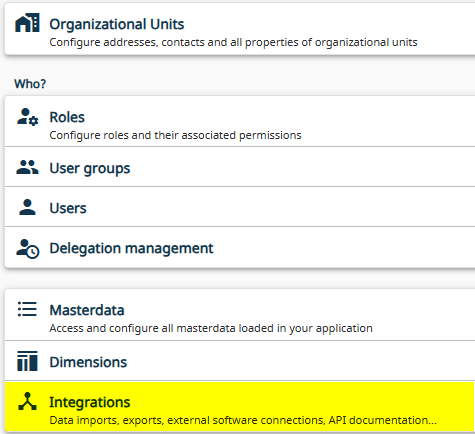
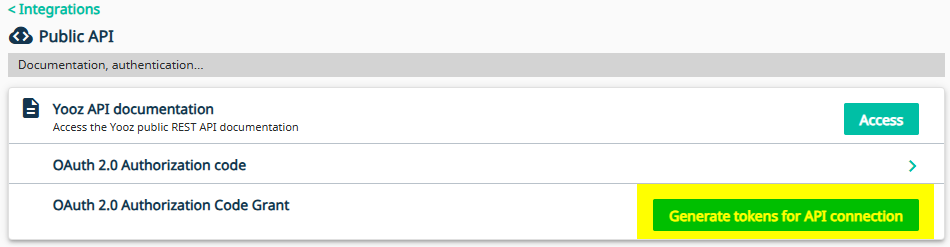
Option B (Independently): If you have Administrator rights in Yooz, go to the Settings menu > Integrations > Public API (or OAuth 2.0 Authorization Code).
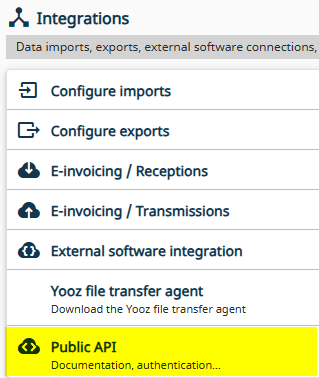
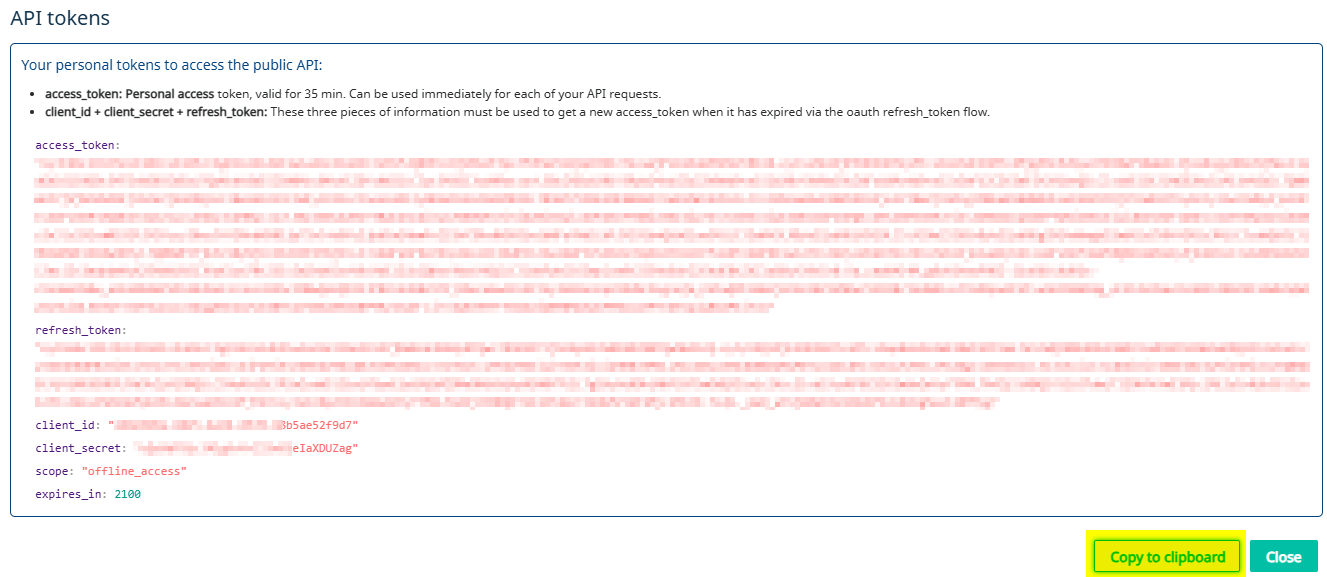
Click the button to get the API tokens.
You obtain the client ID and client secret information.
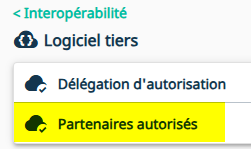
Finally, you need to check the authorized partner. To do this, go to Setup > Integrations > Third-party software.
Then select your partner code from the list
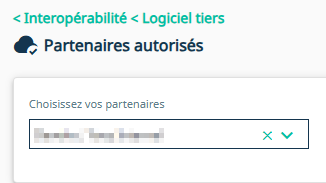
If you cannot find your partner code in the list, You need to contact your Yooz representative.
Step 3: Enter the connection settings in Sage X3
This is where you insert the three values retrieved previously to activate the link.
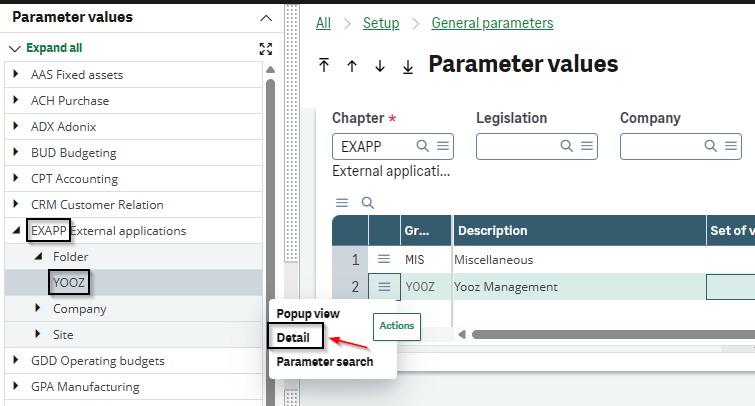
In Sage X3, navigate to: Setup > General parameters > Parameter Values
Select the EXAPP (External Applications) chapter
Expand the details and select the YOOZ group
Please specify the following three parameters:
XRJ31APPID (applicationId) = Paste the application ID
XRJ31CLIID (Yooz Client Id) = Paste the client ID
XRJ31CLISC (Yooz Client Secret) = Paste the client secret
When copying and pasting credentials (especially the client secret), make sure not to leave any empty spaces (neither before nor after the string of characters) or you may trigger a "401 - Invalid client credentials" error during communication tests.
Step 5: Checking REST web services
The two REST web services required for the connector must already be present in the Sage X3 solution. If not, you can obtain them by importing the JSON files. This is described in the chapter 3- Technical installation and updates, paragraph 3. By default, they are coded XRJ31YOOZ and XRJ31TOKEN.
You must verify that these web services correctly point (base URL) to the client's Yooz application URL.
Yooz application URLs may be
https://eu1.getyooz.com
https://preproduction1v2.getyooz.com
https://us1.getyooz.com
https://uspreproduction1.getyooz.com
Therefore, two REST web services are needed in X3, which include the client's Yooz application root with the following suffixes.
/yooz/v2/api/
/auth/realms/yooz/protocol/openid-connect/token
Example for a Yooz application
https://eu1.getyooz.com


If a single Sage X3 solution contains folders that do not communicate with the same Yooz application, it is possible to:
- Declare 2 new web services that point to the 2nd Yooz instance (with a different URL)
- Enter the codes for these web services in the parameter values XRJ31RESTT and XRJ31RESTY (chapter “EXAPP”, group “YOOZ”).
It is essential to create these new shared web services on an X3 solution, and make them usable by all folders.
The connector then behaves as follows: it prioritizes the web services defined in the parameter values. If the parameter values are empty, it hardcodes the XRJ31YOOZ and XRJ31TOKEN web services.
Client ID and Client Secret information are stored at the folder level, so it is entirely possible to have different values per folder.
Step 6: Verification and troubleshooting
If you have entered all the information correctly, you can perform a Sage X3 to Yooz connectivity check.
To do this, launch the XRJ31CTR Yooz connector control function, via the Usage > Imports/Exports menu.
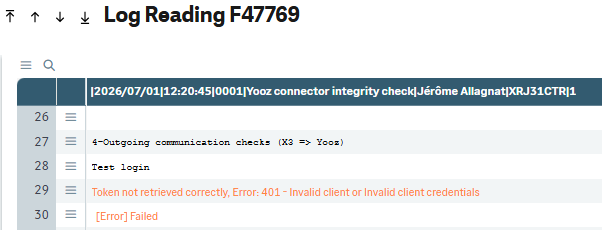
The trace displays the status of the outgoing communication (X3 => Yooz).
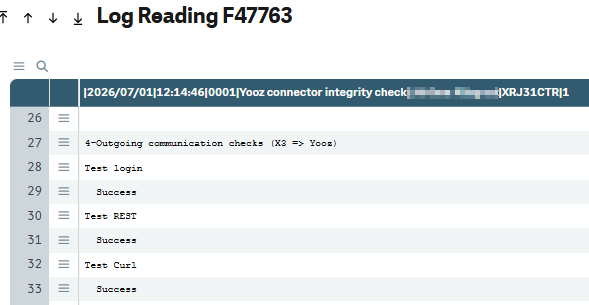
If the trace displays “Success”, this part is validated.
And if the trace displays a 401 error, you must contact your Yooz representative because settings on Yooz need to be adjusted.
7. Connection settings for the US zone
This section is a summary and synthesis of information specific to the US zone.
Whitelist of destination domains/IP addresses (outgoing traffic)
Although Yooz pushes data to Sage X3, the Sage X3 server must also be able to initiate outbound connections to Yooz. If your organization restricts outbound internet traffic by default, you must configure your firewall to allow the Sage X3 server to reach the Yooz infrastructure.
us-prd: 20.88.165.37
us-ppd: 20.81.25.81
Services web REST
| Nom | Base URL |
|---|---|
| XRJ31YOOZ | https://us1.getyooz.com/yooz/v2/api/ |
| XRJ31TOKEN | https://us1.getyooz.com/auth/realms/yooz/protocol/openid-connect/token |
Parameter values (ADPVAL function)
| Nom | Code valeur paramètre | Valeurs |
|---|---|---|
| Time zones | XRJ31TIMZO | For Eastern Time: America/New_York For Central time: America/Chicago For MST: America/Denver For PST: America/Los_Angeles |
| Yooz URL Documents | XRJ31URLDO | https://us1.getyooz.com/yooz/v2/api |
| User language | XRJ31USRLA | en-US |
3-Technical Installation and Updates
Context and objective
This chapter describes the technical installation of the Yooz connector for Sage X3. The procedure relies on standard Sage X3 functions and applies to current versions of Sage X3 v12. The installation is performed by integrating X3 patches vertically, supplemented by importing JSON files, creating a recurring task, and configuring the SOAP Web Services pool.
This chapter details the operating procedures for:
-
Retrieving the Yooz connector installation technical package.
-
The integration of specific patches in the vertical layer within Sage X3.
-
Creating and activating the Web Services synchronization task.
This document addresses these phases of implementation:
| ▼ | ||||||
|---|---|---|---|---|---|---|
| Pre-sales | Initialization | Framing | Installation | Setting | Recipe | Production launch |
Prerequisites and preparation
Before beginning the technical installation of the connector, it is essential to have generated and integrated the Yooz Serial file into your client's Sage X3 solution (see 0-Obtaining and activating the serial number).
- Necessary rights: Connect to Sage X3 with an ADMIN account or a user with the ERPDEV badge.
- Session language: Default (ENG or FRA).
- System availability: The complete installation takes no more than 3 hours.
Step 1 The deployment (updating standard tables) is the only operation that requires all users to be completely disconnected. The following steps can be performed with active sessions.
Operating procedure
1. Downloading the installation package
- Download the installation file (ZIP file)
📄 Download the installation pack V12
Format :.zip — Taille : 7.1 MB — Version : v1.96- The password for the ZIP file is transmitted with the serial file; if this is not the case, you can contact your Yooz representative.
Versioning
Information regarding the versioning of the Yooz connector for Sage X3 is available in the Release Notes section of the website. This allows you to view the available versions of the connector, as well as information related to any published enhancements, fixes, or updates.
2. Patch integration
Preparing patch files (optional)
This step is optional. It is only necessary if the patches need to be integrated from the Sage X3 application server.
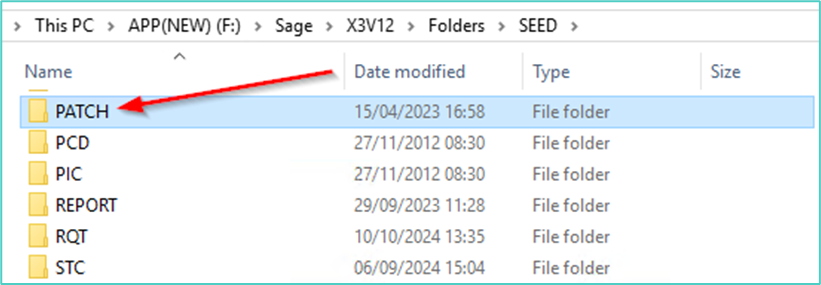
1. Copy the archive retrieved in the previous step into the <PATCH> subdirectory of the target folder X3.
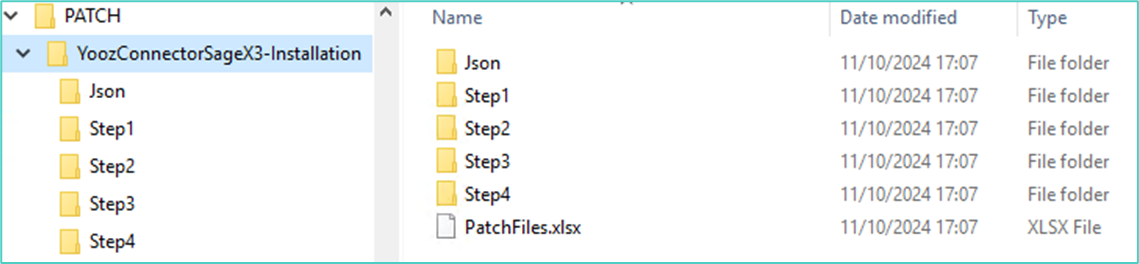
2. Unzip the archive into this directory.
3. Verify that the directories Step1, Step2, Step3, Step4, Json (or Step5 depending on the patch version) and the PatchFiles.xlsx file are present in the package.
NOTE If access to the X3 application server is unavailable, patch integration can be performed using the Client destination type. In this case, the files are integrated one by one from the workstation.
Integration of the first 3 patches
The first three integration steps are carried out from the same Sage X3 function.
1. Open the Patch Integration function via the menu: Development > Utilities > Patches > Patch Integration (PATCH function)
2. For each step, fill in the field Patch with the corresponding path, then launch the integration.
| Stage | Path to enter in the Patch field | Point of vigilance |
|---|---|---|
| Step1 | [PATCH]/YoozConnectorSageX3-Installation/Step1 | This step updates standard tables. It must absolutely be performed without any active user session. |
| Step2 | [PATCH]/YoozConnectorSageX3-Installation/Step2 | Can be done with active user sessions. |
| Step3 | [PATCH]/YoozConnectorSageX3-Installation/Step3 | Can be done with active user sessions. |
3. Start the patch integration and then wait for the trace to appear before continuing.
The trace must not contain any warnings or errors. If an anomaly is present, it must be analyzed and corrected before continuing the installation.
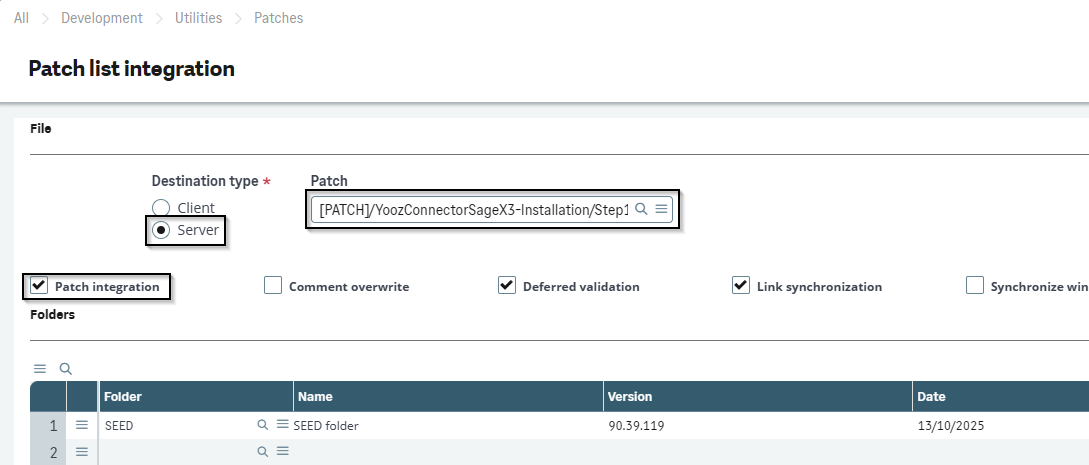
Step 4 patch integration - Standard object update
Step 4 concerns the updating of standard elements, mainly standard Sage X3 screens.
The PatchFiles.xlsx file, available in the package's documentation directory, allows you to identify the objects affected by Step4.
Two approaches are possible:
Option 1 - integration via patch: This option is preferred when the Sage X3 patch level is compatible with the provided patch.
Option 2 - manual updates: This method is preferred if the Sage X3 solution is not at the latest patch level, or if the standard objects have already been adapted. In this case, the modifications are entered manually from the PatchFiles.xlsx file.
Option 1 - Step4 Patch Integration
1. Open the Patch Integration function via the menu: Development > Utilities > Patches > Patch Integration (PATCH function)
2. Fill in the field Patch such as [PATCH]/YoozConnectorSageX3-Installation/Step4
3. Start the patch integration and then wait for the trace to appear before continuing.
The trace must not contain any warnings or errors. If an anomaly is present, it must be analyzed and corrected before continuing the installation.
Option 2 - Manual updates
1. Do not integrate the Step4 patch into Sage X3.
2. Open the PatchFiles.xlsx file and manually apply the listed modifications to the objects checked in Step4.
3. After entering the changes, validate the objects concerned and check that no validation errors are present.
3. Importing JSON files
This step can be performed at any time, with active user sessions.
Open the import wizard via the menu: Administration > Utilities > Imports > Import Tools
1. Select the JSON file Client option.
2. Click on Select file.
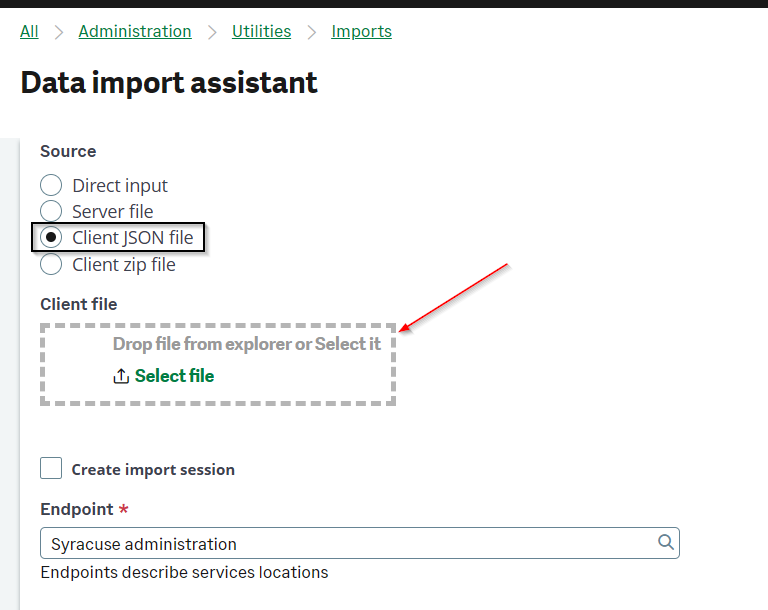
3. Select a JSON file from the directory Json of the installation package. Depending on the package used, the directory may also be specified as Step5.
4. Repeat the operation for each JSON file to be imported.
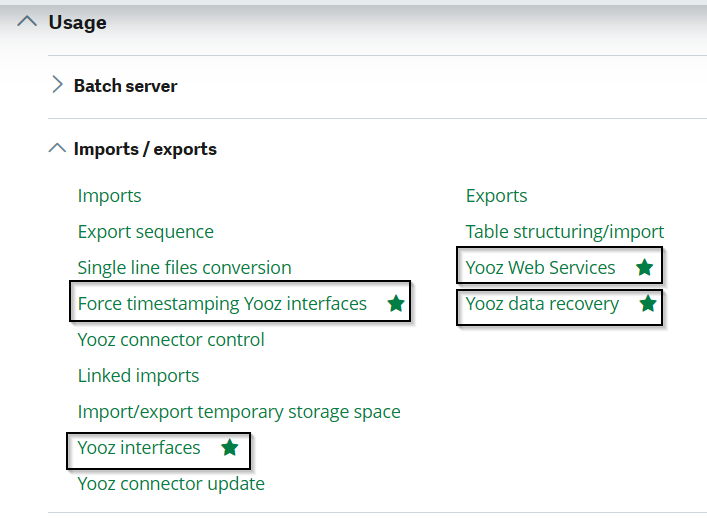
5. Reconnect to Sage X3 after the import. The new Yooz menus will then become available. They can be found by entering Yooz in the menu search bar.
4. Creating the recurring task XRJ31EXE
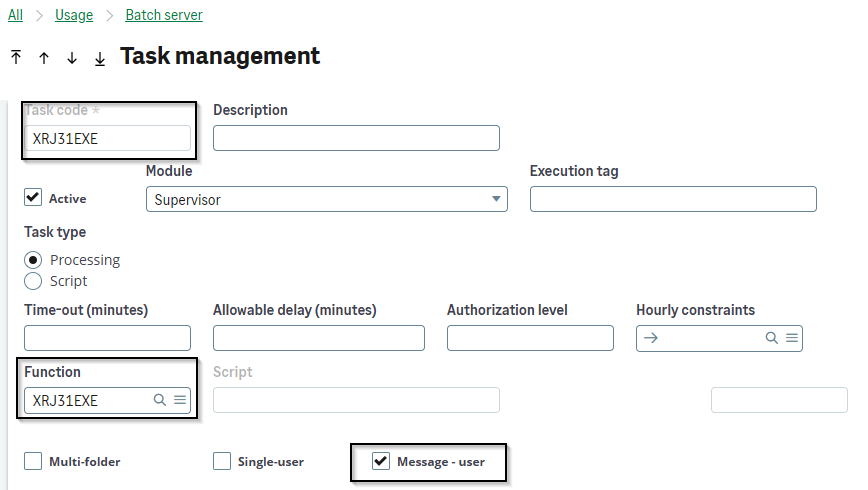
The task and the recurring task are not delivered via patch, as this data is stored in the X3 folder. This task automates the synchronization processes of the Yooz X3 connector, ensuring regular exchanges between Sage X3 and Yooz via Web Services.
-
First, create the batch task in the function: Usage > Batch Server > Task Management (GESABT function)
-
Create an XRJ31EXE code task, based on the XRJ31EXE function.
-
Next, create the recurring task: Usage > Batch Server > Recurring Task Management (GESABA function)
-
Create a recurring task based on the XRJ31EXE task. It must be scheduled with a high frequency to maintain good synchronization between Sage X3 and Yooz.
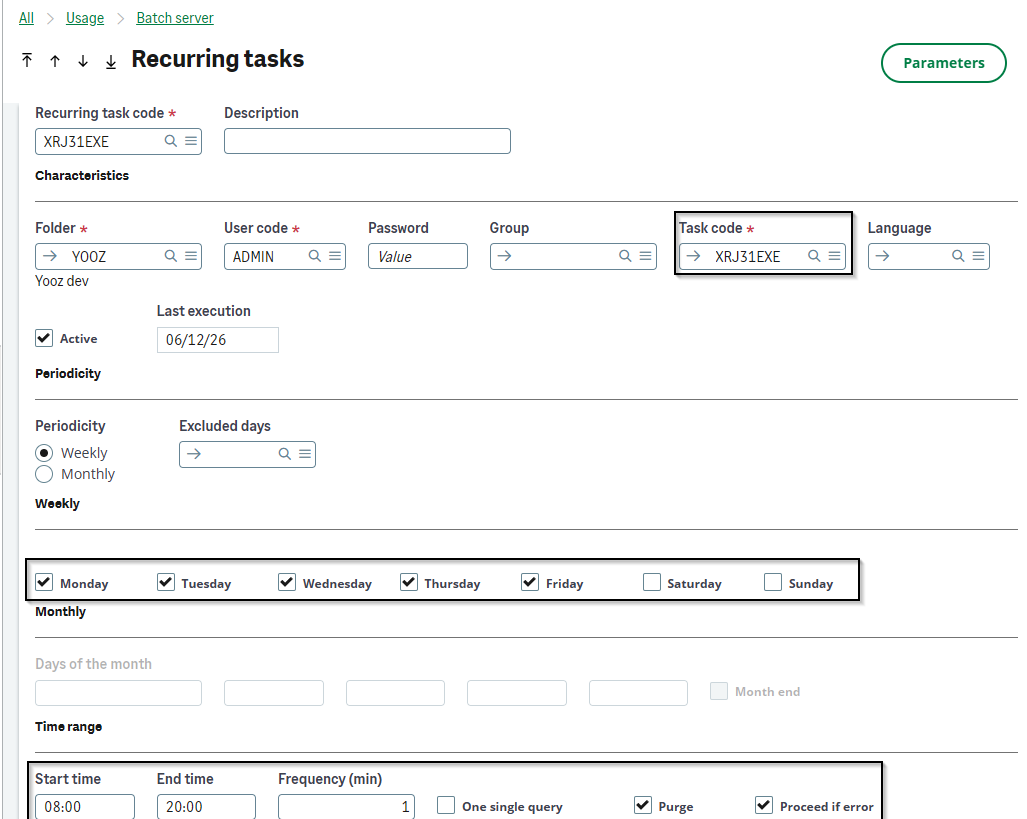
- Click the Settings button and check the boxes next to the items you want to sync. If you need to change these settings later, you’ll need to disable and then re-enable the subscription.
Before enabling the subscription (checking the “Active” box), you must coordinate with the project team or the functional K-users.
5. Configuring the Yooz user (in the Administration and Configuration modules)
This step prepares the technical account used by the connector and by the Web Services calls. The account must be available in the Sage X3 / Syracuse administration interface and linked to the correct endpoint.
1. Open Administration > Administration > Users.
2. Create or control the Yooz technical user account intended for the connector.
3. Specify the necessary endpoints. The user must be able to access the relevant X3 folder.
4. Add the necessary groups and roles according to the client's authorization policy.
5. Verify that the account is active and that the password is known when creating the Web Services pool.
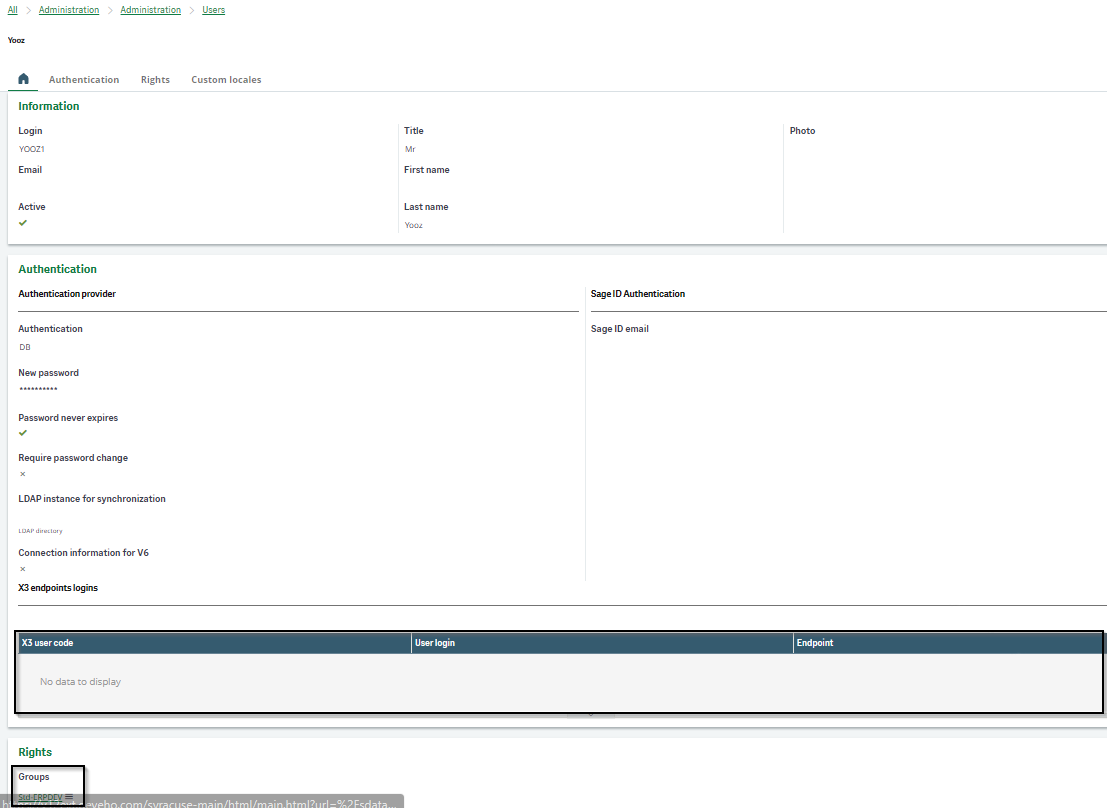
The technical user account used by the SOAP pool must be stable. Avoid using named accounts, as user deactivation or password changes can disrupt Yooz to Sage X3 data flows.
The Yooz user must also be controlled in the X3 parameter functions. It is used in object properties when returning or importing from the Yooz application.
1. Open Setup > Users > Users (GESAUS function).
2. Create or control the YOOZ user used by the connector.
3. Add the workflow email address when the project plans to send notifications or traces.
4. Control X3 authorizations, access to the folder and the necessary rights on the objects processed by the connector.
5. Save and then validate the user if the function requires it.
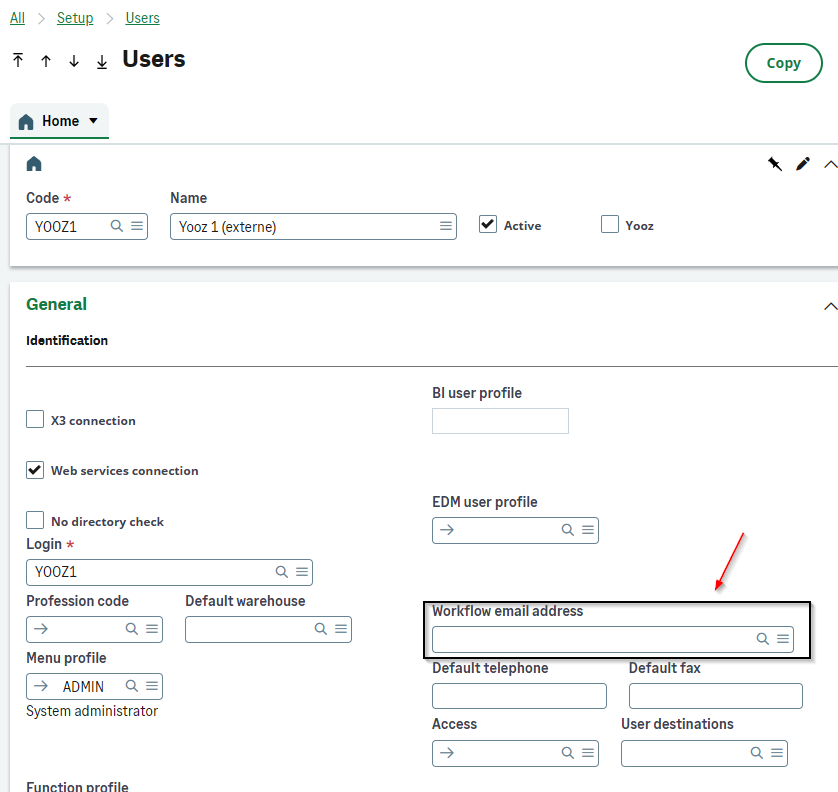
NOTE: The Yooz user must have consistent permissions across Syracuse administration, the X3 setup, and the Web Services pool. Discrepancies in permissions between these three levels are a frequent cause of connection errors or failed processes.
6. Creation of the Yooz SOAP Web Services Pool
The SOAP Web Services pool allows Yooz to call Sage X3 Web Services. This is the technical point used by incoming flows from Yooz to X3, particularly for imports or returns managed by the connector.
Open the function: Administration > Administration > Web services.
1. Add the endpoint corresponding to the relevant Sage X3 folder.
2. Add a user with the necessary rights. The user must be the one prepared in the previous steps or an equivalent technical account.
3. Create a pool per endpoint. When multiple folders or endpoints are exposed, each must have its own pool.
4. Provide an explicit pool alias. This alias is communicated to Yooz along with the associated password.
5. Verify that the pool user has sufficient rights to run the services required by the connector.
6. Save the pool configuration and verify that no errors are reported in the administration.
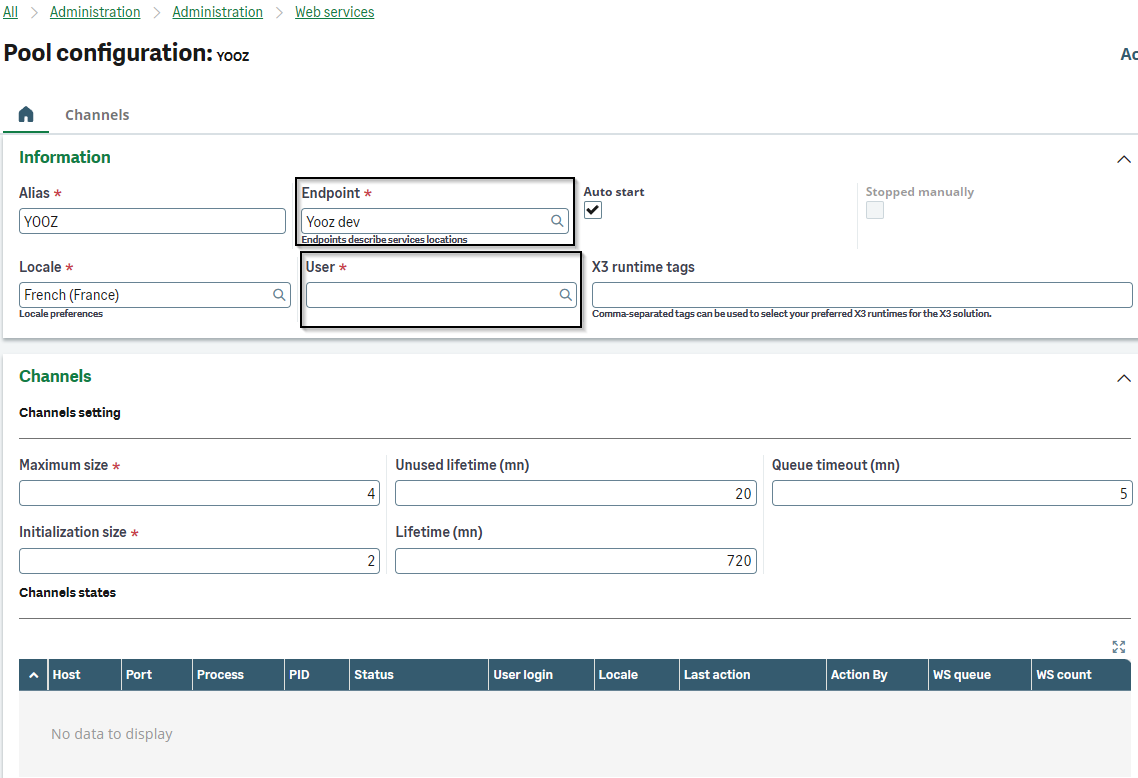
After creating the pool, perform a global publication from the GESAWE function of all AOWS* Web Services. This publication makes the necessary Web Services available for SOAP calls from the connector.
1. Open the Development > Script dictionary > Scripts > Web services (GESAWE function)
2. Filter AOWS* Web Services.
3. Launch the global publication.
4. Check that the publication is completed without errors.
Provide Yooz with only the necessary information: the published SOAP URL, the pool alias code, and the associated password. Do not send any screenshots containing visible secrets or passwords.
NOTE: The SOAP path expected by Yooz must be accessible from the outside according to the validated architecture: /soap-generic/syracuse/collaboration/syracuse/CAdxWebServiceXmlCC. When access is via a reverse proxy, verify that this path is correctly routed to Sage X3.
7. Added the YOOZ badge to Roles
The YOOZ badge is created during serial integration. It must be added to the roles of users who use the connector, as well as to the role used by the technical account or the batch server.
1. Open Administration > Users > Roles.
2. Identify the roles used by users of the Yooz X3 connector.
3. Add the YOOZ badge to the relevant roles.
4. Also add the YOOZ badge to the role assigned to the account used by the batch server and/or the Web Services pool.
5. Request users to reconnect if necessary so that the new rights are taken into account.
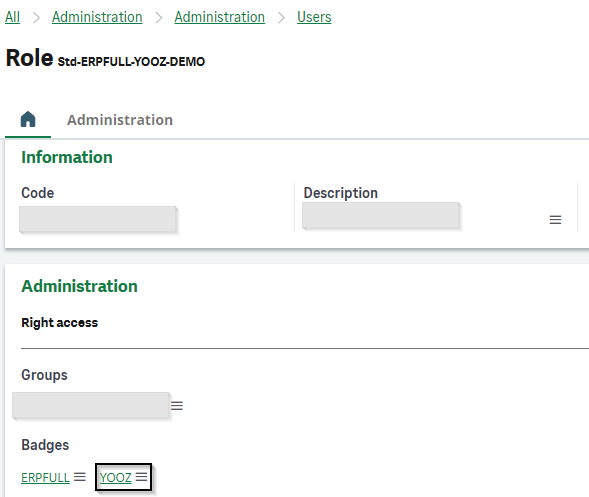
Don't forget the role of the batch server. If the YOOZ badge is not assigned to the account running XRJ31EXE, automated processes may fail even if interactive users have the necessary rights.
8. Additional Step: Hotfix Patch
The installation package may contain a Hotfix subdirectory. This step is only necessary if files are present in this directory.
1. Check the Hotfix directory in the package.
2. If it contains files, open the Patch Integration function: Development > Utilities > Patches > Patch Integration (PATCH function).
3. Fill in the Patch field with the path [PATCH]/YoozConnectorSageX3-Installation/Hotfix.
4. Start the patch integration, then wait for the trace to appear before continuing.
5. Analyze the trace. It should not contain any warnings or errors.
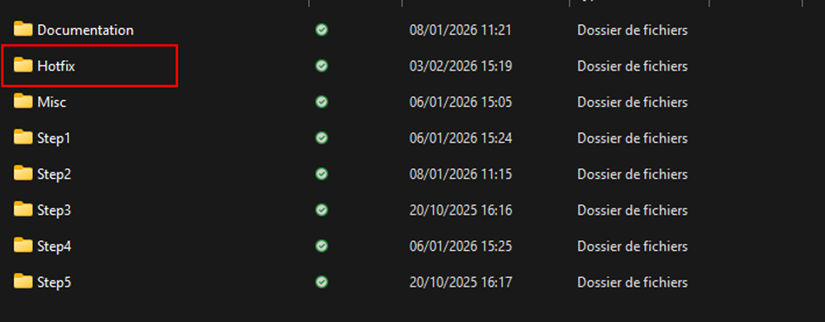
NOTE: The Hotfix stage follows the same logic as the Step2 or Step3 patches: integrate, wait for the trace, then address any anomalies before proceeding.
9. Yooz connection technical parameters
The authentication method available with Yooz is based on Client ID/Client Secret. The Yooz team must authorize Deveho as a partner, define the necessary permissions in the Yooz application, and provide the project with the required credentials.
9.1 Connection settings
Open the function: Setup > General parameters > Parameter values (ADPVAL function), EXAPP chapter, YOOZ group.
| Setting | Role / Use | Vigilance |
|---|---|---|
| XRJ31APPID | Identifier of the Yooz application called by Sage X3. | Value provided by PM Yooz. Mandatory. |
| XRJ31CLIID | Client identifier used for API / OAuth authentication. | If incorrect: authentication refused. |
| XRJ31CLISC | Client secret used with Client ID. | Confidential data not to be displayed in screenshots. |
| XRJ31URLDO | Yooz URL of the target environment: test, pre-production or production. | Verify that the URL matches the provided credentials. |
| XRJ31TIMZO | Time zone used in trade, e.g. Europe/Paris. | If incorrect: risk of date/time discrepancies. |
| XRJ31USRLA | Language used in exchanges, e.g. fr or en. | If incorrect: unexpected language on Yooz's side. |
Before any flow test, verify that the Yooz URL, Application ID, Client ID, and Client Secret correspond to the same environment. Mixing test and production values can send data to the wrong environment.
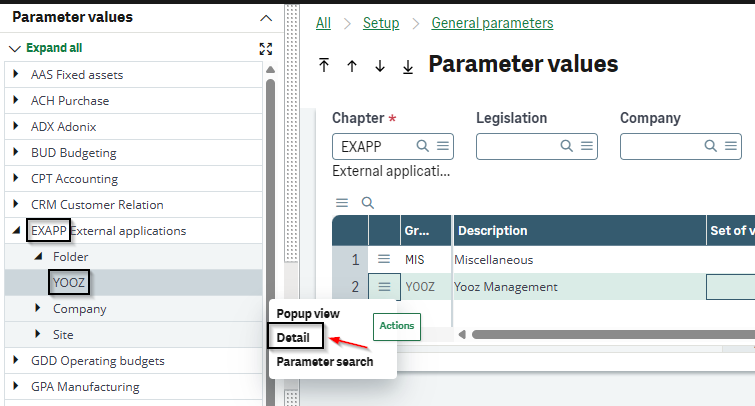
9.2 Options Curl and configuration proxy
When sending certain documents, such as purchase orders or receipts, the connector uses a Curl command to communicate with Yooz. The XRJ31CURLO parameter allows you to add technical options to the request.
1. Open Setup > General parameters > Parameter Values (EXAPP chapter, YOOZ group).
2. Specify the XRJ31CURLO parameter only if a technical option is required.
3. In the case of a network protected by a proxy, use an option of type: -x <[protocol://][user:password@]proxyhost[:port]>.
4. Test sending a document after modification to check that the proxy or the added option does not block the Yooz call.
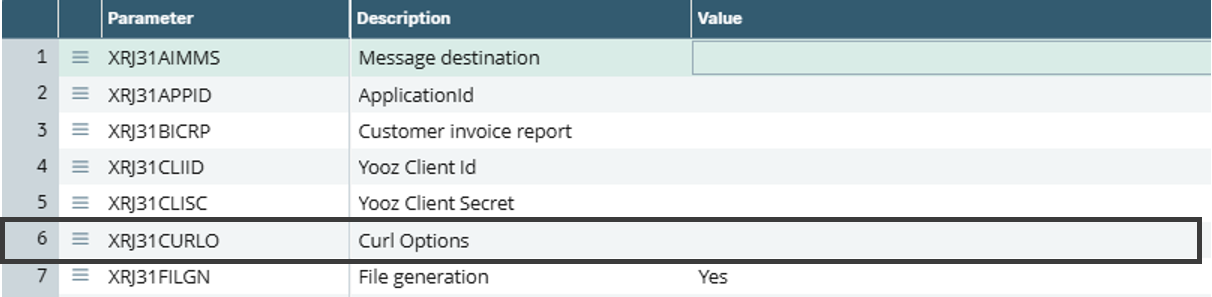
Do not configure the Curl option without validation from the infrastructure team. An incorrect option can block all outgoing REST traffic to Yooz.
9.3 Managing two Yooz applications on the same X3 environment
When the same X3 environment has multiple folders, for example a test folder and a production folder, it may be necessary to manage two separate Yooz applications from the same technical environment.
1. Open Administration > Administration > Web services > Rest web services.
2. Duplicate the two REST Web Services with new code when the project requires two Yooz applications.
3. Next, enter the dedicated parameter values in Setup > General parameters > Parameter Values (EXAPP chapter, YOOZ group).
4. Use XRJ31RESTT and XRJ31RESTY to specify the REST Web Services codes to use for the Yooz add-on application.
5. If the Sage X3 environments are physically or technically separated, these specific settings are generally not necessary.


When two Yooz applications need to be fed from the same X3 folder, check XRJ31RESTT and XRJ31RESTY before repository restarts and before activating XRJ31EXE.
10. Automatic connector update procedure (XRJ31UPD)
The Yooz connector update function allows you to update the connector from Sage X3. It should be used when the target version of the connector requires an update of the connector core, certain technical fields, indexes, standard screens or additional functions.
Open the function: Usage > Imports / exports > Yooz connector update (XRJ31UPD function).
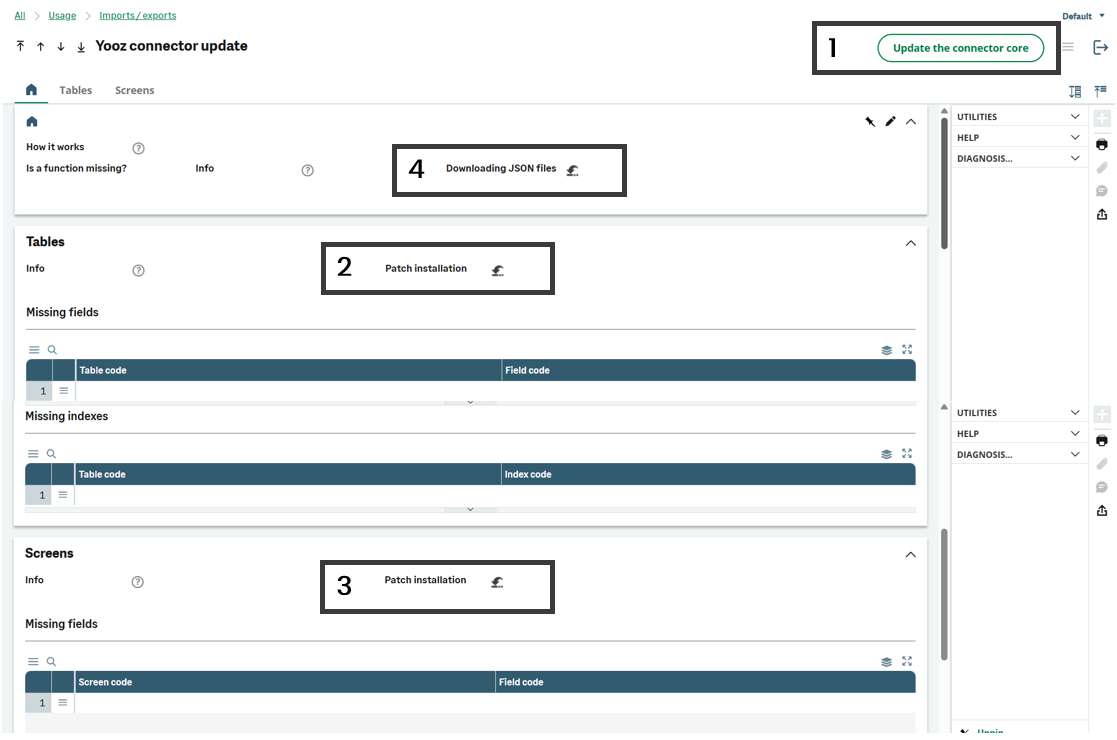
-
Update the specific core of the Yooz X3 connector.
-
Add missing fields and indexes to standard tables when the target version requires it.
-
Add the necessary fields to the relevant standard screens.
-
Add the additional features delivered in the target version: Import the JSON files associated with the new version via Administration > Utilities > Imports > Import Tools.
NOTE: If the client does not wish to patch the standard elements, manually apply the modifications described in the PatchFiles.xlsx file.
11. Additional parameter on the Yooz side
An additional step may be required in the Yooz application, particularly for payment returns to Sage X3.
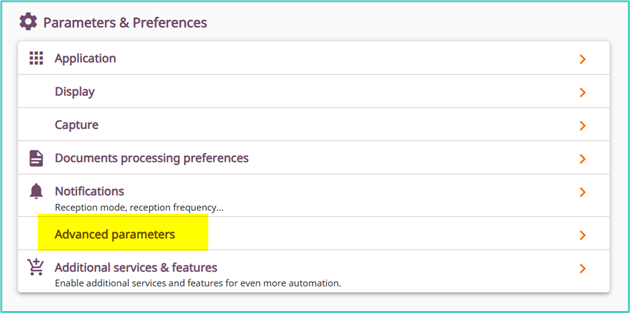
1. Open the Yooz application with a user who has the necessary administrative rights.
2. Access the Advanced parameters section.
3. Check the parameter relating to the re-importing of a file with the same checksum.
4. Set the parameter to Off when the Yooz payment return flow to Sage X3 requires it.
5. Validate the change with the Yooz project manager before launching payment feedback tests.
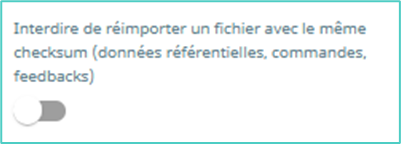
This setting is on the Yooz side. It should only be modified when the project workflow requires it and after validation by the Yooz team.
4-Synchronization of referentials
Context and objective
This chapter describes the functional configuration and operating procedure for initializing Yooz repositories from Sage X3, and then keeping these repositories up to date via the Yooz X3 connector.
The general principle is as follows: the reference data remains administered in Sage X3, the necessary Yooz organization codes are entered in the X3 functions, then the records are transmitted to Yooz by the connector's usage functions.
This chapter details the operating procedures for:
-
Check the prerequisites arising from the technical installation of the connector.
-
Configure the X3 functions that control the sending of the repositories.
-
Launch a massive migration of master data from X3 to Yooz.
-
Run the Yooz Web Service and check the generated interfaces.
This document addresses these phases of implementation:
| ▼ | ||||||
|---|---|---|---|---|---|---|
| Pre-sales | Initialization | Framing | Installation | Setting | Recipe | Production launch |
Prerequisites and preparation
Before starting the synchronization of the repositories, it is imperative to verify that the technical installation of the connector is complete on the relevant Sage X3 folder.
-
Required rights: connect to Sage X3 with an ADMIN account or a user with the necessary permissions on the configuration and use functions of the connector.
-
Yooz login: have access to the information provided by the Yooz project manager: application ID, client IDs, target URL, language, time zone and any technical options.
-
Yooz preparation: the expected organizations and analytical axes must be created or validated on the Yooz side before sending the corresponding repositories from X3.
-
Traceability: temporarily enable the generation of call files if a detailed analysis of the flows is required during setup.
The recurring task should only be activated after the initial restart has been validated. Before this validation, prioritize manual launches for each object to control volumes and potential errors.
Relevant reference frameworks
The table below summarizes the reference data to be prepared, the associated X3 functions, and the expected behavior on the Yooz side.
| Reference document | Function / Menu X3 | Interface object | Key settings |
|---|---|---|---|
| Companies / Websites | Setup > Organizational structure > Sites | Organisations Yooz | Enter the Yooz organization code on the X3 website; check the financial website and the purchase/sale codes. |
| Users | Setup > Users > Users | OUT OF | Select Yooz for the users to be transferred; verify the email address and associated rights. |
| Suppliers | Common Data > BPs > Suppliers | BPS | Configure the supplier category: Yooz organization code, optional formula and Yooz box. |
| Clients | Common Data > BPs > Clients | BPC | Configure the customer category: Yooz organization code, optional formula and Yooz box. |
| Chart of accounts / Accounts | Setup > Organizational structure > Chart of accounts | COA / GAC | Check Yooz on the plan; fill in the Yooz organizations and the filter formula if necessary. |
| Analytical axes / Sections | Common data > General accounting tables > Analytical > Analytical sections | CCE | Create the axis in Yooz, select Yooz for the dimension type and check the sections to send. |
| Tax rates | Common data > Common tables > Taxes > Tax rates | TVT | Check Yooz on the rates to be transmitted; verify the legislation, the type of tax and the tax rule. |
| Payment terms | Common data > BP tables > Payment terms | TPT | Check Yooz; enter the Yooz organisation code or the expected globalized repository (YZ_PAYMENT_METHOD). |
| Articles / Products Article category | Common data > Articles > Articles / Article category | ITM / ITG | Depending on the purchasing scope, configure the product category: Yooz organization code or global repository (YZ_ITEM), optional formula, and Yooz field. Only active products are transmitted. |
Noticed: Expense or service items can also be sent when the purchasing scope requires lines outside of the purchase reference in Yooz. This point needs to be validated according to the project workflow.
Operating procedure
1. Configure the general values
-
Open the Parameter Values function via the menu Setup > General parameters > Parameter Values (ADPVAL function)
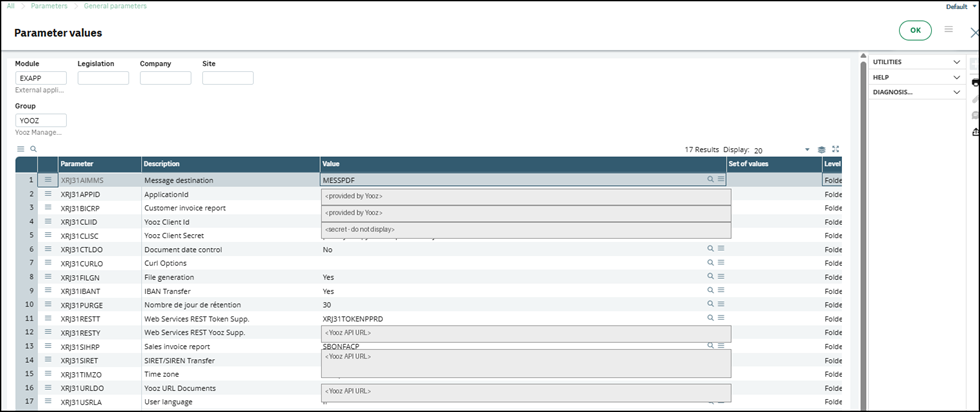
-
Complete the EXAPP chapter and the YOOZ group. Connection values are provided by the Yooz project manager and must be entered at the file level, unless otherwise instructed.
| Setting | Type | Value to be entered | Role / Use | Responsible / vigilance |
|---|---|---|---|---|
| XRJ31FILGN | Traceability | Yes in setup/recipe; No in production unless analysis is required | Generates JSON files sent to Yooz to facilitate stream analysis | Consultant X3 — temporarily recommended Disable this if file retention is no longer necessary. |
| XRJ31PURGE | Traceability | Number of days of retention desired.0= unlimited storage. | Defines the retention period for elements generated or stored by the connector. | Client / Consultant X3 — to be defined according to the retention policy. Avoid 0 in production unless explicitly needed (or for accumulation of traces). |
  |
|---|
2. Configure Yooz companies/sites and organizations
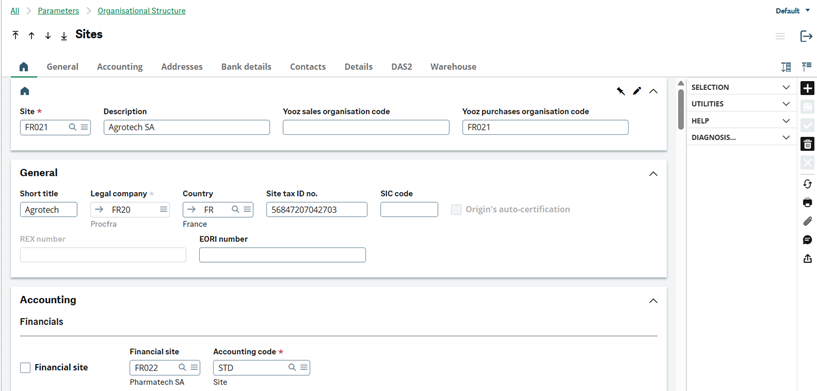
In the connector, the X3 site is the operational link to the Yooz organization. X3 financial sites generally correspond to Yooz organizations; non-financial sites can be linked to a Yooz organization when exports are performed via the financial site.
1. Open the Sites function: Setup > Organizational Structure > Sites (GESFCY function)
2. Check the website, legal company, country, tax number and financial site status.
3. Enter the corresponding Yooz organization code. Depending on the scope, distinguish between the purchasing organization code and the sales organization code.
4. Verify that the entered code exists on Yooz's side and that it respects the expected case and format.
Case 1: Non-financial site linked to a financial site
Case 2: Direct financial website
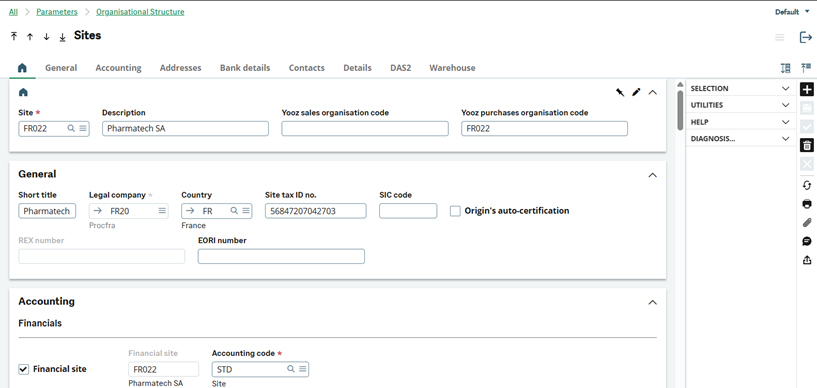
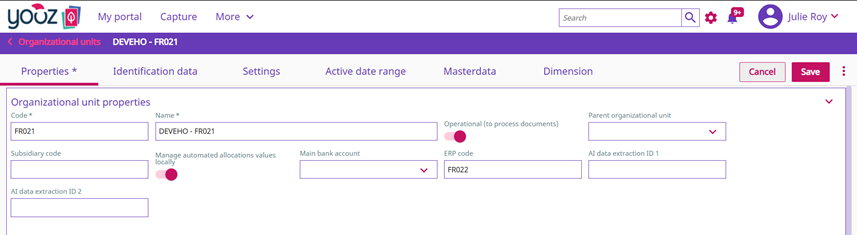
The Yooz organization code is a reconciliation identifier. It must be stable and identical between Sage X3 and Yooz; any discrepancy will generate synchronization errors or data will be attached to the wrong organization.
3. Configure the X3 users to send to Yooz
X3 users can be passed to Yooz for creation or updates on the Yooz side. A Yooz technical user must also be prepared for use in object properties during returns or imports from Yooz.
-
Open Setup > Users > Users (GESAUS function).
-
Create or control the YOOZ technical user used by the connector.
-
Check the workflow email address if it is required by the project.
-
Check Yooz on the X3 users to transfer to Yooz.
-
Verify that each transmitted user has a valid email address and consistent rights.
-
In Syracuse administration, check the endpoints and groups associated with the technical user.
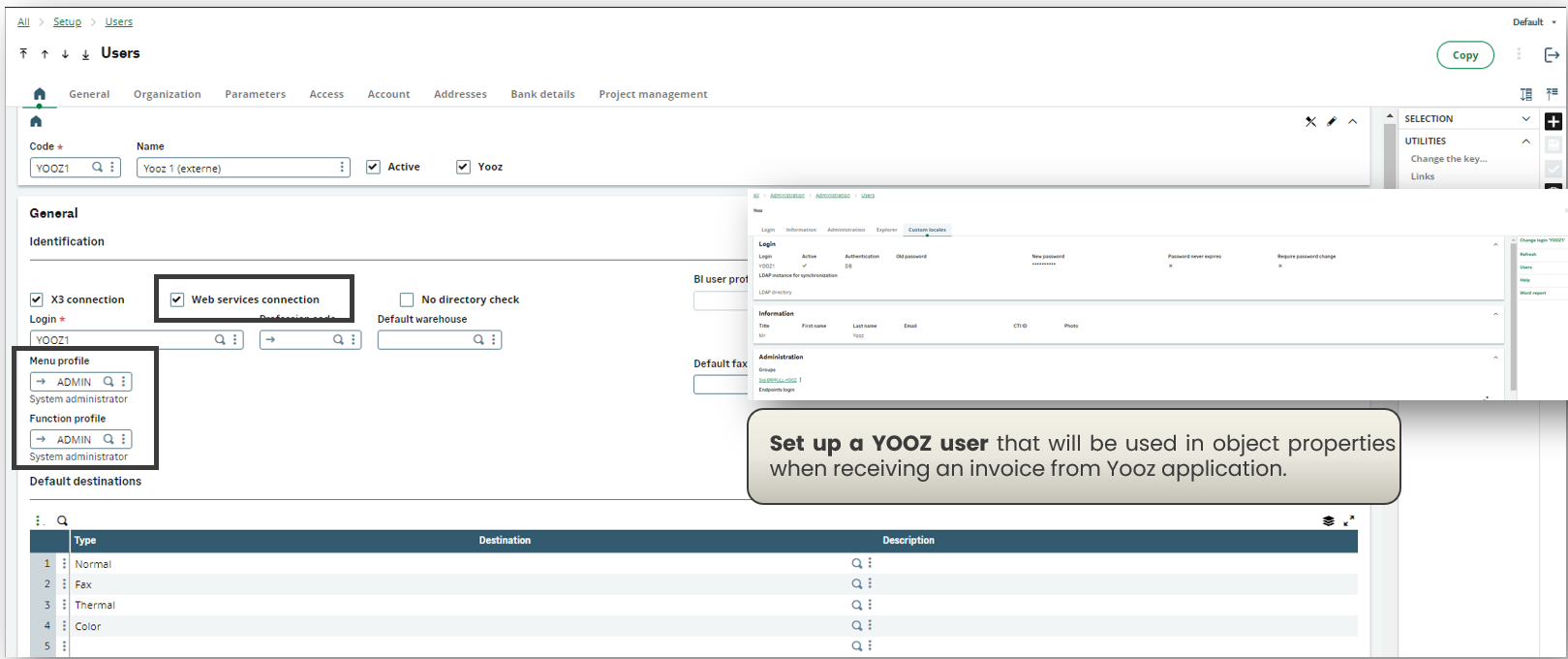

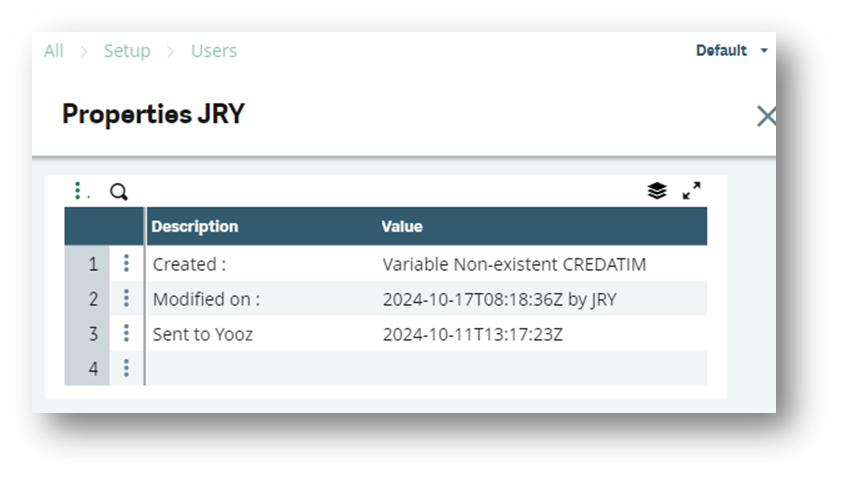
⚙️USEFUL PARAMETER VALUES
XRJ31USRLA: language transmitted during Yooz user creation/update.
XRJ31TIMZO: Time zone transmitted for the Yooz user
The Yooz checkbox controls the sending of the user to Yooz. Checking the box creates or updates the user on the Yooz side; unchecking it may result in deletion or deactivation depending on the connector's behavior. Confirm the expected effect before making any bulk changes.
4. Configure the analytical axes and sections
X3 analytical axes are sent to Yooz as dimensions. Creating or validating the axis on the Yooz side is a prerequisite before importing the analytical sections.
-
Open Setup > Organizational Structure > Dimension Types (GESDIE function).
-
Check the “Yooz” box for the desired dimensions.
-
Enter the Yooz code for the axis when the axis needs to be sent.
-
Add a Yooz formula if only certain sections need to be included or excluded.
-
Enter the Yooz dimension set code when multiple axes or dimension sets are managed.
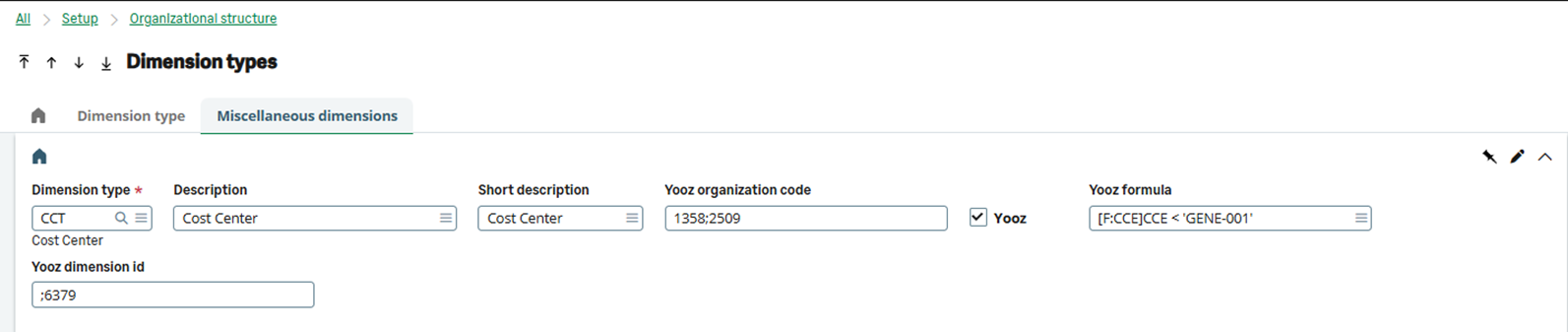
- Control the sections in Common Data > General accounting tables > Analytical > Dimensions (GESCCE function).
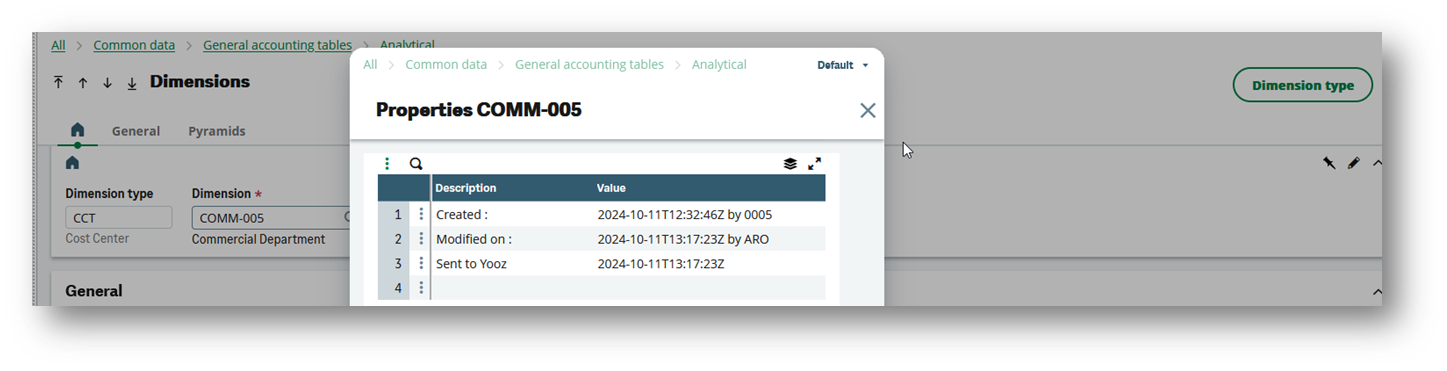
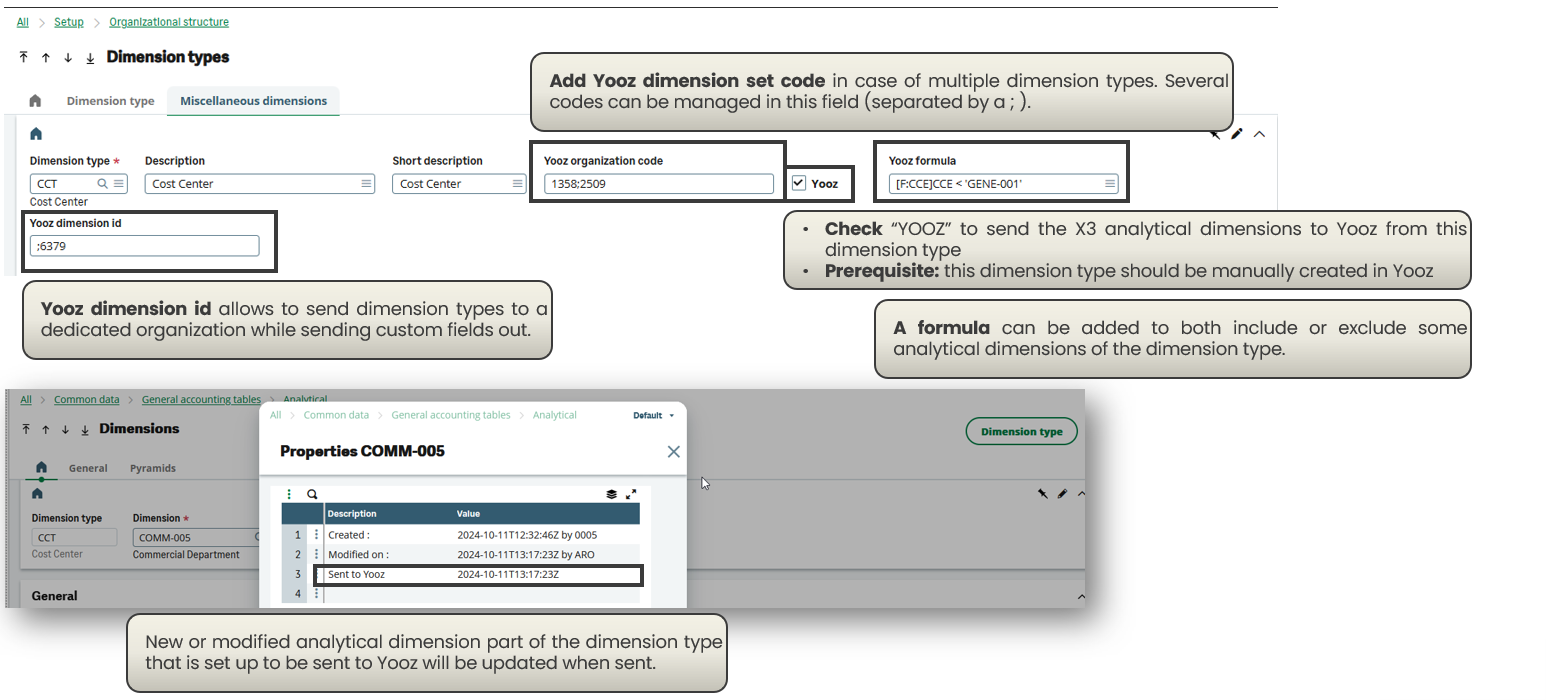
Do not initiate the CCE migration at this stage if the axis configuration has not yet been validated. The CCE migration sends the analytical sections to Yooz. Therefore, it should only be executed after validation of the analytical dimensions type and the expected mapping on the Yooz side.
5. Configure the chart of accounts and accounting accounts
The X3 account plan manages the sending of accounts to Yooz. When multiple plans are present, the mapping of Yooz organizations and the propagation rules between plans must be clarified during setup.
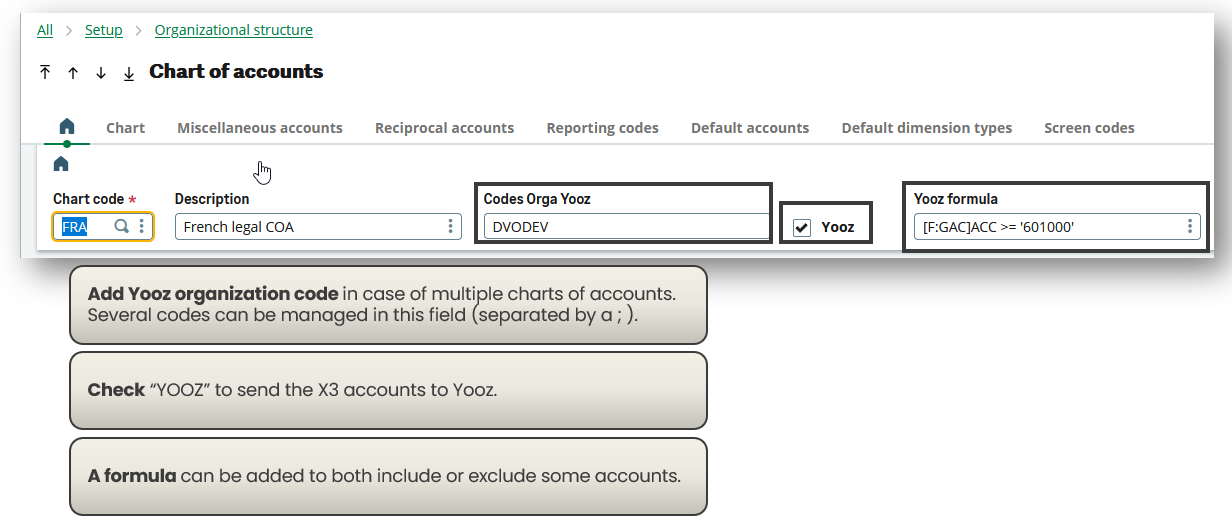
-
Open Setup > Organizational Structure > Chart of Accounts (GESCOA function).
-
Select Yooz on the relevant account plan(s).
-
Enter the Yooz organization codes if multiple organizations or repositories are used.
-
Separate multiple codes with a semicolon when the project settings allow it.
-
Add a Yooz formula if only certain accounts need to be sent.
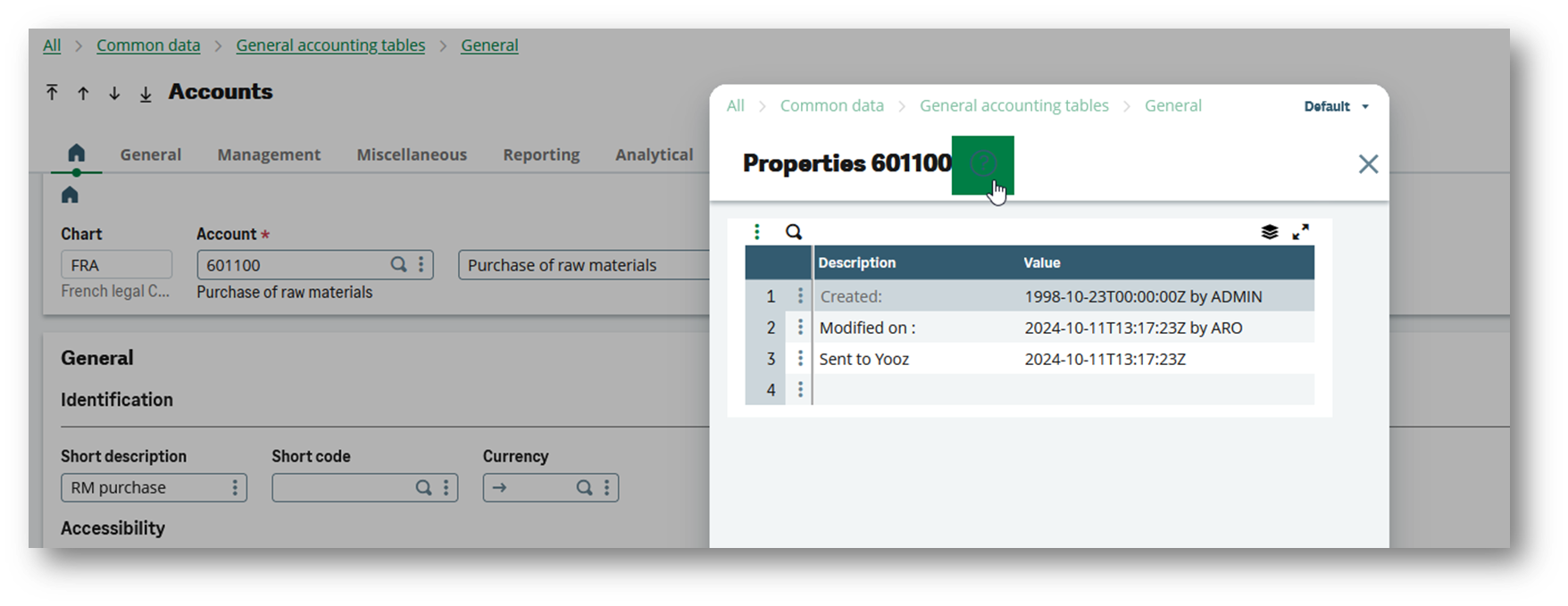
- Check the accounts in Common Data > General accounting tables > General > Accounts (GESGAC function).
Example: A formula can be used to exclude account classes not used in Yooz or to limit sending to the purchase/sale scope defined during scoping.
6. Configure tax rates and payment terms
Tax rates and payment terms are reference data used by invoice flows. They must be consistent between Sage X3 and Yooz before testing purchasing, finance, or sales flows.
Tax rates
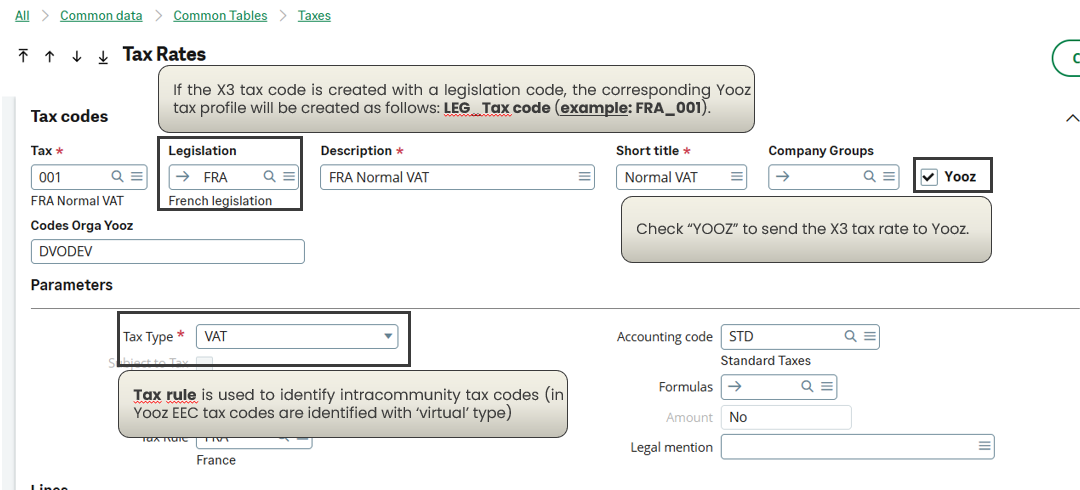
-
Open Common data > Common tables > Taxes > Tax Rates (function GESTVT).
-
Check Yooz on the rates to be transmitted.
-
Check the legislation and the tax code. The code transmitted to Yooz is usually in the form LEG_TAXE.
-
Check for cases of self-assessment / intra-community tax: these can be materialized on the Yooz side with a specific type of tax.
-
Controlling negative rates: the rate can be sent as a positive value with a negative tax indicator.
-
Validate the percentage of recoverable VAT when the scope requires it.
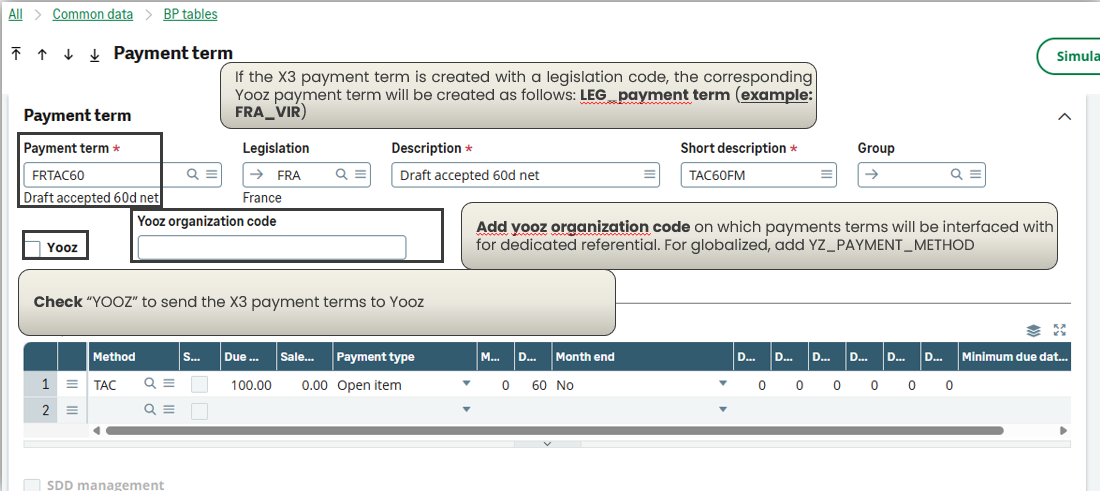
Payment terms
-
Open Common Data > BP tables > Payment Terms (GESTPT function).
-
Check Yooz for the payment terms to be submitted.
-
Enter the Yooz organization codes if the repository is not global.
-
If the legislation is informed, check the expected restriction on Yooz organizations corresponding to the companies and financial sites concerned.
-
Verify that historical payment methods are not confused with payment terms: the standard flow uses GESTPT.
7. Configure suppliers and customers
Third parties are managed by their category. The category defines Yooz activation, the target Yooz organizations, the filtering formula and, where applicable, the dedicated or globalized repository mode.
⚙️USEFUL PARAMETER VALUES
XRJ31SIRET: activates the sending of the SIRET / SIREN to Yooz when the project requests it.
XRJ31IBANT: Determines whether supplier IBANs should be sent to Yooz. Enable only if the scope justifies it, as this is sensitive data.
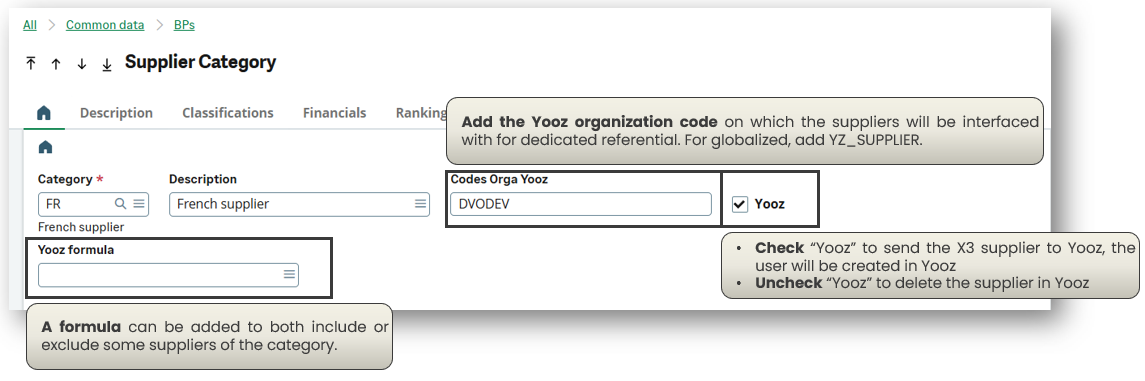
Suppliers
-
Open Common Data > BPs > Supplier Categories (GESBSG function).
-
Select Yooz for the supplier categories to be transmitted.
-
Enter the Yooz organization codes or the planned global repository (YZ_SUPPLIER)
-
Add a Yooz formula if certain suppliers in the category need to be excluded.
-
Specify the dedicated reference behavior if the supplier scope is managed by organization.
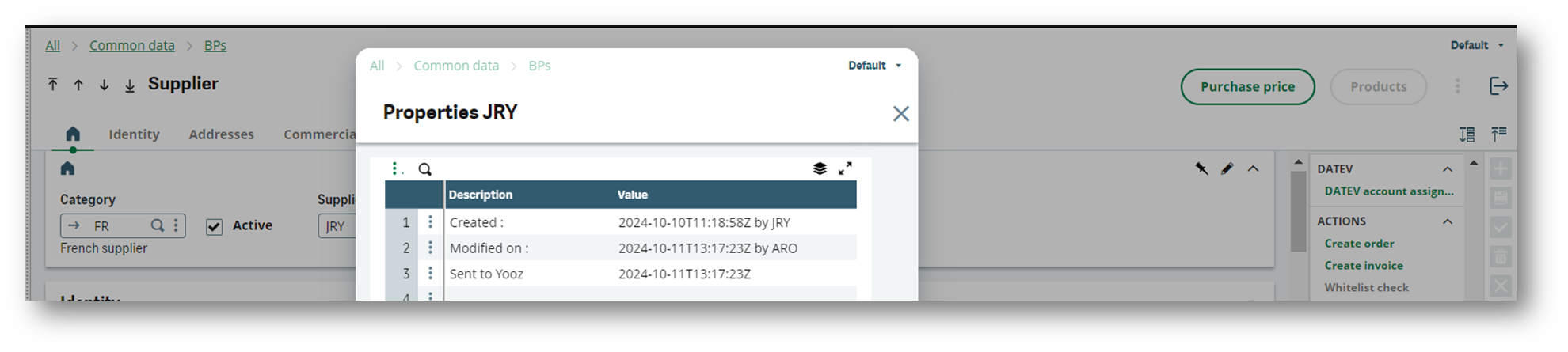
- Check the records in Common Data > BPs > Suppliers (GESBPS function).
Special case Third-Party/Company Exceptions (GESBPR)
When the supplier scope is managed by organization and exceptions exist, the connector adapts automatically.
-
Rocking mechanism: As soon as a Third Party/Company exception is detected, the system ignores the standard data from the Supplier record (GESBPS) to favor the data from the Third Party record (GESBPR - BPEXCEPT table).
-
Multiple creation: The connector generates as many supplier records in Yooz as there are exceptions.
-
Substituted data: For each mapped site, the values transmitted to Yooz come from the exception (tax regime, payment condition, discount, accounting code).
Rigorous control of multi-company suppliers in GESBPR is imperative before launching the initial data migration.
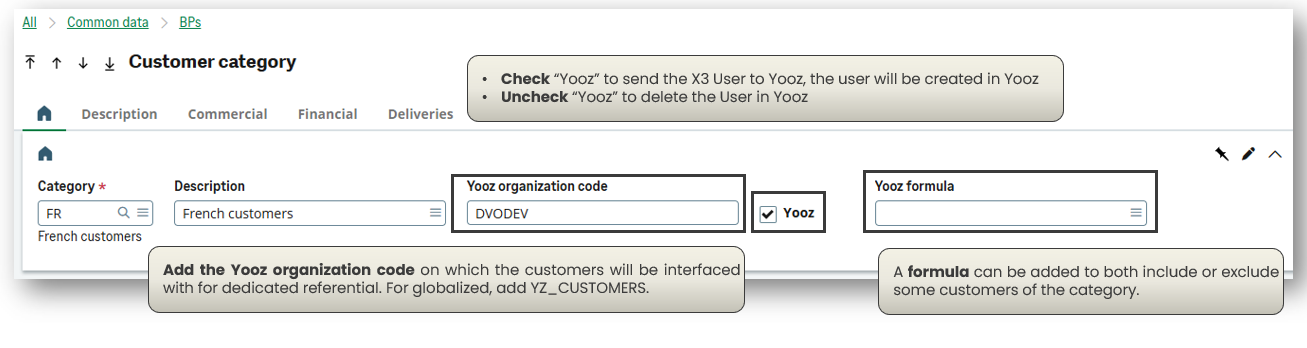
Clients
-
Open Common Data > BPs > Customer Categories (GESBCG function).
-
Enter the Yooz organization code or the planned globalized repository (YZ_CUSTOMER).
-
Add a Yooz formula if certain customers need to be excluded.
-
Check Yooz on the categories to be transmitted.
- Next, check the records in Common Data > BPs > Customers (GESBPC function).
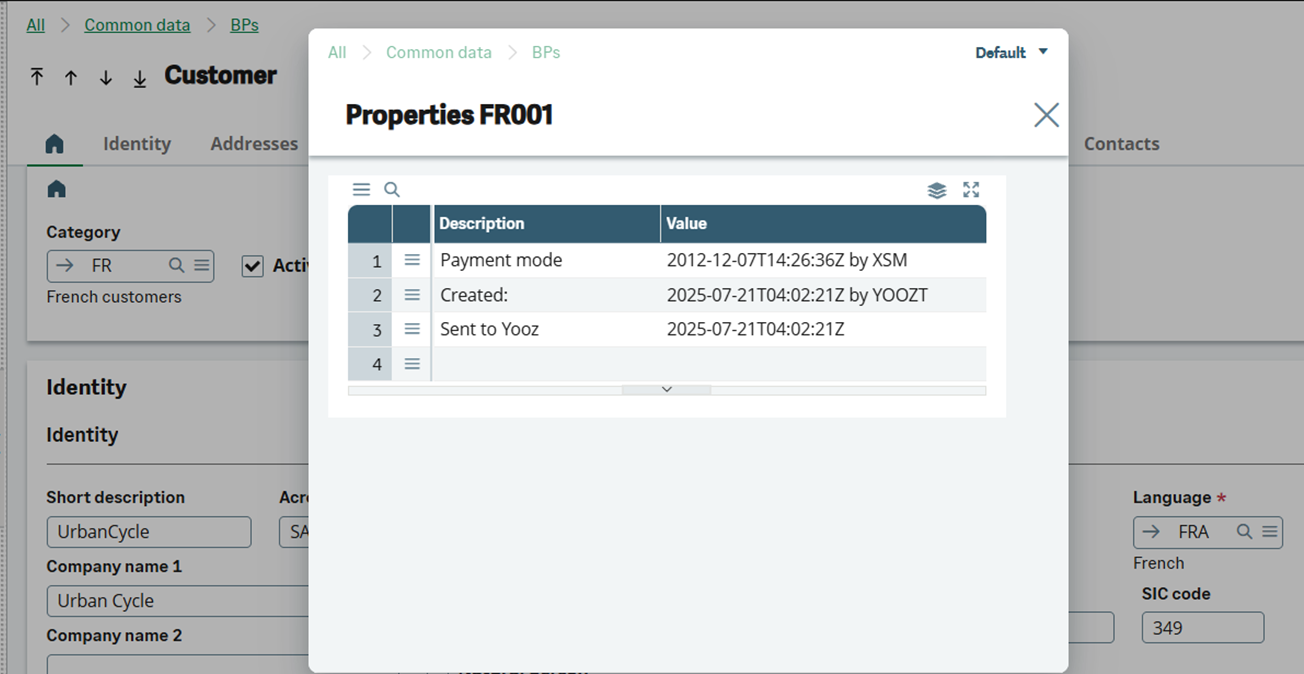
Deactivating a category or third party that has already been transmitted may trigger a deletion or inactivation request on the Yooz side, depending on the connector's behavior. Validate the expected effect before making any bulk changes.
8. Configure the products (useful within the context of the purchase flow)
The articles/products are only necessary when the purchasing scope includes sending products to Yooz, for example to manage lines outside the purchase reference or items of expense/service.
-
Open Common Data > Products > Product Categories (GESITG function).
-
Enter the target Yooz organisation code for a dedicated repository, or the globalised code provided by the project.
-
Add a Yooz formula to include or exclude certain items from the category.
-
Select Yooz for the categories of items to be submitted.
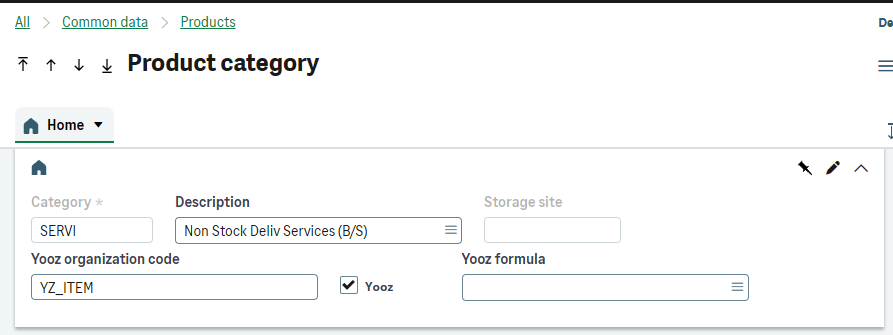
- Check the product sheets: only active products should be sent.
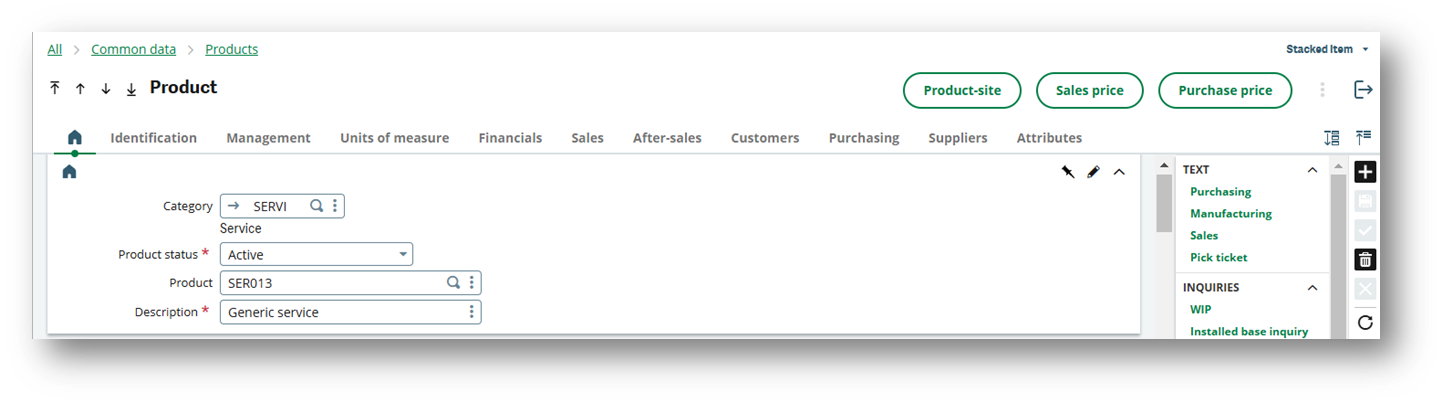
Do not include items in the scope if the project's purchasing flows do not require them.
9. Launch the initial recovery and check the interfaces
The initial recovery is used to send to Yooz the repositories already existing in X3 and which meet the configured criteria.
It must be used After manual configuration of the reference data, and Before the activation of recurrent treatments.
| 💡 Important to know: Principle of recovery The data migration feature is not a configuration tool. It simply sends the ERP data that is already eligible based on the selected Yooz boxes, organization codes, formulas, and active statuses. An incorrect formula or organization code will immediately affect the volume of data sent. |
|---|
An important initialization utility is the function to force the timestamp (XRJ31YOOZFLG): This function is used exclusively for clients already using the Yooz application before installing the connector. It simulates an initial transmission to prevent the mass resending of historical data and avoid duplicates.
⚙️USEFUL PARAMETER VALUES
XRJ31FILGN: Set to Yes during testing if JSON files need to be downloaded for analysis.
XRJ31PURGE: controls the retention of tracking elements when purging is enabled.
XRJ31RESTT / XRJ31RESTY: Check before resuming if two Yooz applications are loaded from the same X3 folder.
XRJ31LANG: List of languages, in order of priority, for retrieving the translated descriptions for accounts, sections, tax rates, and payment methods. This list is necessary if translations do not exist for certain objects in the default language of the Sage X3 folder.
-
Verify that the expected Yooz organizations, axes and reference frameworks exist on the Yooz side.
-
Check the Yooz boxes, formulas and organization codes on each relevant X3 function.
-
Open Usage > Imports/Exports > Retrieve Yooz reference data (function XRJ31YOOZREP).
-
Start the recovery only on objects validated during setup
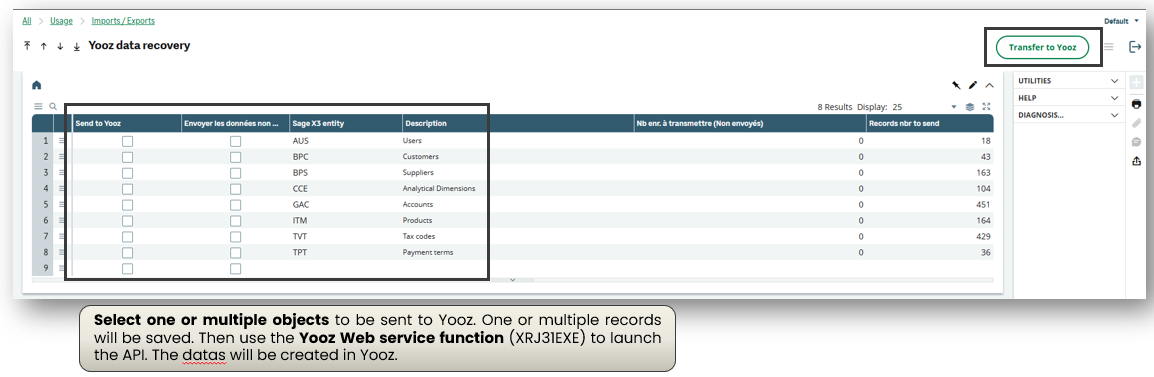
-
Execute the Yooz Web Service via the XRJ31EXE function or the intended processing.
-
Control the interfaces in Usage > Imports/Exports > Yooz Interfaces (XRJ31YOOZINT function).
- The Yooz Interfaces function allows you to track the records in the XRJ31YOOZSUI table. It should allow you to filter by object, event, and date, view errors, download call files when XRJ31FILGN is active, and retry queries that have failed or are pending.
-
Analyze the errors, correct the source settings, then replay the affected recordings.
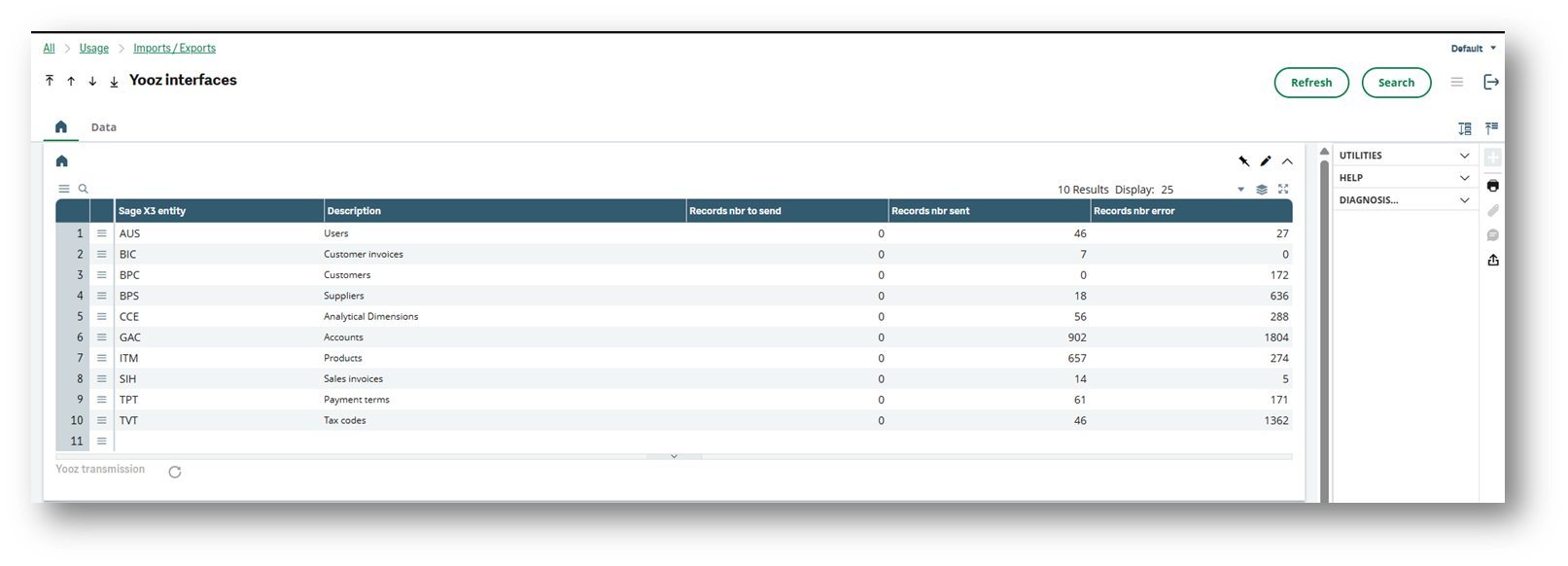

the recovery is not a configuration tool. It sends data that is already eligible according to Yooz criteria, organization codes, formulas, and active statuses. An incorrect formula or organization code immediately impacts the volume sent.
Detailed case study
Here is a detailed, point-by-point description of an initial data migration. We will use the case of an initial data migration from suppliers for this procedure; it should be noted that what is specified for this case applies to all others.
Settings check
You should always start by checking the settings for the entity in question. Refer to the previous paragraphs; the information is broken down by entity. For suppliers, this is the section Configure Suppliers and Customers.
Launch the reference data recovery function
This is the XRJ31YOOZREP function in the menu Usage > Imports/Exports > Retrieval of Yooz reference data.
For the “BPS” line, which concerns suppliers, the first step will be to check the box Send all data. And if it is a new instance of recovery following correction of data errors, it will be possible to check Send the unsent data in order to avoid submitting all the data, but only the data that has not yet been sent.
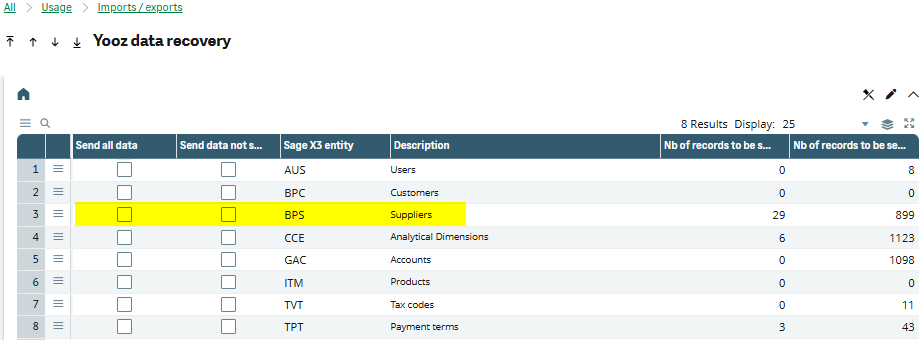
Then click on the button Forward to Yooz.
A trace will then be displayed specifying the number of records inserted into the tracking table, intended for processing in the next step.
Launch the Yooz interface function
This is the XRJ31YOOZINT function in the menu Usage > Imports/Exports > Yooz Interfaces.
You must have a Number of records to transmit greater than 0. If not, you must repeat the previous step. It is also possible that the subscription on task XRJ31EXE is active; this is illogical if you are still in initial recovery mode. You can disable this subscription and verify that there are no more requests on task XRJ31EXE.
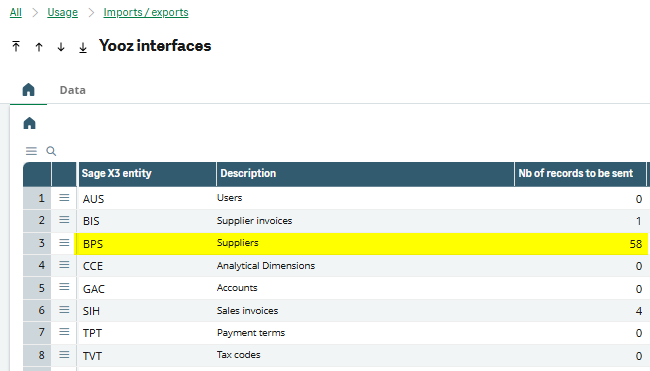
Click on the circular gear button Transmission Yooz.

The screen that appears next allows you to specify the entities to transmit; it is advisable to uncheck the boxes to keep only that of the entity concerned, here “BPS”.
However, you can also leave all the boxes checked; normally there is no other data to transmit.
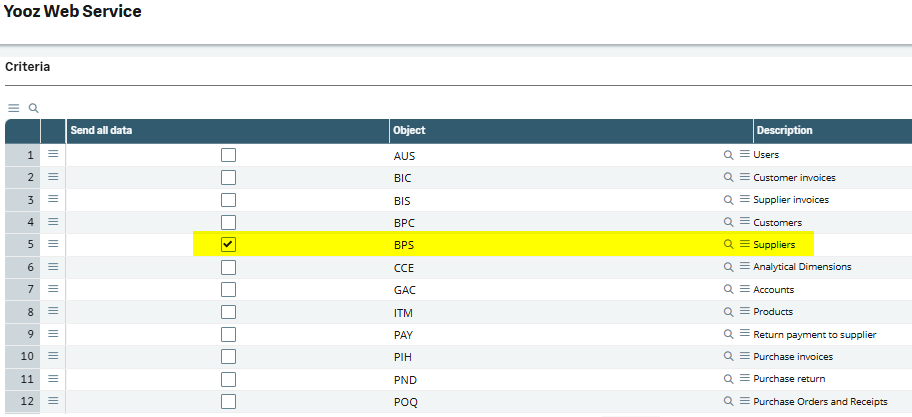
If some exports contain errors, you will see a message indicating the number of occurrences. These errors correspond to checks performed by Yooz because the transmitted data is not acceptable to the Yooz application.
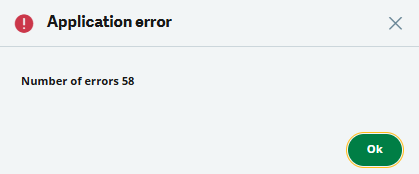
You can click on OK. A log is displayed with details of the errors. The button Copy in the right side of the screen allows you to retrieve a file locally on your computer.
However, and this is a limitation of X3, the error messages in this trace are limited to 250 characters. Therefore, it is not always the best solution for analyzing errors.
The most suitable solution to obtain the complete error message is as follows.
In this same XRJ31YOOZINT Yooz Interfaces function, use the lower part of the screen.
Enter the entity, here “BPS”, the event “Creation”, the status “Error” and today’s date.
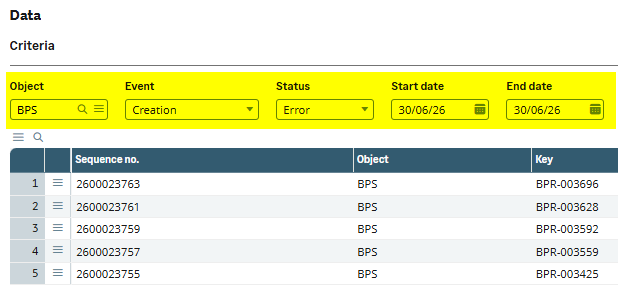
You can then, for each line, click on the option Error message.
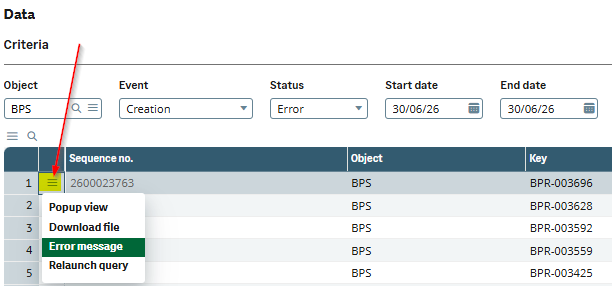
Example of the details of an error message.
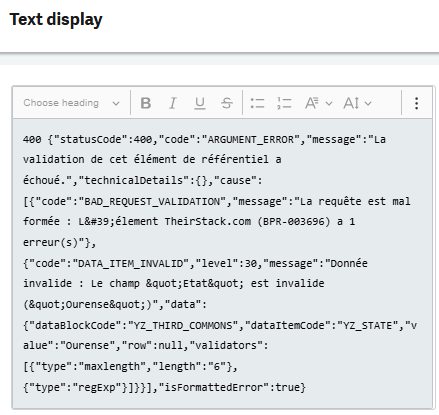
This is not always very explicit and easy to decipher, it is the error returned by the Yooz API.
In this case, the content of the STATE field is invalid; it corresponds to the region. In X3, these are the subdivisions by country.
The data in X3 (in this case, the SAT region) therefore needs to be corrected. Yooz's checks on suppliers are stricter than those of Sage X3.
Another example of an error
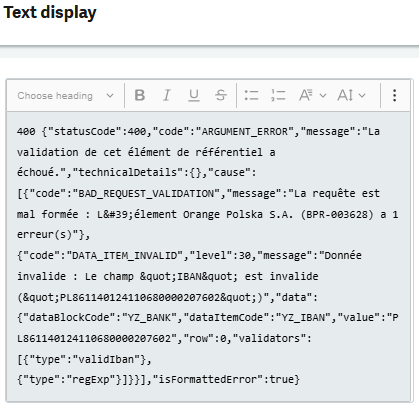
In this case, the IBAN is the problem.
The option Download all errors in the function Interfaces Yooz (XRJ31YOOZINT) allows you to retrieve all export errors to Yooz. This generates a <YOOZErrors.zip> file. Within the ZIP archive, there is a subdirectory for each entity, containing a file for each errored record. At the root, there is an <AllErrors.txt> file with a consolidated summary. This feature is available in versions after 80.
10 Validation Checklist before Recipe
| Control | Expected result | Responsible |
|---|---|---|
| Yooz Login | The identifiers, URL, language, and time zone point to the correct environment. | Consultant X3 / CP Yooz |
| Organisations | Each financial site or mapped site has the correct Yooz organization code. | X3 Consultant / Profession |
| Users | Users marked as Yooz have a valid email address and are visible on Yooz's side after submission. | Consultant X3 / Client |
| Analytical axes | The axes exist on the Yooz side and the active sections are created or updated. | Consultant X3 / Profession |
| Accounts | The expected accounts are transmitted according to the formula of the chart of accounts. | Consultant Finance |
| Taxes and payment terms | Yooz codes are consistent with organizational laws and restrictions. | Consultant Finance |
| Suppliers / Customers | BP/Company categories, formulas, organizations and exceptions are controlled. | Finance/Business Consultant |
| Articles / Products | Only active and useful items relevant to the purchasing scope are sent. | Purchasing Consultant |
| Interface monitoring | No unanalyzed error lines in XRJ31YOOZINT; the logs are usable. | Consultant X3 |
The initial migration is considered successful when the scope repositories are visible in Yooz, the volumes are consistent with the filter criteria, and no blocking errors remain in the interface monitoring. It is strongly recommended to complete this initial migration step before proceeding to the following steps.
5-Purchasing and Finance Flows
Context and objective
Purchases: Orders and Receipts (managed in X3 or Yooz). Invoices: Integration of purchase invoices on orders (PIH).
Finance: Invoices outside of orders / general expenses (BIS). Management of payment vouchers (BAP) and payment returns (PAY item / feedback).
This document covers the Purchasing and Finance flow of the Yooz connector for Sage X3. It describes the expected operation of orders and receipts, whether managed in Sage X3 or in Yooz, as well as the integration of supplier invoices into X3.
The functional scope of the chapter is as follows:
-
Purchases: purchase orders and receipts, with sending from X3 to Yooz or importing from Yooz to X3 depending on the scenario chosen.
-
Order/receipt invoices: integration of purchase invoices into X3 via the object PIH and the function GESPIH.
-
Finance: integration of non-order invoices and overhead costs into X3 via the object BIS and the function GESBIS.
-
Payment approved: update of payment approval status in X3 from Yooz validation.
-
Feedbacks: accounting feedback and payment feedback to Yooz in order to track the progress of the invoice until payment.
This document addresses these phases of implementation:
| ▼ | ▼ | |||||
|---|---|---|---|---|---|---|
| Pre-sales | Initialization | Framing | Installation | Setup | Recipe | Production launch |
Scope covered and reading prerequisites
Before continuing with this chapter, ensure that the others have been completed in their entirety, up to and including the synchronization of the repositories. Specifically, this includes Yooz organizations, users, suppliers, accounts, analytical axes, taxes, payment terms, and, if necessary, items, must be available on the Yooz side before performing the billing tests.
X3 functions concerned:
| Usage | Access path in English US | Function / object |
|---|---|---|
| Purchase orders | Purchasing > Orders > Orders | GESPOH / POH |
| Purchase receipts | Purchasing > Receipts > Receipts | GESPTH or GESPTH2 / PTH |
| Purchase invoices | Purchasing > Invoices > Invoices | GESPIH / PIH |
| Third-party supplier invoices | A/P-A/R accounting > Invoicing > Supplier BP invoices | GESBIS |
| Supplier regulations | A/P-A/R accounting > Payments > Payment entry | GESPAY |
| Yooz Web Services Execution | Usage > Imports/Exports > Yooz Web Services | XRJ31EXE |
| Interface monitoring | Usage > Imports/Exports > Interfaces Yooz | XRJ31YOOZINT |
⚙️USEFUL PARAMETER VALUES
The Yooz connector only handles flows linked to a purchase order. Therefore, the entry of isolated documents must be blocked in the Sage X3 parameter values (Setup > General parameters > Parameter Values (function ADPVAL):
-
PTHDIR (ACH / REC): Set to "No" (receipt must be made on order).
-
PNHDIR (ACH / RET): Set to "Yes" in the settings (in order not to block the client's inter-site return flows). Technical note: The connector will dynamically force this value to "No" on X3 input screens if the user attempts to make a direct return to an external provider.
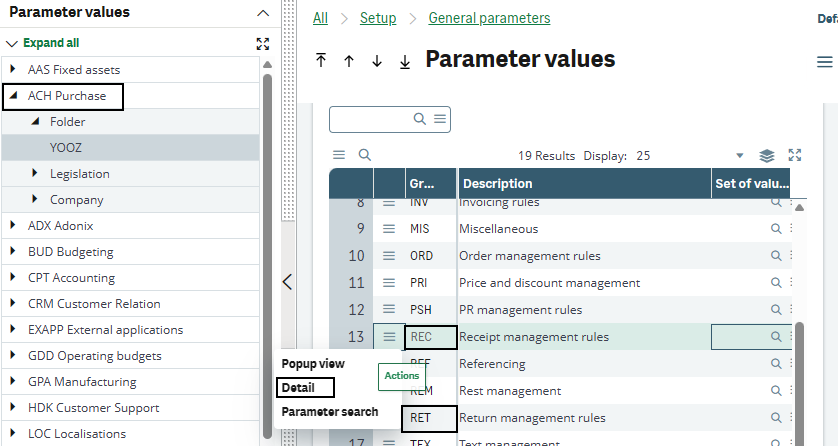
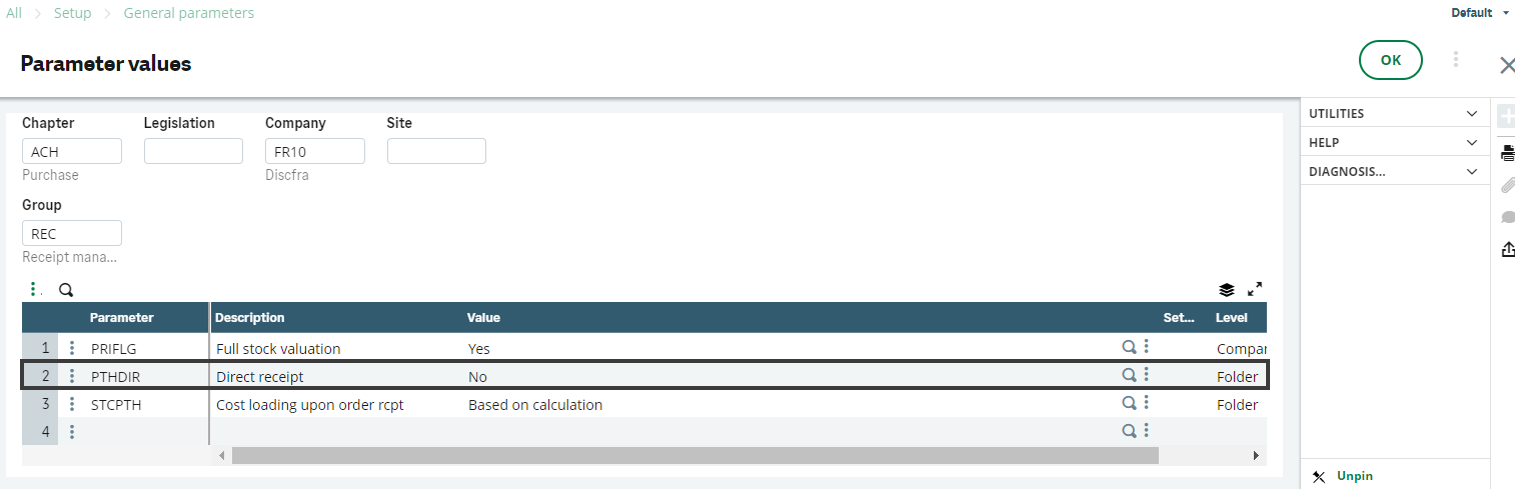
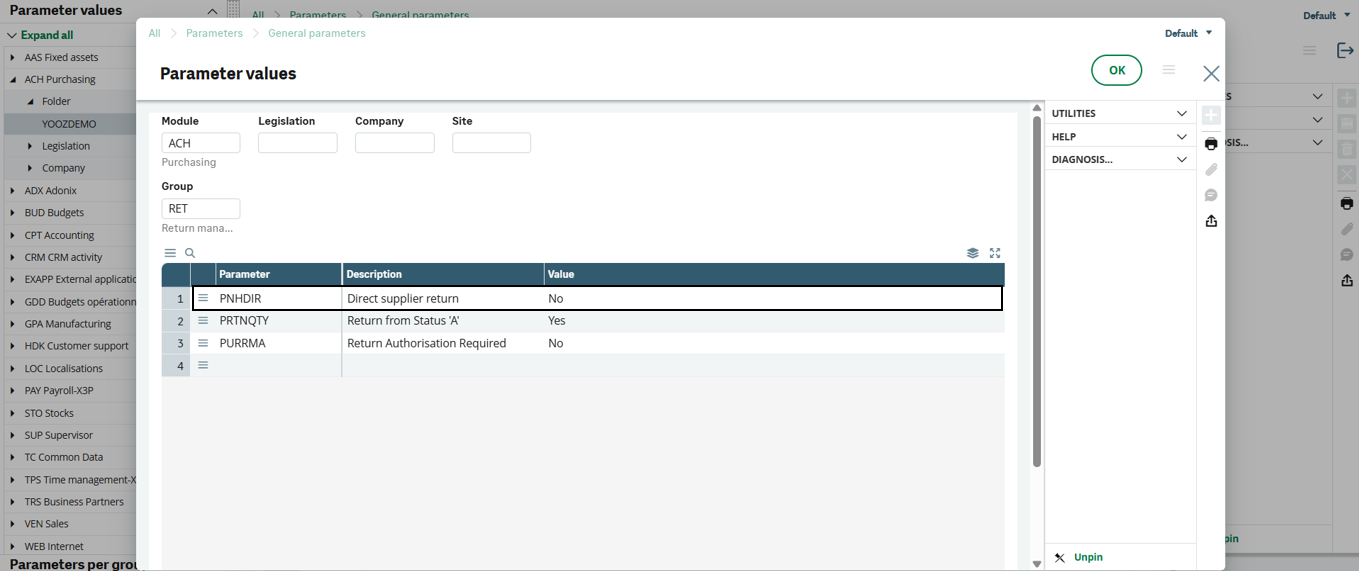
Flow of Procure-to-Pay
The connector covers two main modes of operation. In the first, purchases are created in Sage X3 and then sent to Yooz for reconciliation and invoice processing. In the second, the order and/or receipt is initiated in Yooz and then imported into Sage X3 so that X3 can generate the journal entries, store the supporting documents, and ensure accounting follow-up.
Case A: Purchase flows are managed in Sage X3
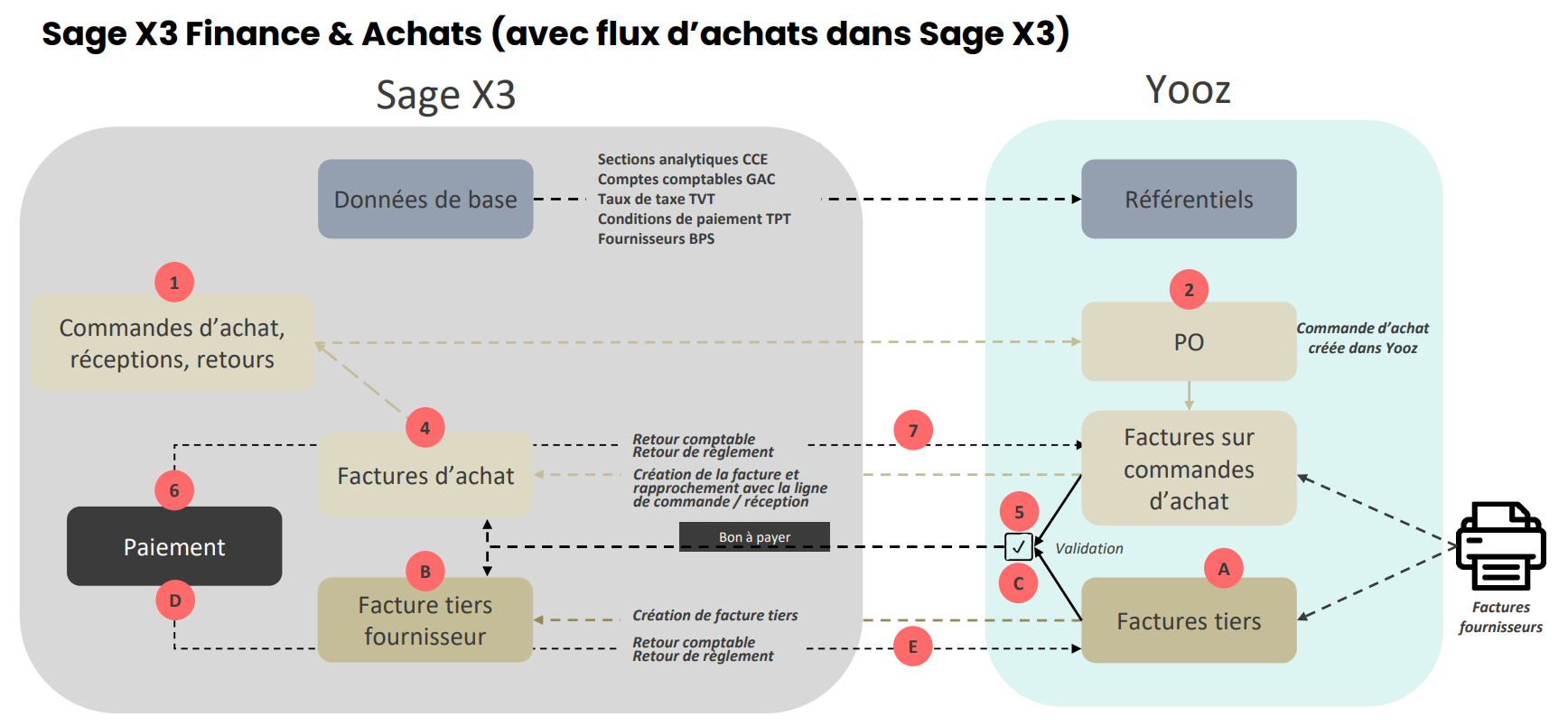
Case B: Purchase flows are managed in Yooz
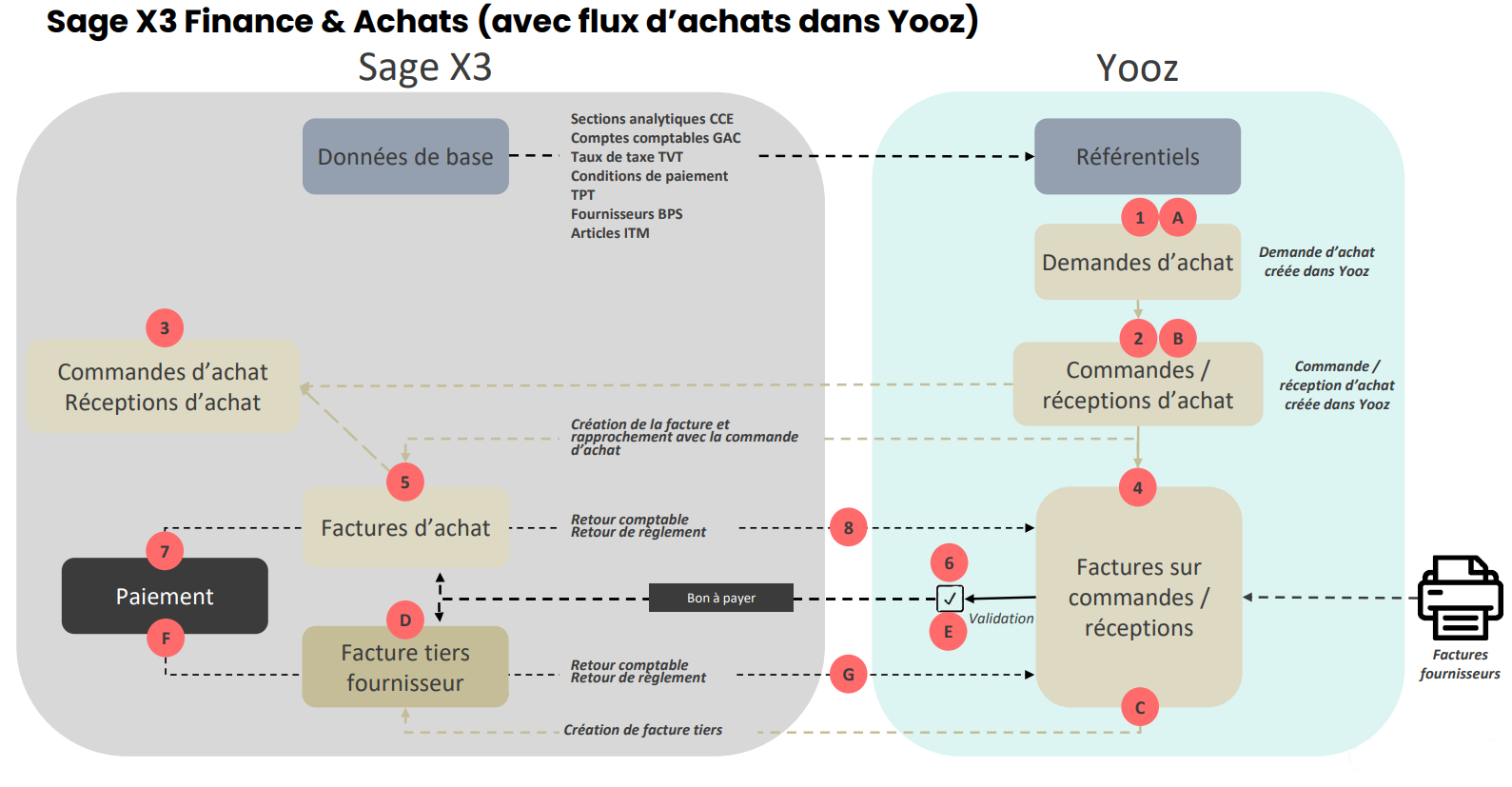
The purchasing flow segmentation is not arbitrary; it depends directly on the type of items. A hybrid approach is possible by applying the following distribution: Case where Sage X3 pilot: Purchases in stock, items with traceability or goods subject to strict logistical reception. Case where Yooz pilots: Non-stocked purchases, overheads, investments or services (when the purchase request and business receipt are managed in the Yooz workflow).
1 - Case A: Purchases managed in Sage X3
In this scenario, Sage X3 is the master application for creating and updating purchase orders, receipts, and supplier returns. Yooz then receives the necessary data to enable the capture of the supplier invoice, its reconciliation with the purchase order or receipt, and its validation before import into Sage X3.
The Yooz application functionally combines purchase orders and receipts into a single purchasing workflow. Sage X3, on the other hand, separates the purchase order, which is managed within the function GESPOH and the purchase receipt, managed within the function GESPTH The connector therefore ensures the correspondence between these two logics, without requiring the user to re-enter the information in Yooz.
The expected Yooz invoice type for this case is a purchase order invoice. After the invoice is validated in Yooz, it is integrated into Sage X3 as a purchase invoice via the object PIH and the function GESPIH.
1.1 - General logic of the flow
The workflow should be viewed as a single chain, from the purchase in Sage X3 to the invoice payment. In case A, orders and receipts are not created in Yooz; they are created in Sage X3 and then transmitted to Yooz so that the supplier invoice can be matched with the corresponding purchase order.
Here are the functions used in the flows for case A:
| Stage | Master application | Function / Object | Role in the flow |
|---|---|---|---|
| 1 | Sage X3 | GESPOH / POH | Creation of the purchase order. The order may contain lines subject to receipt and lines not subject to receipt. |
| 2 | Sage X3 | GESPTH / PTH | The receipt is created when the item is submitted for receipt. The receipt then becomes the basis for invoice reconciliation on Yooz's side. |
| 3 | Sage X3 | XRJ31YOOZSUI then XRJ31EXE | Queuing in the XRJ31YOOZSUI table and then sending, receiving or returning orders to Yooz via the XRJ31EXE batch task. |
| 4 | Yooz | PO / PO invoices | Matching the supplier invoice with the order or receipt transmitted by Sage X3. |
| 5 | Sage X3 | GESPIH / PIH | Import the validated purchase invoice into Yooz using the XRJ31PIH import template. The invoice remains linked to the original order or receipt. |
| 6 | Sage X3 then Yooz | Feedbacks / PAY | Accounting return after invoice validation in X3, then payment return after settlement. |
1.2 - Step 1: Creating purchase orders in X3 and exporting them to Yooz
Here is a simple description of the flow:
-
The command is created in Sage X3 via GESPOH.
-
The order must be in a sufficiently advanced state to be transmitted to Yooz: depending on the configuration and the customer process, this generally corresponds to a signed and/or printed order.
-
The connector generates a record in the tracking table XRJ31YOOZSUI, the "Yooz Interfaces" function allows you to view these elements awaiting transmission before the task is executed XRJ31EXE.
-
The object sent to Yooz from X3 is not the command header (POH), but rather the lines (POQ). Indeed, a single order can contain lines of different types. Billable lines are sent, non-billable lines are excluded.
Here is an example of how the flow works:
- Order creation
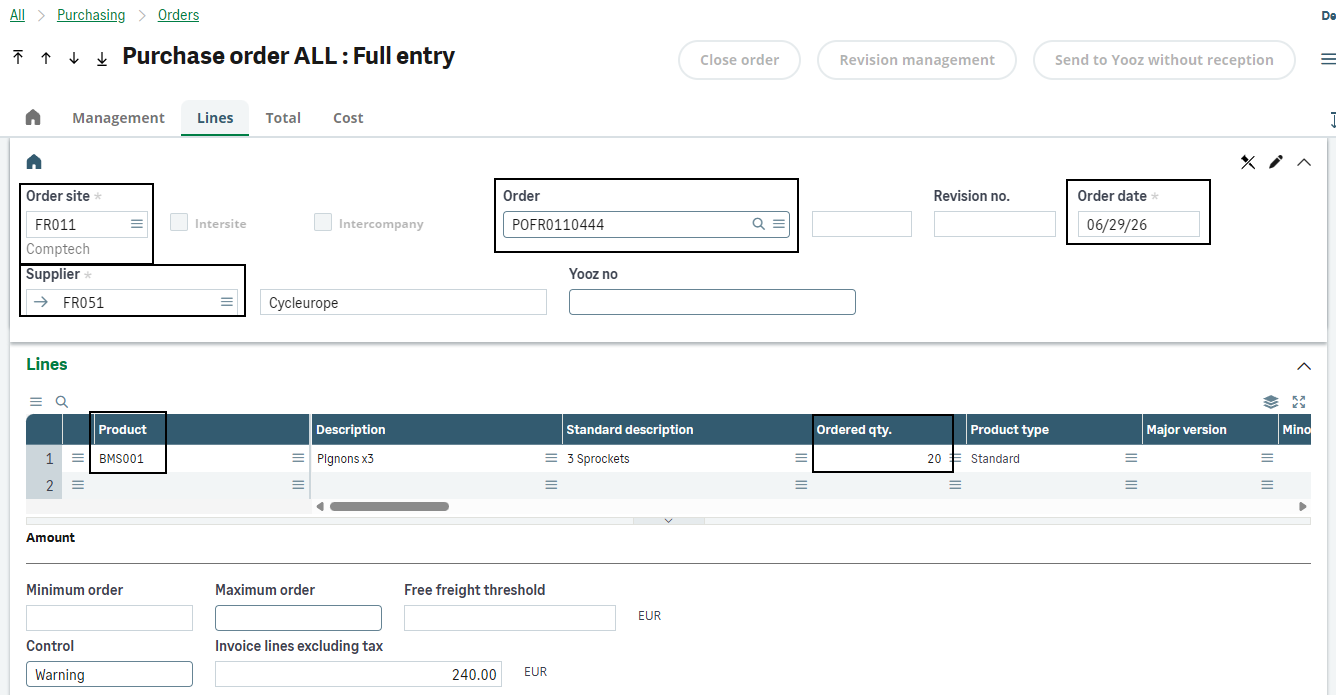
- Order signature
Go to the workflow monitor (function SAIWRKPLN, transaction “ALL”), to sign the purchase order. It is possible to check the order status in the purchase orders function (GESPOH).
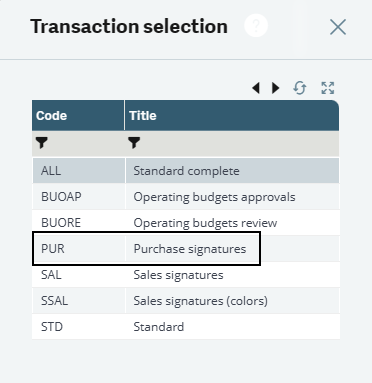
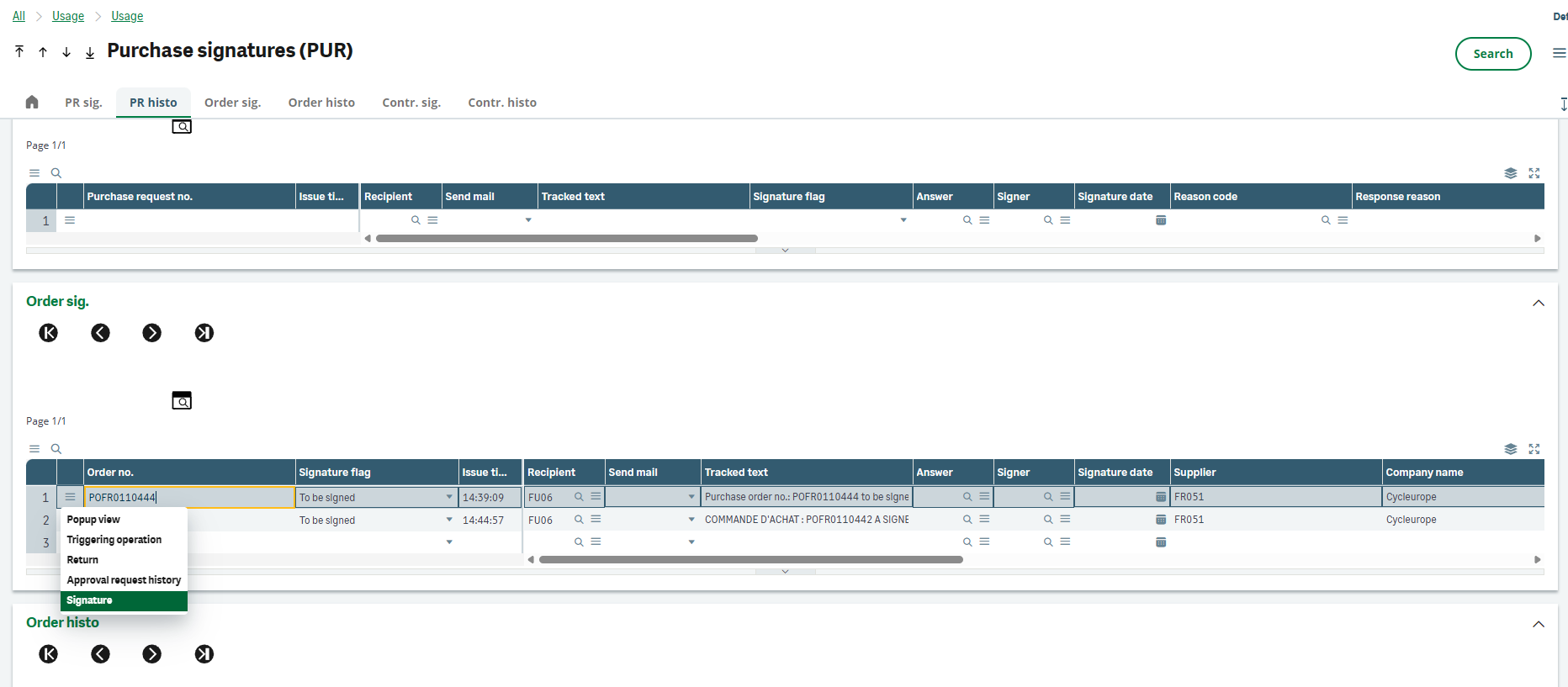
Additional costs: The transmission of billing elements (shipping costs, customs, discounts) to Yooz is done via the addition of outgoing customs fields on purchase orders (line 18). Prerequisite: the code for element X3 must exist in the Yooz repository. Analytics: The analytical dimensions entered on the X3 order are transmitted to Yooz. Any subsequent manual modification directly in Yooz risks desynchronizing the original data with X3.
1.3 - Step 2: Reception Management (Conditional)
For receipts, the main rule is indicated by the "Received product" box in the product record, corresponding to the field ITMMASTER.RCPFLG. This rule determines whether Yooz should match the invoice with the order or with the receipt.
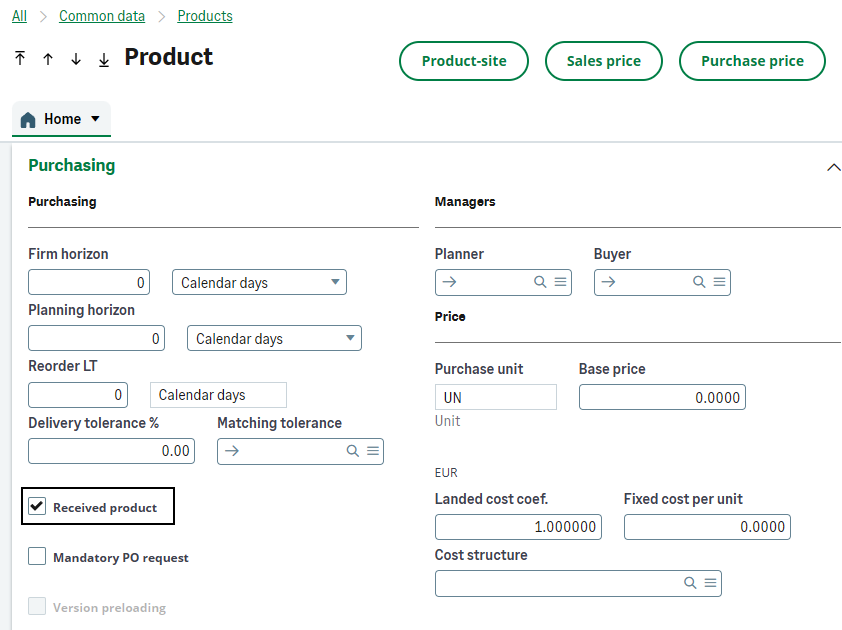
| Case | Sage X3 Rule | Sending time to Yooz |
|---|---|---|
| 1 - Product not subject to receipt | The "Received product" box is not checked. The purchase does not wait for physical receipt in X3. | The command line is sent to Yooz as soon as the order is broadcastable according to the X3 process, including after editing/printing if this control is used. |
| 2 - Product subject to receipt | The "Received product" box is checked. The purchase must go through an X3 receipt. | The line is normally only sent to Yooz after the X3 reception has been created. |
| 3 - Order sent before receipt | Exceptional case for a line normally subject to receipt, for example when the invoice must be processed before physical receipt. | A manual send button allows you to send the order without waiting for receipt, if the order has not already been sent to Yooz. This button is only clickable if the order is signed and printed. |
Order lines with the Billed Line field (PORDERQ.LININVFLG= 1) are sent to Yooz. The lines PORDERQ.LININVFLG= 2 are excluded. The same logic applies to receptions: the lines PRECEIPTD.LININVFLG= 1 are sent, while the lines PRECEIPTD.LININVFLG= 2 are not.
This rule prevents Yooz from sending invoices to the reconciliation system for items that should not be invoiced. It is particularly important for mixed orders, partially paid orders, or modified receipts.
Case 1: Purchase not subject to receipt
When a product is not subject to receipt, the Sage X3 order can be used directly as a reconciliation tool in Yooz. This applies to purchases for which there is no stock entry or physical receipt expected in X3 (item parameter RCPFLG= 1).
Yooz receives a purchase line item that allows it to match the supplier invoice with the order. The analytical dimensions transmitted to Yooz are those carried by the order lines, supplemented where applicable by the outgoing custom fields.
In this case, Yooz does not need to wait for a receipt. If the supplier invoice arrives, it can be processed and immediately matched with the order transmitted by X3.
(This section covers the case of products not subject to receipt but linked to an order. A purchase not subject to receipt can also be treated as in section 3.1.2 - Case of overhead invoices without order (BIS) if you need a service not linked to a purchase order).
- Order creation based on a product not subject to receipt:
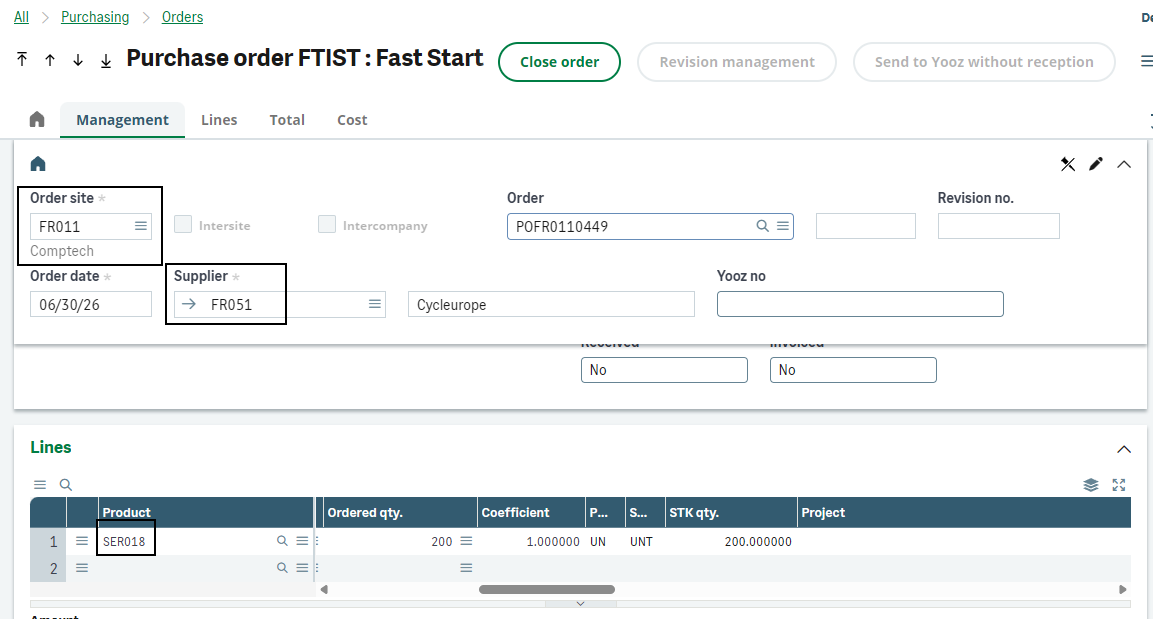
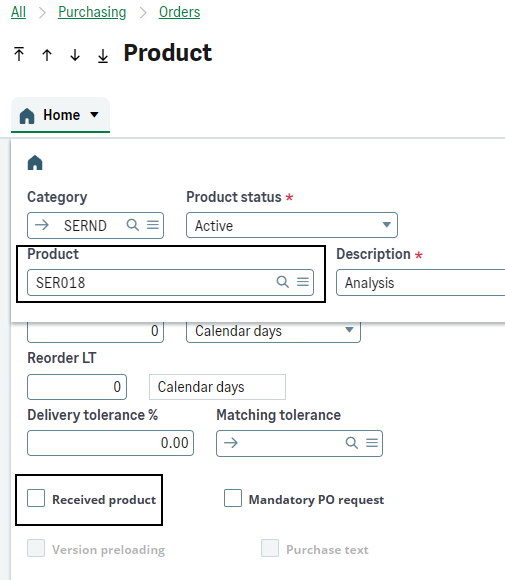
- The trigger (Signature and Print):
Once the order is created, two standard actions must be performed to unlock the shipment:
-
Signer the order (if a signature workflow is set up on your file for this buyer).
-
Print the command (via the printer icon in the top right corner of the screen).
- Send to Yooz Once the order is signed and printed, it is ready to be sent to Yooz. It is automatically inserted into the interface tracking table to be processed by the connector's recurring subscription (XRJ31EXE) It can therefore be found in Yooz:
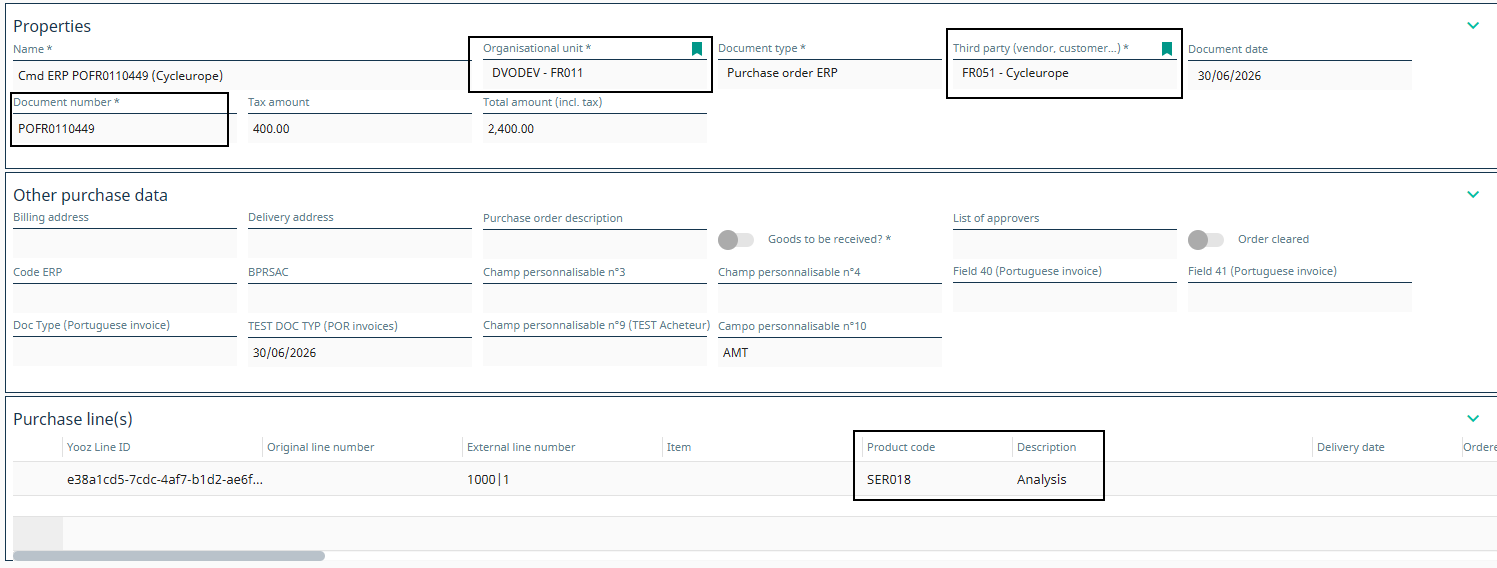
The order is added to the mailing queue with each new print job. If an order is modified, it must be reprinted for the update to be sent to Yooz!
Case 2: Purchase subject to receipt
For a product requiring stock entry or physical receipt (field ITMMASTER.RCPFLG positioned at 2), invoicing is based exclusively on the quantities actually delivered. The initial purchase order is therefore not transmitted to Yooz in isolation.
Receipt is mandatory to trigger transmission. The data sent to Yooz then combines the original order references and the actual receipt lines, allowing for an exact match with the supplier invoice.
Reception management prerequisites
For the flow to run correctly, the following rules apply:
-
Sites: The receiving site must belong to a company for which at least one Yooz organization is registered.
-
Batch-managed items: The breakdown of quantities must be done in the detailed quantity breakdown of the X3 receipt, and not just at the receipt line level. This prevents discrepancies between what X3 knows and what the supplier invoice can actually show.
-
Non-billable lines: They are natively excluded from being sent to Yooz.
The connector requires that a receipt originate from an order. If a user attempts to create a direct receipt while the connector is active, X3 automatically enforces the parameter PTHDIR (Direct Receipt) that is set to "No" and displays an alert: "The Yooz connector is activated, so the setting PTHDIR which allows direct receptions is forced to No”. Update on this point: an XRJ31PTHDIR parameter value allows this check to be bypassed and direct receptions to be permitted. These will not be forwarded to Yooz.
Nominal receiving flow
- Creating the purchase order
The buyer creates and signs their order. At this stage, the order has not yet been sent to Yooz; the connector is waiting for receipt.
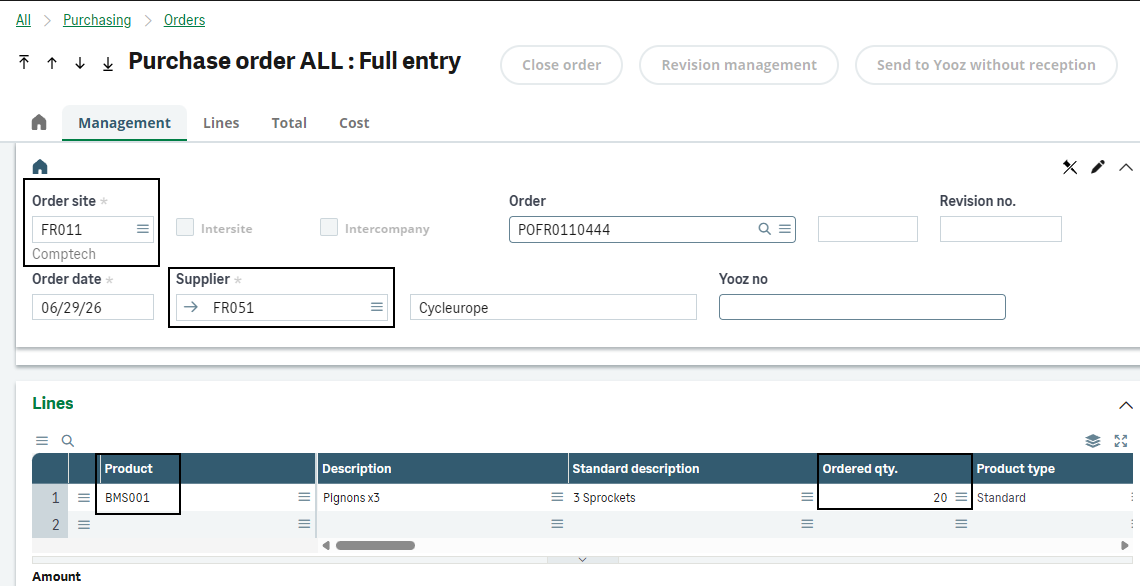
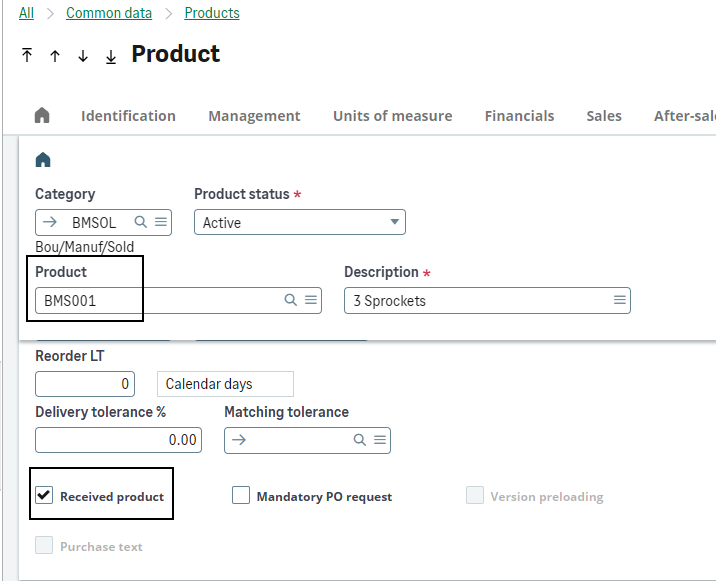
- Reception setup
Upon delivery, the receiver creates the receipt by linking it to the original order by picking (after specifying the receiving site).
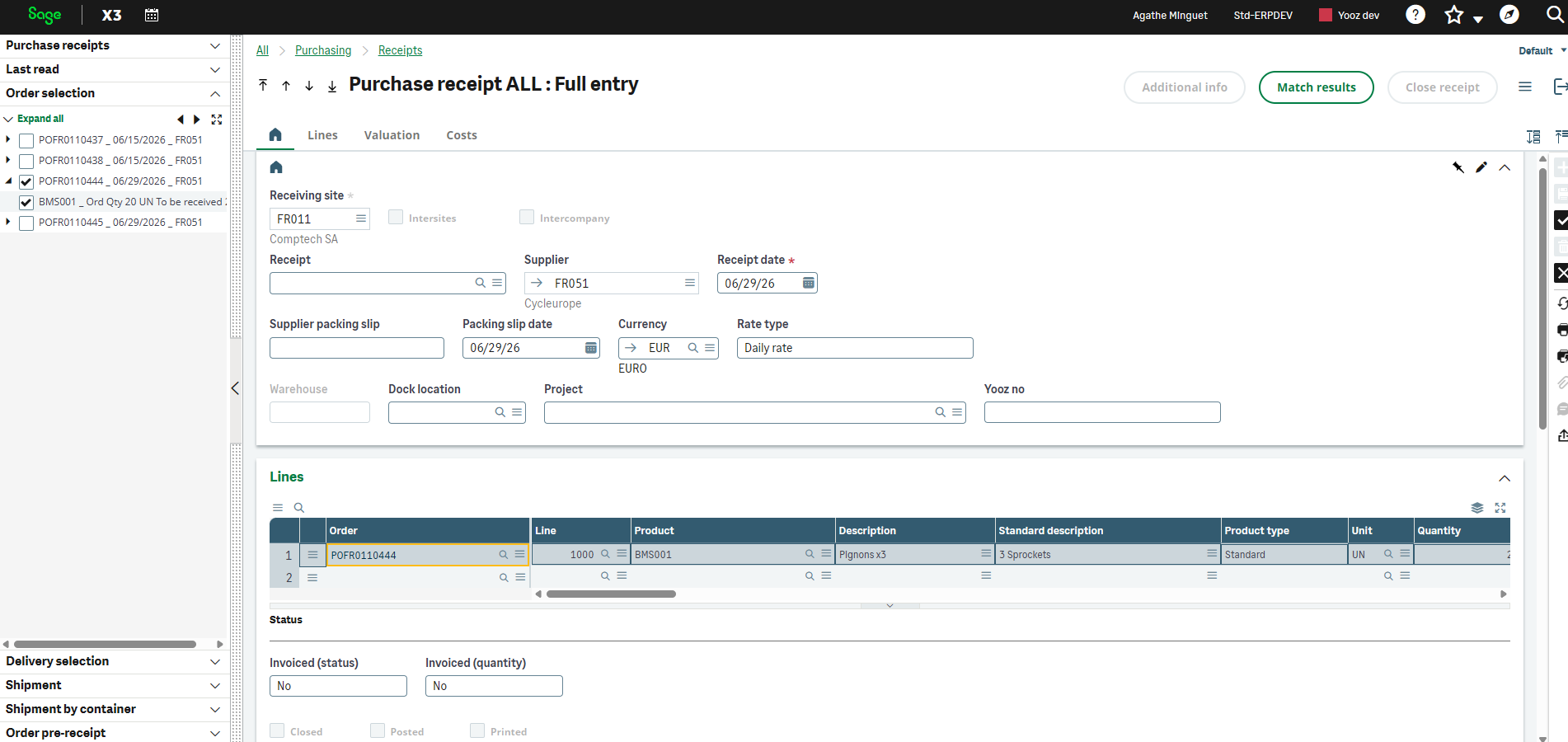
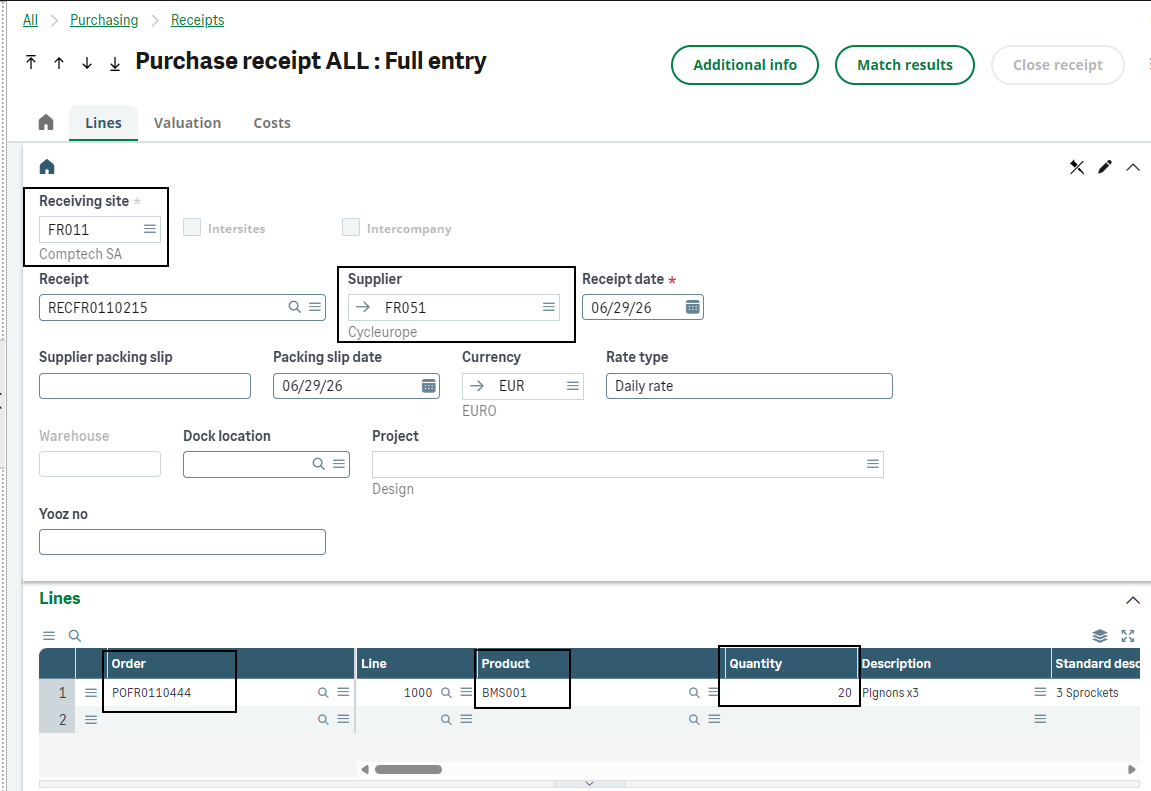
- Transmission to Yooz
After the receipt is created, the connector transmits the initial order data to Yooz via the subscription *XRJ31EXE. Updates are provided with the actual quantities received. The order linked to the receipt can be found using the order number in Yooz.
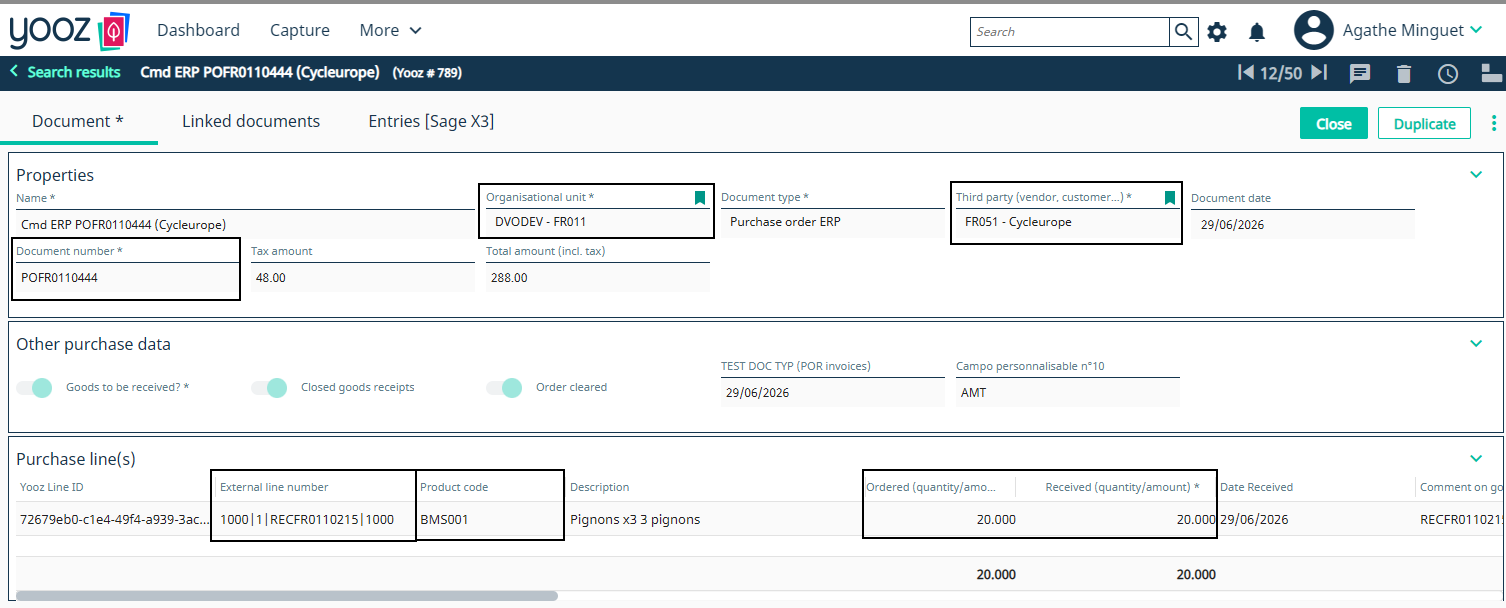
Case of multiple receptions
Standard X3 logistics scenarios are supported. A single order line can be received in multiple shipments (backorders), a single order can result in multiple receipts, and multiple orders can be grouped into a single receiving slip. In all cases, the Yooz reconciliation remains consistent with the quantities actually received.
1.4 - Special case: Forcing the shipment of an order before receipt
This mechanism is not a standard parallel flow. It is a strict exception to the basic rule, used only when the schedule requires it (typically the "large import", where the supplier invoice arrives and must be paid before the goods reach the dock).
In this scenario, a specific "Send to Yooz without receipt" button allows the order to be sent to Yooz for immediate invoice reconciliation, even if the item is subject to receipt. To make the "Send to Yooz without receipt" button clickable on the order (GESPOH), three cumulative conditions are required:
-
Not transmitted: The order must not have already been sent to Yooz (empty Yooz timestamp).
-
Signed: The X3 signature process must be completed (if configured).
-
Printed: The order must have been printed at least once.
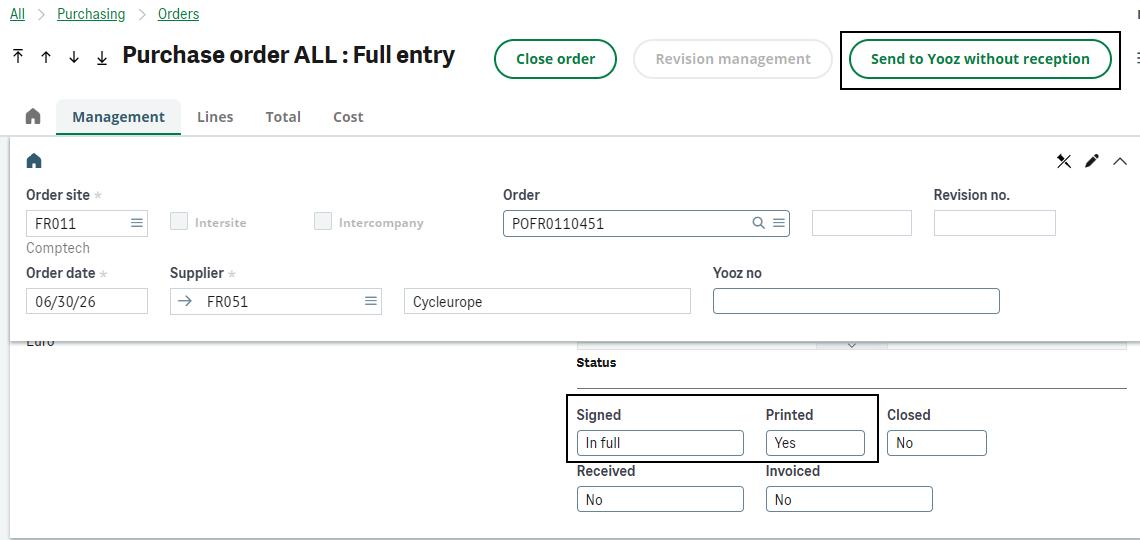
Once the button is pressed, the order is added to the list of items to be sent to Yooz, and the subscription XRJ31EXE then sends the order to Yooz.
The functional consequences of this button are:
-
In Yooz The invoice will be linked directly to the order, and not to a receipt.
-
In Sage X3 The invoice imported from Yooz will be linked to the purchase order. The physical receipt of the goods can still be entered later in X3 to update the inventory.
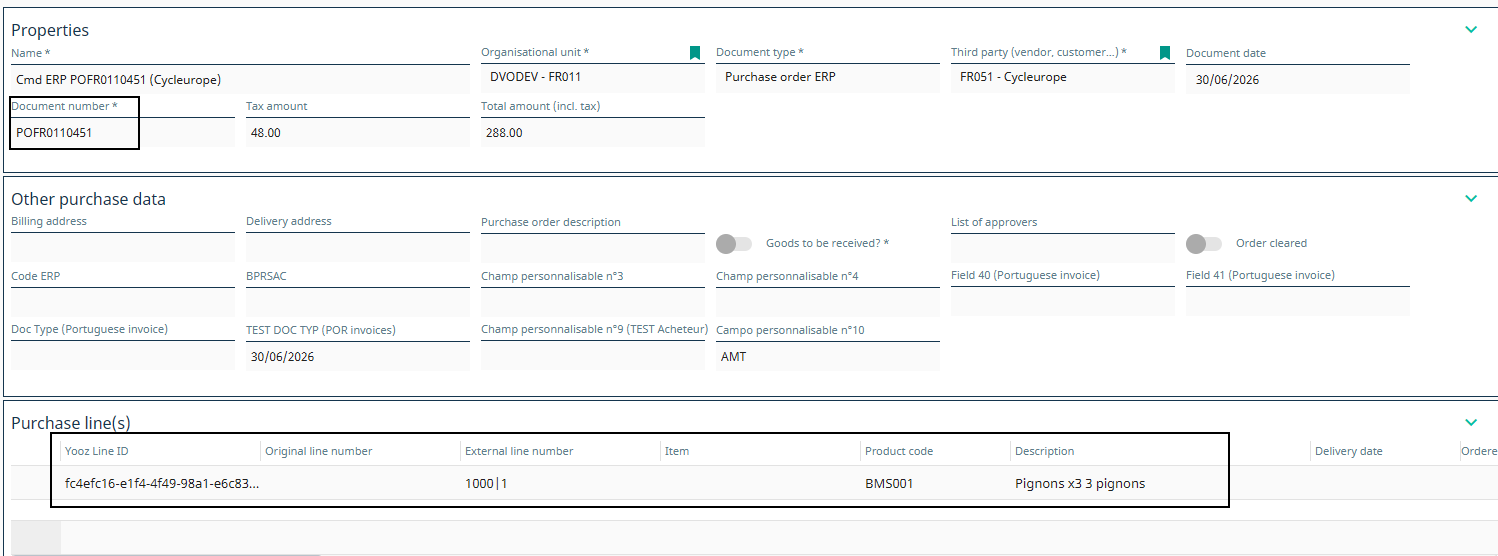
Reversing the natural chronological order (Invoice before Receipt) has direct impacts on accounting and inventory management. This forces finance teams to perform manual adjustments such as inventory valuation or month-end closings.
1.5 - Modifications, cancellations and balance management
The connector's role is to keep Yooz aligned with the state of Sage X3. Functional changes must therefore be reflected as soon as they concern a document already sent to Yooz.
Where is the correction performed in Sage X3?
-
Purchases not subject to receipt (Case 1): Corrections (update / deletion) are made directly on the purchase order (GESPOH).
-
Purchases subject to receipt (Case 2): It is not possible to modify the receipt or the order manually, but the deletion is processed correctly.
Here is how the interface behaves according to business events:
| X3 Event | Expected interface behavior | Stage & Location of Correction (where and until when to correct?) |
|---|---|---|
| QUANTITY MANAGEMENT - CASE 2 | ||
| Upward quantity adjustment | The new quantity is updated in Yooz (new line). | Logistics action: Create a new reception (GESPTH2) on the initial order. |
| Quantity adjustment downwards | The connector transmits the cancelled quantities as lines with negative amounts to Yooz. | Logistics action: Create a supplier return (GESPENH). It is impossible to modify the initial X3 reception; it is necessary to go through the return flow. |
| DATA MANAGEMENT / MODIFICATION | ||
| Modifying a field on the order (account, analytical data, etc.) | Simply modifying the order does not trigger any shipment. The data is only updated in Yooz when the next delivery is recorded. | Direct correction: If partial receipt: Correction to the order (GESPOH). The information will be sent when the backorder receipt is created. If the receipt is complete: Order closed. No further changes are possible. |
| Entering or modifying a field on the Reception | The data specific to the receiving line takes precedence over the order data. It is perfectly possible to have multiple receiving lines with distinct data for the same item from the same order. | Direct correction: Correction to be made to the reception (GESPTH2) before the invoice is recorded. |
| Non-billable line | The line is not sent to Yooz. | N/A (handled natively in the article settings). |
| SALES AND CLEARANCES | ||
| Full balance of the order (PORDER.CLEFLG = 2) | Case 1: All lines are sent to Yooz for deletion (DELETE). Case 2: No impact if the data was not received (Yooz is unaware of the command). | Functional action: To be done on the order (GESPOH). Used to purge the order portfolio of unsuccessful orders. |
| Balance of an order line (PORDER.CLEFLG = 1 and PORDERQ.LINCLEFLG = 2) | Case 1: The paid-off line is sent to Yooz for deletion (DELETE). Case 2: No impact if the line has not been received. | Functional action: To be done on the order (GESPOH). |
| Deleting (Cancelling) a Reception (Case 2) | Physically deleting a receipt in X3 triggers the sending of a DELETE instruction to Yooz. | Direct correction: Only if receipt X3 was created in error and is neither validated nor invoiced. The document is deleted in GESPTH2. |
If the order balance is settled naturally through invoicing (the order is settled in X3 because an invoice has been issued and reconciled to 100%), this does not trigger any deletion in Yooz. The lifecycle is simply considered complete.
1.6 - Physical returns to suppliers (PNH/PRT)
Supplier returns only concern the flow based on receipts (case 2). A supplier return is necessarily created from a Sage X3 purchase receipt; it therefore does not concern orders sent to Yooz without a receipt.
The return does not create a separate "return document" in Yooz. The connector retrieves the original order from Yooz and completes the existing purchase flow by adding extra lines with negative amounts (the quantity remains positive, but the unit price and amount are reversed). For this flow to be triggered, the return must be validated in Sage X3. (Note: this return flow to Yooz is relevant when the order and receipt in question have already been invoiced).
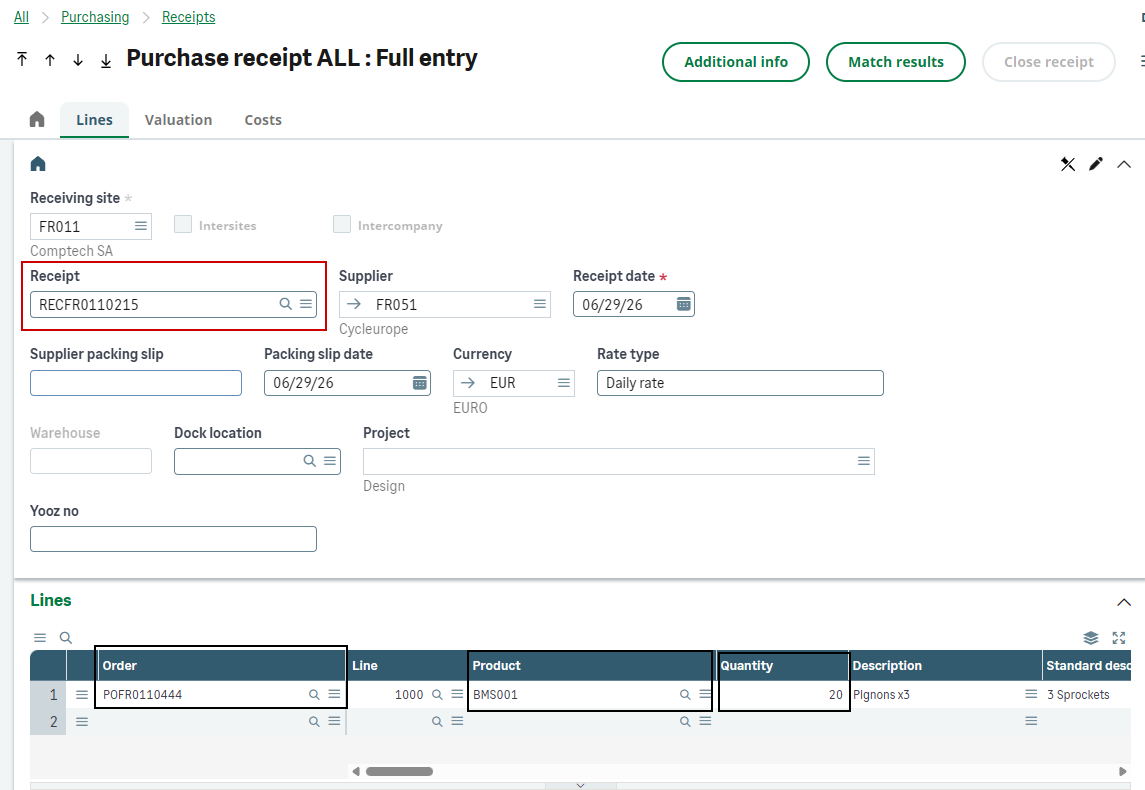
All you need to do is go to the purchase returns function, and pick the relevant receipt.
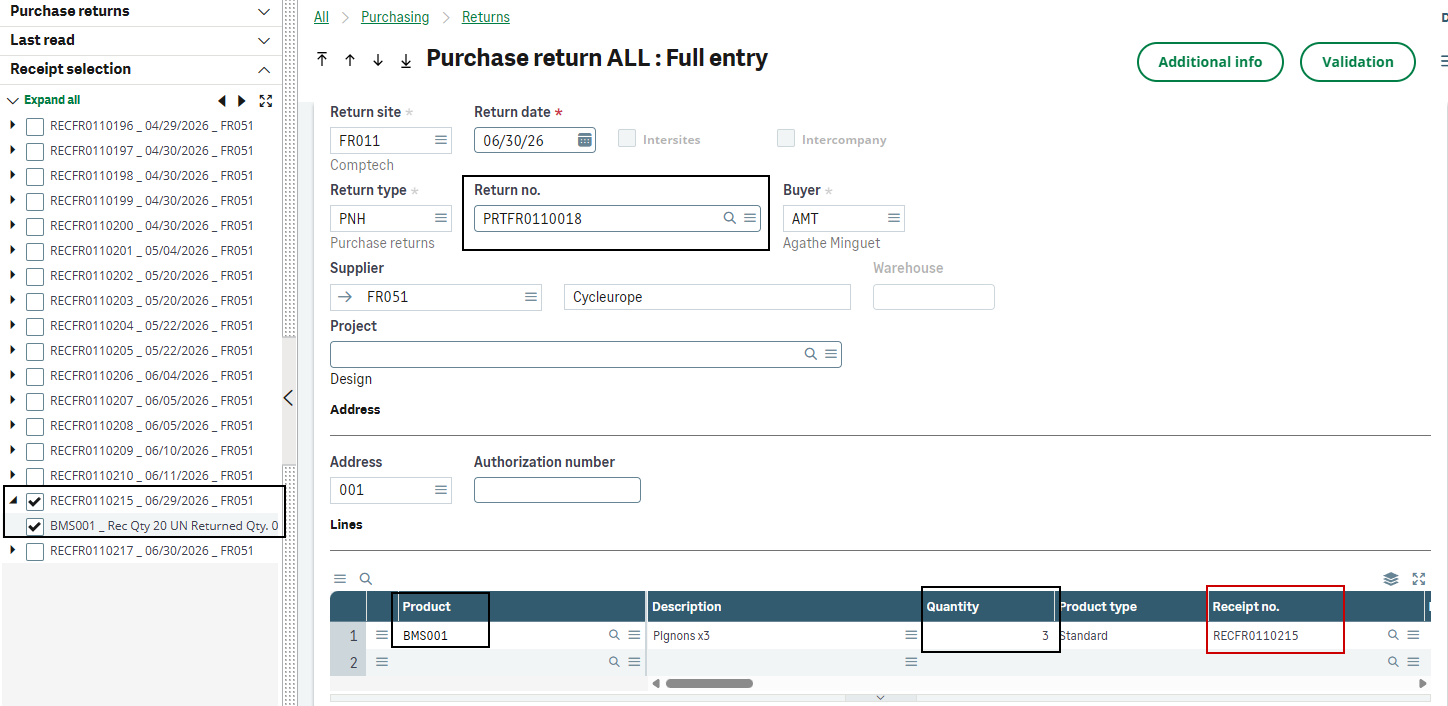
Next, you need to confirm the return in X3, then let the interface run (or manually restart XRJ31EXE). On the Yooz side, an additional line with a negative amount is added to the original order.
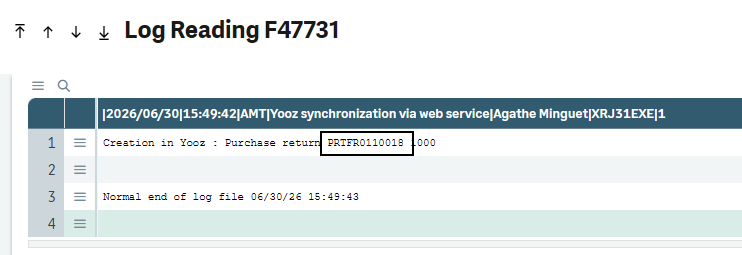
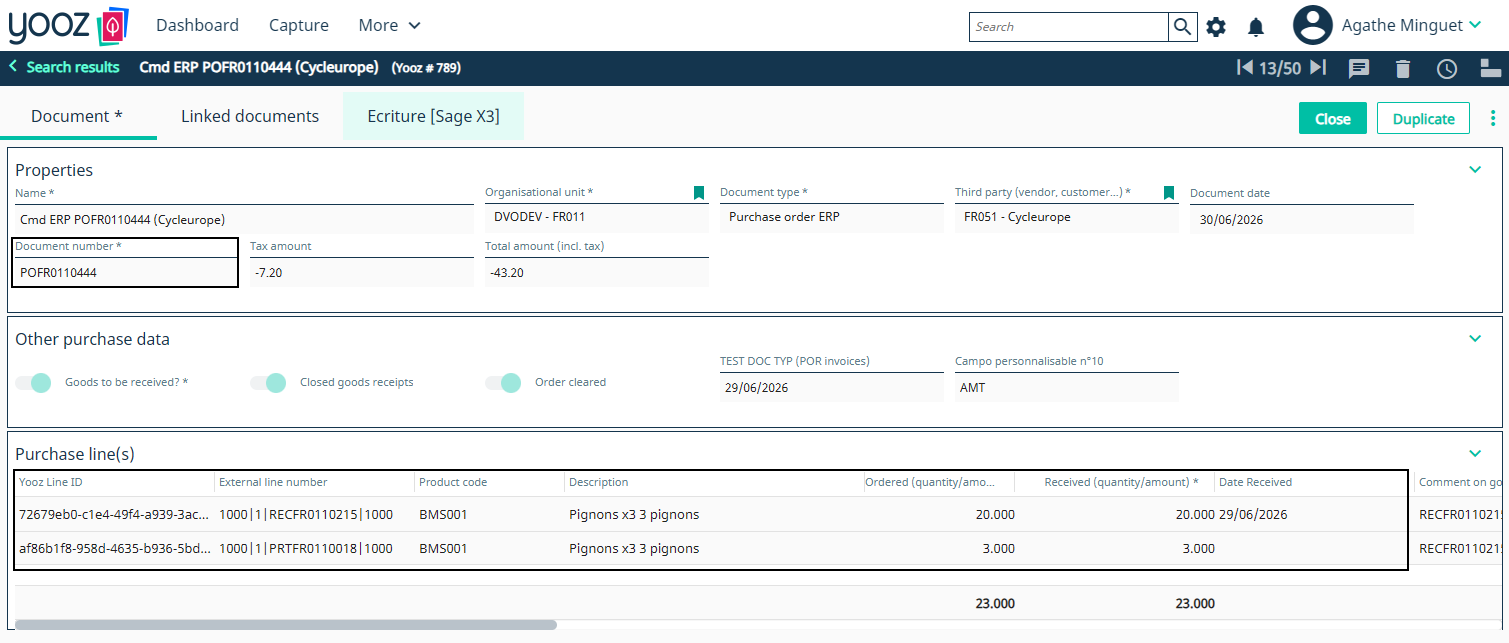
💡 Why does the return add up as a positive amount with a negative total?
This is normal technical behavior. The connector doesn't "subtract" the quantity from the initial receiving line; it creates a new, separate line dedicated to this return. This may seem counterintuitive for inventory management, but it's essential for accounting.
-
The quantity is positive (3): This allows the accountant to easily reconcile this line with the future credit note from the supplier (which will clearly indicate 3 items returned).
-
The price and total amount are negative: This "-" sign acts as a trigger for the connector. It formally indicates to the system that this is a reverse transaction and will automatically generate a valid credit note (AVR) upon return to Sage X3.
natively the Yooz application cannot link a "Purchase Credit Note" document to a purchase order. To work around this, the procedure requires treating the supplier credit note in Yooz as a standard "Purchase Order Invoice," but with negative amounts entered (header and lines). It is thanks to these negative amounts that the Sage X3 import template (XRJ31PIH) will understand the process and automatically generate a valid credit note (AVO or AVR type) during final integration into the ERP system.
(See asset management in section 3.5 - Importing assets)
1.7 - Standard Acceptance Cases
| Case | Objective | Synthetic roll | Expected result |
|---|---|---|---|
| A1 - Order without receipt | Confirm the sending of an X3 order to Yooz for a product not subject to receipt. | Create a purchase order (GESPOH) with a non-receiptable (RCPFLG=1) and invoiceable item. Sign and print the order. Run XRJ31EXE. | The order is immediately available in Yooz for invoice matching. No receipt is expected (2-way matching). |
| A2 - Order with receipt | Confirm the order shipment after physical receipt. | Create an order with a receivable product (RCPFLG=2). Validate the order. Create the receipt (GESPTH). Run XRJ31EXE. | The receipt is available in Yooz (along with the original order details). Yooz offers a comparison based on the quantity received (3-way match). |
| A3 - Mixed order | Control the filtering of billable and non-billable lines. | Create an order containing at least one billable line (LININVFLG= 1) and one non-billable line (LININVFLG= 2), then receive and send to Yooz. | Only billable lines (1) are pushed and offered for reconciliation in Yooz. Non-billable lines (2) are ignored. |
| A4 - Partial/Multiple Receipts | Validate the behavior on delivery backorders. | Complete a first partial receipt and send it. Complete a second receipt for the same order and send it. Reconcile the invoice in Yooz. | Yooz aggregates and displays the actual quantities received. The PIH invoice imported into X3 correctly settles the corresponding receipt lines. |
| A5 - Forced delivery | Test the exceptional case (large import / FOB) where the invoice arrives before physical receipt. | Create an order with a deliverable product. Sign and print it (required to activate the button). Click on "Send to Yooz without delivery". | The order is sent to Yooz without waiting for the delivery receipt. The invoice can be reconciled in Yooz and imported into PIH, linked to order X3. |
| A6 - Balance / modification | Verify that Yooz remains aligned with the X3 deletions. | Manually settle an unbilled line or the entire order in X3, then run the interface. | The connector transmits a DELETE action to Yooz. The lines where the command disappears from the Yooz reconciliation list (Note: a balance due on billing does not trigger deletion). |
| A7 - Supplier Return | Confirm that the returns have been properly transmitted for asset management. | Create a validated return (GESPND) attached to a receipt that has already been invoiced, then send it to Yooz. | Yooz receives a new line item linked to the original order. The quantity is positive, but the price and amount are negative. The credit note can be applied to this line item. |
| A8 - Managing discrepancies | Validate the triggering of the approval process in case of a price/quantity dispute. | Reconciling in Yooz an invoice whose amount or quantity differs from the order/receipt X3, beyond the tolerance thresholds. | Yooz blocks automatic reconciliation and triggers the discrepancy/dispute workflow to the requester. The invoice is only exported to X3 after approval in Yooz. |
1.8 - Invoicing elements management
This section covers the configuration of invoicing elements in Sage X3.
These settings consist of:
- creating an outgoing custom field
- creating a purchase item in Yooz
- enabling a custom field in Yooz
- modifying the X3 API export
Details on the steps to follow are provided below.
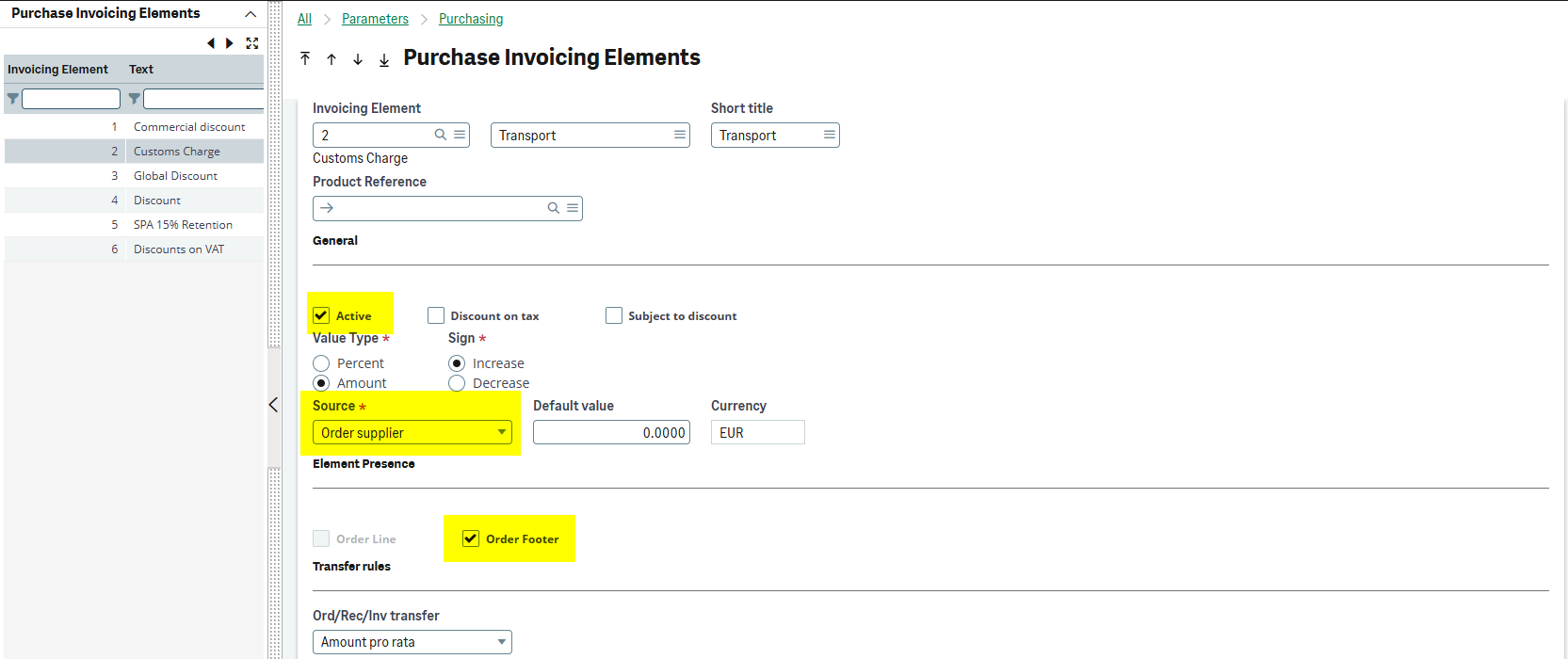
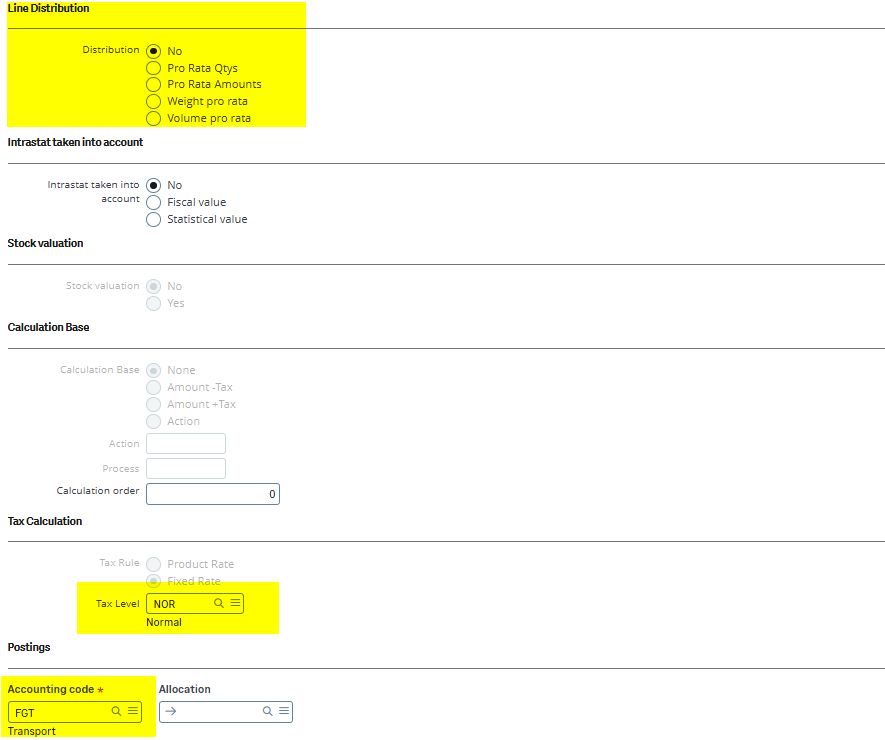
- If the VATRUL field = fixed rate, then the value may be taken from Yooz if the tax rate differs from X3
- If the VATRUL field = product rate, then the value will automatically be set to the one configured in X3
- Accounting sections are managed on billing items and can be modified in Yooz
For sending invoicing elements related to orders and receipts:
- Addition of an outgoing custom field on the POQ object, linked to the customizable field LINE_CUSTOM_9 using the following formula: func XRJ31YOOZLIB.IIF(“[F:XRJ31YS]OBJKEY(4)=‘PVF’”,‘1’,“0”)

Configuring Invoicing elements in Yooz:
- Invoicing element items must be created manually in the purchase items in Yooz (no referential interface):
- The ERP code must match the X3 invoice line item code
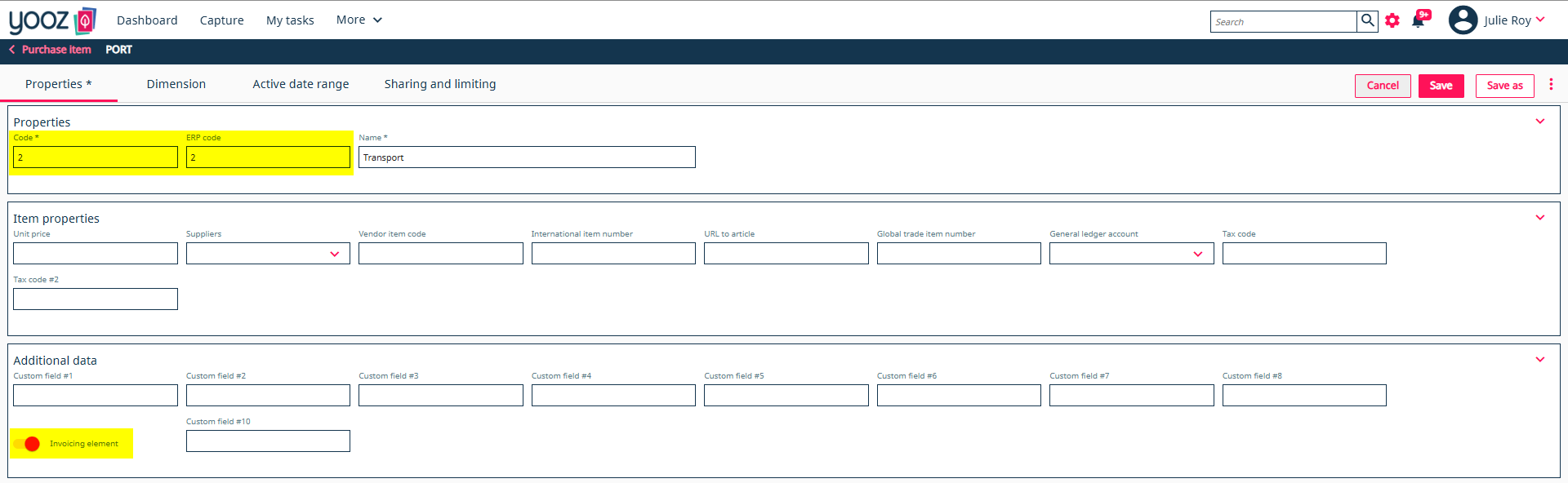
- Customizable field No. 9 must be configured as follows and checked so that the export recognizes that this item should be placed in the rows of the billing items table
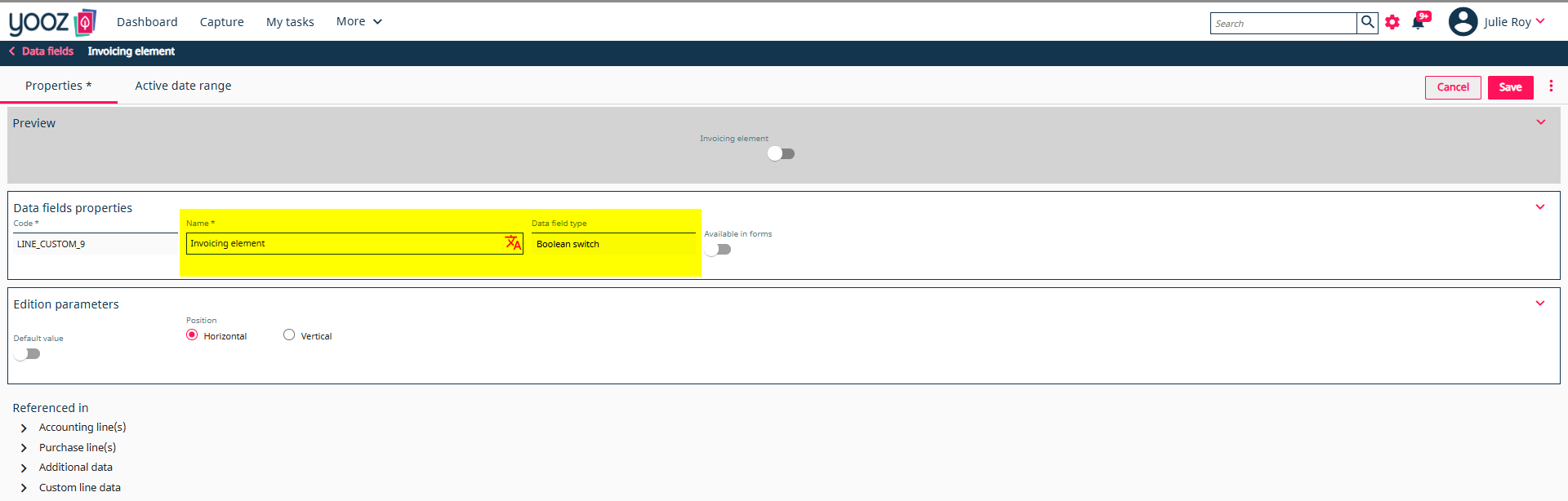
- The X3 API export must also specify that the customizable field that identifies invoicing element items is LINE_CUSTOM_9
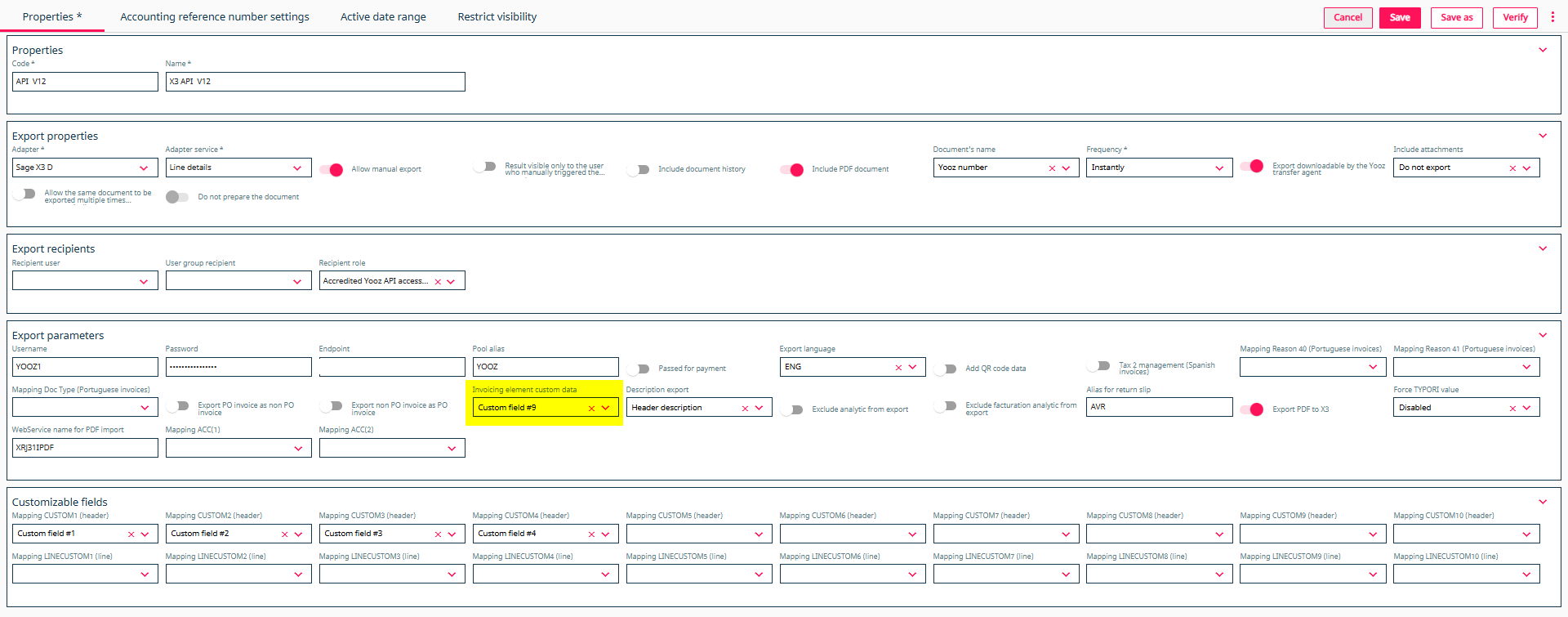 Export example from Yooz :


2 - Case B: Purchases managed in Yooz
In this scenario, Yooz is the primary application for entering purchases. This choice generally addresses the need for simplicity, cost savings (Sage X3 license fees), and is perfectly suited to relatively simple product flows.
Everything is initiated on the operational side in Yooz (purchase request ➔ order ➔ possible receipt), then replicated in Sage X3. The ERP remains the reference application for accounting, the payment authorization and the settlement.
The 3 implementation scenarios:
-
Orders in Yooz / Without delivery Basic workflow. The validated order is exported to X3, then the invoice is reconciled directly.
-
Orders in Yooz / Receipts in Sage X3 Classic and fully functional hybrid flow. Physical logistics are maintained within the ERP.
-
Orders and deliveries in Yooz Rare case. The receipt is entered in Yooz and then exported to X3. Each addition of quantity received in Yooz creates a receipt in X3. If the quantity is adjusted, a new receipt is created to account for the difference.
Case B is not simply the inverse of case A. Purchases involving advanced logistics (batch management, sub-batch management, serial numbers, locations) must absolutely remain managed in Sage X3.
Reminder of prerequisites:
-
The supplier, site, currency, items, units, taxes, and necessary analytical axes must exist or be properly synchronized before testing.
-
The X3 site must be consistent with the Yooz organization. An incorrectly configured organization will result in an incorrect order site or an import rejection.
-
The order number and line identifiers must remain stable so that the invoice and receipts can find the correct original document.
-
The order imported from Yooz must not be re-entered in X3, otherwise the flow may create duplicates or a reconciliation on the wrong document.
2.1 - General logic of the flow (Yooz master, Sage X3 replica)
The workflow is a continuous chain, from the purchase request in Yooz to the payment in Sage X3. Yooz handles the request, business validation, and invoice reconciliation. Sage X3 receives the validated data to create the documents in the ERP system and continue the accounting cycle.
Here is the breakdown of the steps:
| Stage | Master application | Object / function | Role in the flow |
|---|---|---|---|
| 1 | Yooz | Purchase Request (PR) | Creation of the purchase request and execution of the business validation workflow. |
| 2 | Yooz | Order (PO) | The order is created after the requirement has been validated. This document becomes the business reference for the workflow. |
| 3 | Sage X3 | Order (GESPOH) | Purchase order imported. Strict replica prohibiting any direct modification. Automatic read-only locking following import by the system user. |
| 4 | Yooz | Reception (GR) | Logistical receipt entry (if required by the item) directly on the Yooz order line. |
| 5 | Sage X3 | Reception (GESPTH) | Import of the receipt. Creation of an X3 document for each new quantity received and transmitted. |
| 6 | Yooz | Invoice | Capture, control, reconciliation (on order or receipt) and validation of the supplier invoice. |
| 7 | Sage X3 | Purchase invoice (GESPIH) | Import of the validated purchase invoice. Accounting management, payment approval and settlement then resume the standard cycle (see Finance section). |
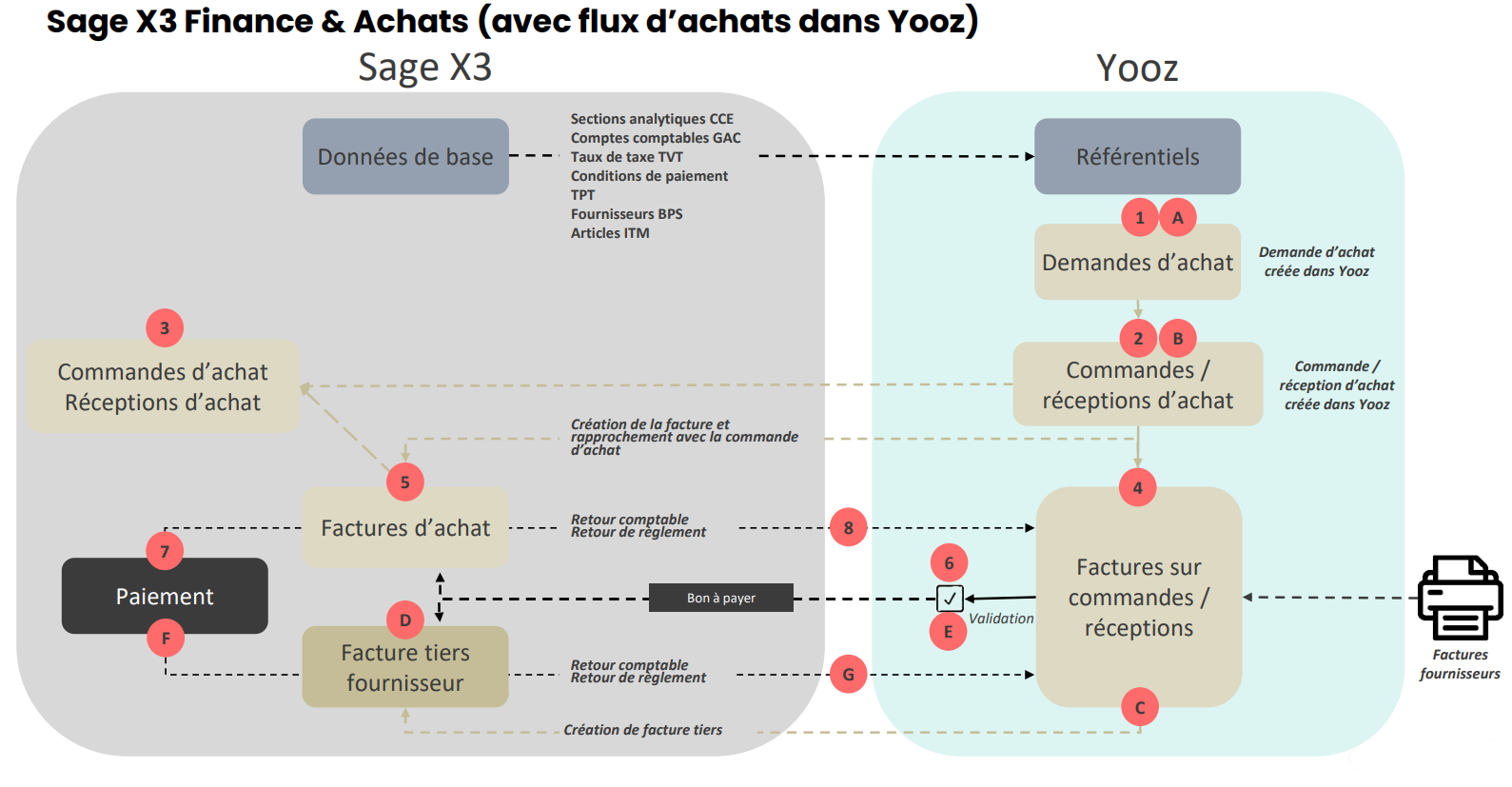
Automation The "Export" action in Yooz triggers a fully automated workflow to the ERP. The target import model receives and translates the data to create the document. No manual import is required in Sage X3. Rule of convergence The need for logistical receipt dictates the invoice reconciliation. Without expected receipt, the invoice is processed as soon as the order is available. With receipt, the invoice awaits validation of the delivered quantities. Note: Forcing an invoice before receipt belongs exclusively to the flow of Case A).
2.2 - Step 1: Creating and importing purchase orders
The purchase order originates in Yooz (usually from an approved purchase request). Its validation triggers transmission to Sage X3 (model XRJ31POH) to generate an exact replica in the function GESPOH. The ERP thus has the reference document for future invoice reconciliation.
- Creation of the purchase request
- Approbation: Validation of the purchase request automatically generates the order (PO) in Yooz.
- Sending to the ERP The "Confirm PO sending" action closes the task on the Yooz side. The data is instantly pushed to Sage X3 via a SOAP web service call. The order is physically created in the ERP.
Once imported, the order remains managed exclusively by Yooz. Any direct manual modification in Sage X3 will result in desynchronization and invoice reconciliation failure. Corrections must be made in Yooz before being applied to the ERP system via the import process.
2.3 - Step 2: Reception Management
Case 1: Purchase not subject to receipt (general expenses, services, etc.)
For an item not subject to receipt (field ITMMASTER.RCPFLG Positioned at 1), the logistics step is ignored. The purchase order is sufficient to carry the flow.
-
Reconciliation: The supplier invoice is directly reconciled with the original order in Yooz.
-
Integration: The invoice is exported and integrated into Sage X3 as a purchase invoice (GESPIH function, XRJ31PIH model).
This flow excludes any physical validation in the ERP. To require a "service rendered" check (even on a non-stocked service), the item must be configured as "receivable" to switch to Case 2.
Case 2: Purchase subject to receipt (goods, stocked purchases...)
The receipt entered in Yooz is always executed on an existing command line. It is never an isolated document.
⚙️ Yooz configuration required:
In Settings and preferences > Document processing preferences > Purchase orders > Order receipt:
- Check "Enable default receipt on purchase request".
- In the Process Customization section, activate "Generate a receiving task on orders generated in Yooz" and "Generate a missing receiving blocking task on the invoice on order".
The ERP creates a receipt for each new quantity transmitted by Yooz via the import model XRJ31PTH.
Logistics management rules:
-
Prerequisite articles Strictly incompatible with items managed by batch, sub-batch, serial number or location.
-
Direct receptions These are completely prohibited in this scenario. The flow must retrieve the original command and line in X3.
-
Upward adjustment (Delta management): Any increase in the quantity received in Yooz only transmits the difference to the ERP. Sage X3 then creates a new receiving document for this additional quantity.
-
Downward adjustment The transmission of negative corrections requires strict supervision (risk of interpretation as supplier return or cancellation depending on the status of part X3).
Example: A line of 10 units is ordered. Entering a receipt of 4 units in Yooz ➔ Creating a receipt of 4 in X3. Subsequent adjustment of the receipt to 7 units in Yooz ➔ Transmission of the difference of 3 ➔ Creation of a new receipt of 3 in X3. The supplier invoice will then be reconciled with the 7 physically observed units.
2.4 - Modifications, corrections and deviation management
In case B, the master application is Yooz. All operational corrections must be initiated there. The ERP receives updates but should never be used as a direct correction area for an imported order.
Modification and return rules:
-
Control lock: An order imported via the technical user Yooz (e.g., YOOZ1) is automatically locked in read-only mode in Sage X3. The aim is to prevent any manual desynchronization between the two systems.
-
Quantity adjustments: In case of adjustment of quantities in Yooz, only the difference (the delta) is transmitted to Sage X3 to create a line or an additional part.
-
Supplier returns management: The Yooz workflow does not natively handle "Return" type documents. Managing a return or partial cancellation absolutely requires entering negative quantities or amounts (minus sign) in Yooz.
Security and invoice control (Anti-duplicate):
-
Strict import blockade A Yooz invoice that has already been imported cannot be imported twice. If an import or validation attempt occurs with a Yooz number (XRJ31NUMYOOZ) if the invoice is already present in the ERP system, the action is blocked. The following error message is returned: "This invoice from Yooz has already been imported into Sage X3. Import refused."
-
Manual duplication allowed (Workaround) If required by business needs, manual duplication of an invoice from Yooz directly into Sage X3 remains possible (for example, to create a template). During this action, the connector automatically clears the Yooz-specific identification fields (XRJ31NUMYOOZ, XRJ31URLFAC, XRJ31YOZDAT) on the newly generated document. The recording then proceeds without triggering the duplicate alert.
2.5 - Physical returns initiated in Yooz
Native handling of "Physical Return" type documents does not exist in the Yooz-driven purchasing flow (case B). Processing requires a strict distinction between the financial flow (credit note) and the logistical flow (inventory).
Financial processing (Credit note on order) in Yooz:
-
Negative amount method: Since the Yooz application does not have a "Purchase credit note on order" type, the operation requires the use of a classic "Purchase invoice on order".
-
Reverse entry: Amounts (header and lines) must be entered as negative (using the "-" sign). Note: the quantities entered must remain positive.
-
Automatic conversion: During export, the connector detects these negative amounts and automatically generates the appropriate document in Sage X3 (credit note of type AVO or AVR).
Using a negative invoice in Yooz does not replace or settle a physical transaction in the ERP system. If the supplier return has a logistical impact (stock, batch, location, traceability), the physical return must be entered and managed directly in Sage X3 (see case A).
2.6 - Standard Acceptance Cases
| Case | Objective | Synthetic roll | Expected result |
|---|---|---|---|
| B1 - Yooz Order ➔ X3 | Confirm the replication of the command. | Create and validate an order in Yooz. Export to Sage X3. Check GESPOH. | Order created via XRJ31POH template. Creator = API user (e.g., YOOZ1). Automatic read-only locking. |
| B2 - Reception Yooz ➔ X3 | Validate the import of receipts and the management of the delta. | Receive a partial quantity in Yooz. Export. Receive the balance. Export. Check GESPTH. | A separate receiving slip is created for each export (managed by delta). The cumulative X3 corresponds to the Yooz quantity. |
| B3 - Logistical limitations | Securing advanced logistics incompatibility. | Attempting to receive in Yooz an item managed by batch, serial number or strict location. | Integration blocked or failed.Validation is mandatory to maintain this type of article in the Case A flow. |
| B4 - Order Modification | Check for updates to the ERP commitment. | Modify a quantity or price on a Yooz order (not yet received). Re-export to Sage X3. | Update of the existing line in X3 via the XRJ31POH model. No manual intervention in the ERP. |
| B5 - Invoice on order (PIH) | Validate the continuity of the flow Procure-to-Pay. | Reconcile the invoice (order/receipt) in Yooz. Uncheck "Export as purchase invoice (non-PO)". Exporter. | Integration into GESPIH via XRJ31PIH. X3 receipt settlement. Population of Chrono (XRJ31NUMYOOZ) and URL fields. |
| B6 - Custom Incoming Fields | Control the mapping of additional data. | Configure the incoming mapping. Fill in the custom field in Yooz. Export to X3. | Correct feeding of the target field. Reminder: the X3 field must be visible on the screen and editable. A SOAP pool restart is required after modifying the mapping. |
3 - Common financial processing: PIH, BIS, BAP and feedback
This section factors out the financial processing common to both scenarios in the chapter. Sections 1 and 2 should continue to explain who is responsible for ordering and receiving. Section 3 begins when the invoice has been checked in Yooz and must generate a financial document in Sage X3, then follow its cycle until payment.
The reading principle is as follows: PIH for purchase invoices linked to an order or a receipt, BIS for supplier invoices excluding orders/general expenses, XRJ31BAP for updating the payment voucher, then Yooz feedback to inform Yooz of the accounting and payment.
| Treatment | Function X3 | Model / object | Functional role |
|---|---|---|---|
| Purchase invoice upon order or receipt | Purchasing > Invoices > GESPIH Invoices | PIH / XRJ31PIH | Create in X3 a purchase invoice linked to the original order or receipt. |
| Invoice outside of order / overhead costs | A/P-A/R accounting > Invoicing > GESBIS supplier invoices | BIS / XRJ31BIS | Create in X3 a third-party supplier invoice without linking it to a purchase document. |
| Attachment (PDF of the invoice) | Attachments (from GESPIH or GESBIS) | XRJ31IPDF | Physically import the validated PDF document into Yooz to attach it to the invoice in Sage X3. |
| Good to pay | A/P-A/R accounting > GESDUD invoice due dates (or via GESPIH/GESBIS) | XRJ31BAP / GACCDUDATE.FLGPAZ | Update the payment status without re-importing the entire invoice. |
| Accountant feedback | PIH or BIS validation/accounting | API: /yooz/v2/api/feedbacks | Return invoice number X3 to Yooz (YZ_POSTING_NUMBER) and the ERP import date (YZ_IMPORT_DATE_ERP). |
| Payment feedback | A/P-A/R accounting > Payments > Entering GESPAY payments | Objet PAY / Action PAYMENT | Inform Yooz that the invoice has been settled when the payment reaches the expected status ("In Bank") in X3. |
3.1 - Importing invoices into Sage X3 (Flow Yooz ➔ Sage X3)
3.1.1 - Reconciliation in Yooz and import of the purchase invoice
This flow only concerns supplier invoices linked to a purchase document (order or receipt). In Yooz, the expected document type for these items is strictly "purchase invoice on order".
The goal of the connector is to maintain end-to-end traceability: the invoice validated in Yooz is automatically imported into Sage X3 as a purchase invoice, without ever losing its link to the original document.
| Scenarios | Example | Close-up document in Yooz | Point of vigilance |
|---|---|---|---|
| Purchase not subject to receipt | General expenses, services | Purchase order | The invoice can be processed in Yooz as soon as the order is visible there. |
| Purchase subject to receipt | Goods, stock | Receipt or quantities received | The reconciliation must meticulously follow the quantities actually received and billed. |
| Order sent before receipt | Grand Import | Purchase order | The physical receipt of the goods can be entered later in Sage X3. |
| Additional unforeseen charges | Various line | Order/receipt completed in Yooz | The unit and article used must be framed; the unit can be forced to “ONE” if the line origin does not provide a unit. |
- Capture and matching in Yooz**.** The supplier invoice is received in Yooz. The recognized data (supplier, amounts, taxes, due dates) is verified. The document is then matched with the corresponding purchase order or receipt, ensuring that the line items correspond exactly.
(The invoice can arrive directly in the tool or be added manually).
-
Discrepancy management and supplementary lines If additional costs not included in the order are incurred (shipping, customs), supplementary lines can be added directly in Yooz. These lines require precise allocation (generic item, unit, account, tax, analytical) to ensure error-free integration into the ERP system.
-
Yooz validation and export to Sage X3 After validation in the Yooz workflow, the invoice is exported to Sage X3 (according to the established workflow). The connector imports the invoice via the template XRJ31PIH. According to the legislation, the model can be adapted, for example XRJ31PIH3 for Portuguese legislation.
-
Invoice creation in GESPIH Exporting creates a purchase invoice PIH in X3. The connector populates the Yooz traceability information for part X3, including the Yooz number, the URL link to the Yooz image, and the information needed for subsequent feedback. The PDF can also be physically imported as an attachment via XRJ31IPDF.
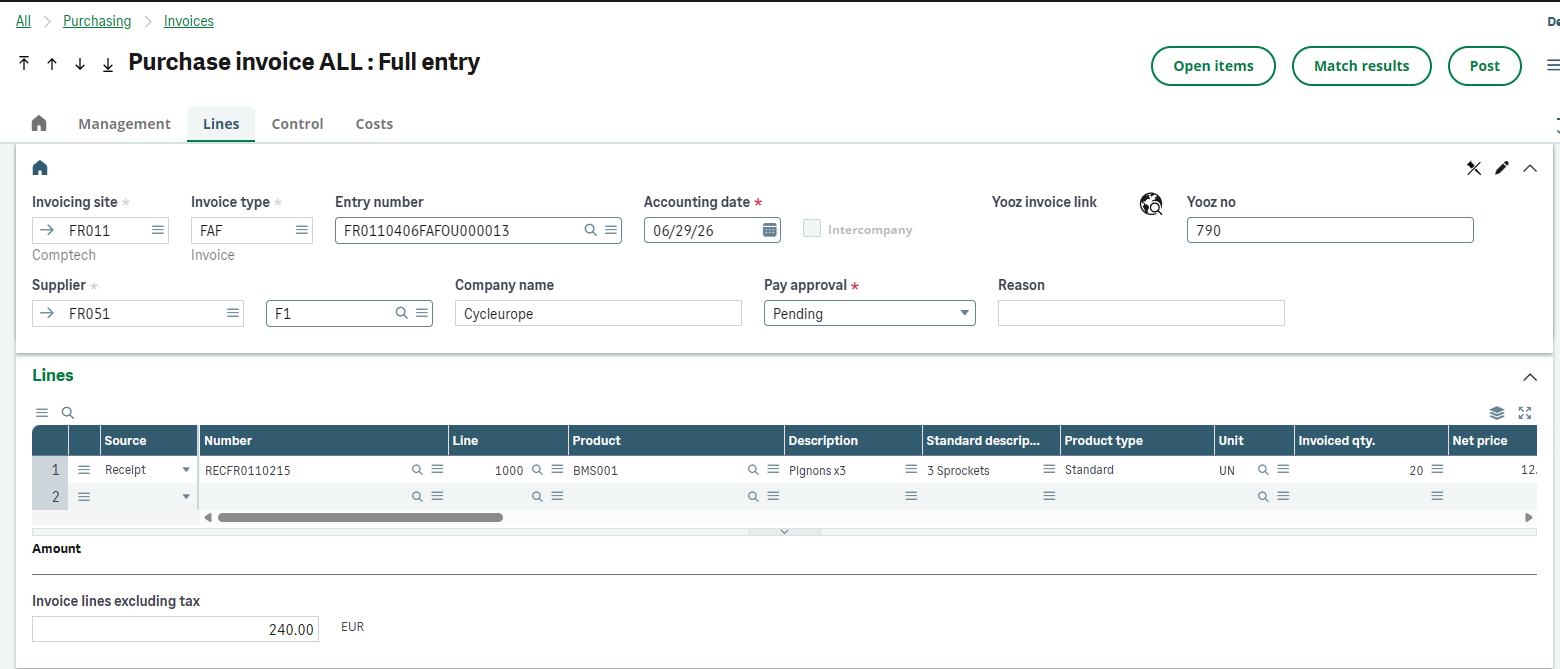
To ensure error-free integration of invoices into Sage X3, several business rules are automatically applied:
-
Date check The system can verify that the date of the purchase document (order or receipt) is not later than that of the invoice. This strict check can, however, be disabled during initial setup if needed.
-
Items of expenses and miscellaneous lines Additional costs manually added in Yooz (shipping, customs) must be based on "generic items" created in Sage X3, which must not be managed in inventory. If the unit of measure is not found during import, it is forced to default to "ONE" (Unit).
-
Billing elements In Yooz, a price increase must include a VAT code and amount. Conversely, a discount or reduction is transmitted without any VAT code or amount.
-
Fixed assets The system automatically distinguishes between standard purchases, services, and fixed assets based on the "Purchase Type" data entered on the lines. Additional information (such as the fixed asset collective account) is transmitted via custom fields.
-
Custom fields Up to 10 header fields and 10 line fields can be imported from Yooz to Sage X3. The target field in the ERP must be present on the screen and editable.
-
Attachments and PDF For optimal traceability, the invoice generated in Sage X3 includes a clickable URL link to the Yooz image and can also retrieve the PDF file physically as an attachment.
Purchase management in X3 (Case A) vs in Yooz (Case B) The major difference between these two modes of operation lies solely in the direction of synchronization of the original documents (Sage X3 sends the command/receipt to Yooz in case A; Yooz sends the command/receipt to Sage X3 in case B). The method of creating and importing the final purchase invoice in Sage X3 remains strictly identical for both scenarios.
Various lines and assets A line item entered in Yooz without an item code is imported into the ERP system as a "miscellaneous line item". The connector natively handles negative amounts on these lines for the creation of credit notes or deductions. Attachment (PDF) Exporting the invoice PDF from Yooz for automatic integration as an attachment in X3 is possible. Prerequisite: activate the Yooz XRJ31IPDF WebService and configure the XRJ31AIMMS destination with the value MESSPDF in the ERP.
3.1.2 - Third-party supplier invoices (invoices not linked to an order)

Invoices for overhead expenses, services not included in a purchase order, or supplier invoices not linked to a purchase document should not be treated as standard purchase invoices PIH. They fall under the Finance stream.
In Yooz, they are treated as "third-party invoices", and the connector will automatically create them in Sage X3 as "supplier third-party invoices" GESBIS.
- Data entry and allocation in Yooz The invoice is captured in Yooz and processed as an "invoice without PO". The accountant manually allocates it based on the reference data synchronized with X3: choice of supplier, organization, general ledger account, taxes, analytics, etc.
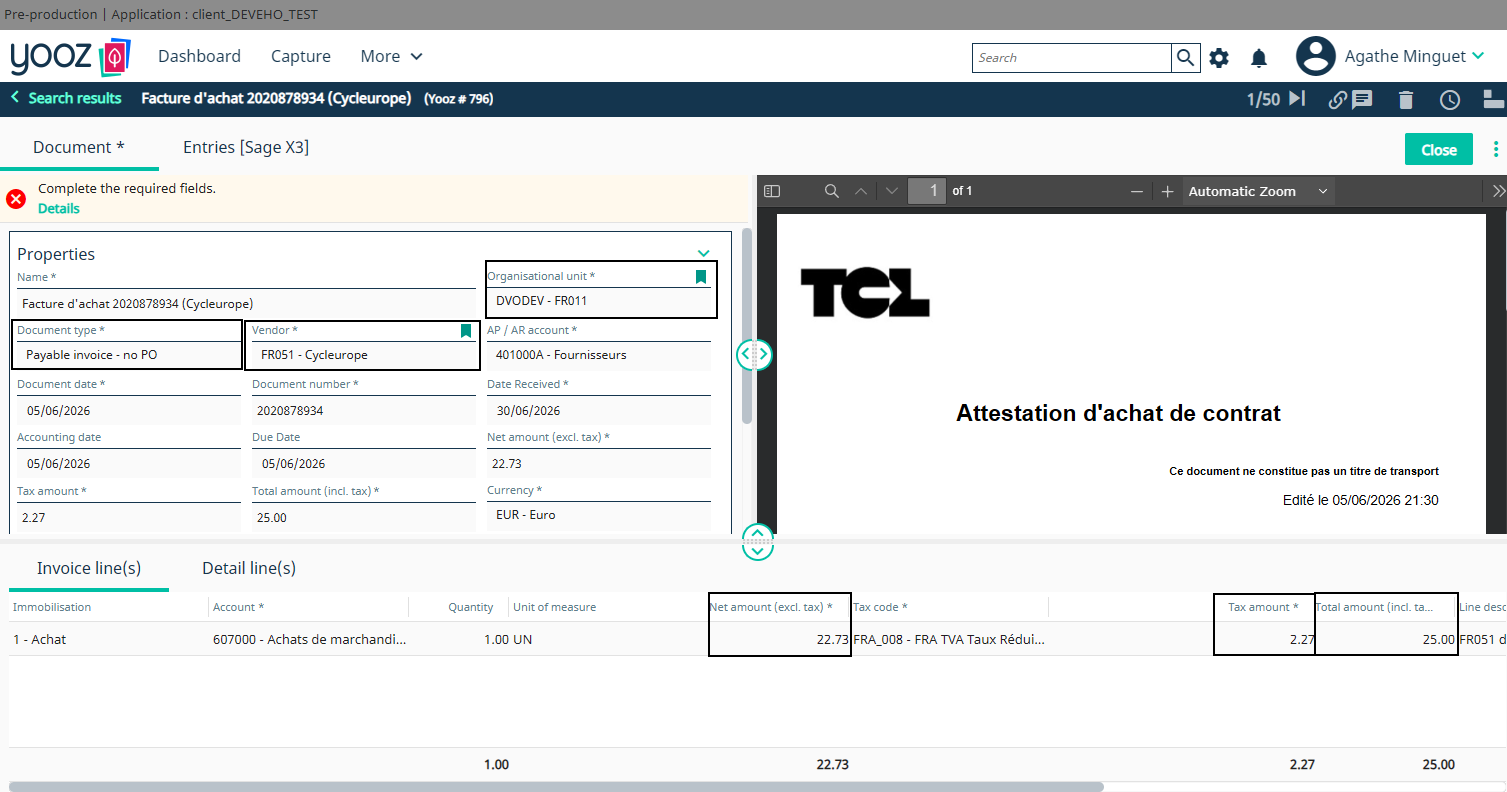
- Validation Yooz et export Finance After validation, Yooz exports the invoice to Sage X3. The connector calls the template XRJ31BIS in order to create a third-party supplier invoice in the function GESBIS. The document created is not linked to a POH order or a PTH receipt.
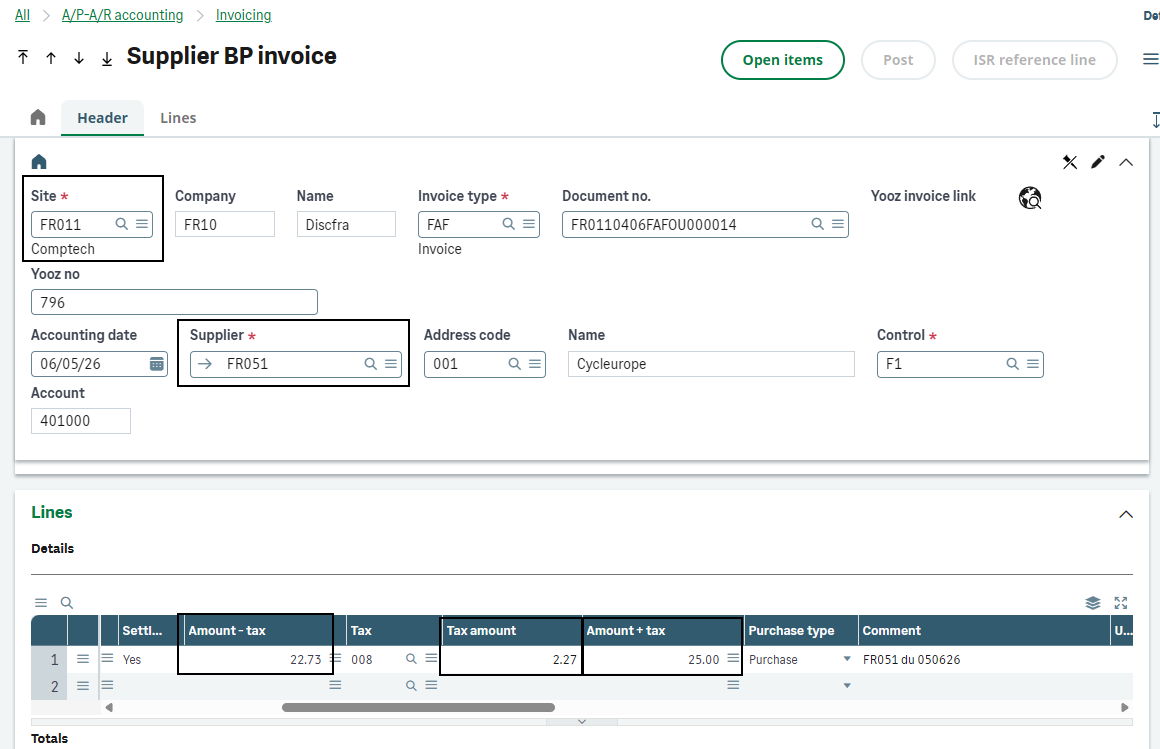
-
Traceability and PDF As with PIH, the object BIS must retain the Yooz number, the Yooz image URL and, if the feed is enabled, the physically attached PDF via XRJ31IPDF. This information is necessary for user control, duplicate detection, BAP, and feedback. (Note: If the part is manually duplicated in X3, these fields are automatically cleared).
-
Accounting validation in X3 The third-party invoice then follows its usual X3 validation cycle. The rest of the workflow is exactly the same as for invoices on order: the connector will update Yooz with the accounting feedback.
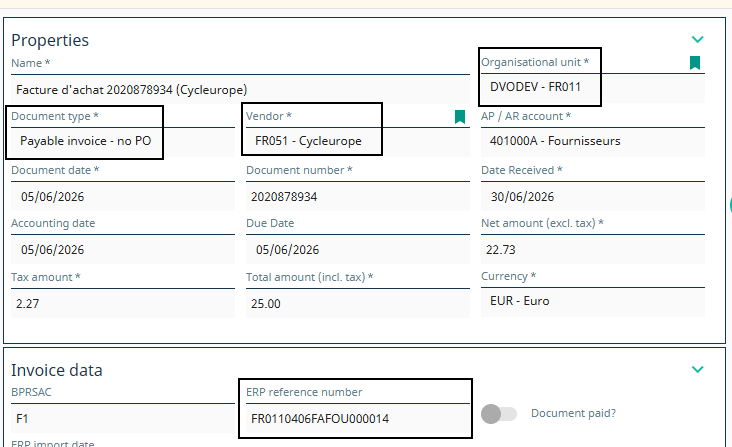
Do not create a dummy order in X3 to enter an overhead invoice into the PIH flow. If the invoice has no real purchase basis, the target flow is BIS.
When these invoices are entered into Yooz, the data is interpreted by Sage X3 as follows:
-
Payment terms The payment condition entered in Yooz takes precedence. It overrides the default condition set on the supplier's record in Sage X3.
-
Comments and Label The first comment entered in the header of the Yooz invoice is automatically retrieved by Sage X3 to become the "label" of the generated accounting document.
-
Fixed assets Fixed assets can be managed directly through this data flow. The "Purchase Type" field allows you to identify whether a specific line item relates to a fixed asset, so that Sage X3 can process it correctly.
-
Collective accounts If a posting line uses a collective account, Sage X3 requires that a third party be linked to it. If this third party is not specified on the line in Yooz, the connector automatically uses the header provider to force the line and prevent a block.
-
Specific adaptations The connector natively manages the injection of Yooz custom fields into Sage X3, as well as specific legal obligations.
3.2 - Accounting validation & feedbacks (Flow Sage X3 ➔ Yooz)
Feedback closes the loop between Sage X3 and Yooz. Once the invoice is integrated into the ERP, information known only after this integration (accounting document number, import date) is sent back to Yooz.
This feedback relies on the API***/yooz/v2/api/feedbacks*** and requires identification of the original document. Therefore, invoice X3 must include the Yooz number entered in the field PINVOICE.XRJ31NUMYOOZ (this field is filled in when the invoice is exported from Yooz to X3).
Accounting feedback is sent when the invoice from Yooz is validated in Sage X3. Validating the invoice creates the accounting entry. The following fields are then updated in the block YZ_INVOICE from Yooz:
| Field Yooz | Source Sage X3 | Role |
|---|---|---|
| YZ_POSTING_NUMBER | PINVOICE.NUM or X3 part number used as accounting reference | Allows Yooz to display the part/invoice number created in X3. |
| YZ_IMPORT_DATE_ERP | Validation or ERP import date, for example PINVOICE.UPDDAT depending on the processing | Allows Yooz to indicate that the invoice has been integrated and recorded in the ERP. |
- Validation in X3 The invoice (PIH or BIS) is validated in the ERP. The field STA the status changes to 3 (validated or posted status) and the accounting document becomes available. This action generates a record in the tracking table XRJ31YOOZSUI.
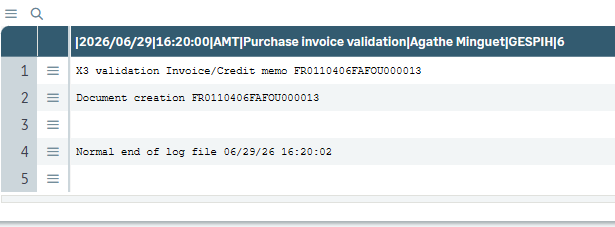
-
Sending feedback The recurring task XRJ31EXE the process executes. It reads the tracking table and triggers the API call to Yooz. The data sent targets the exact document using its Yooz number.
-
Sending to Yooz The invoice in Yooz is updated with the X3 document number and the ERP validation date. As soon as the update is successful, the submission is tracked (status updated in the table XRJ31YOOZSUI) to avoid unnecessary repetition of feedback. Payment will be processed later (flow PAY).
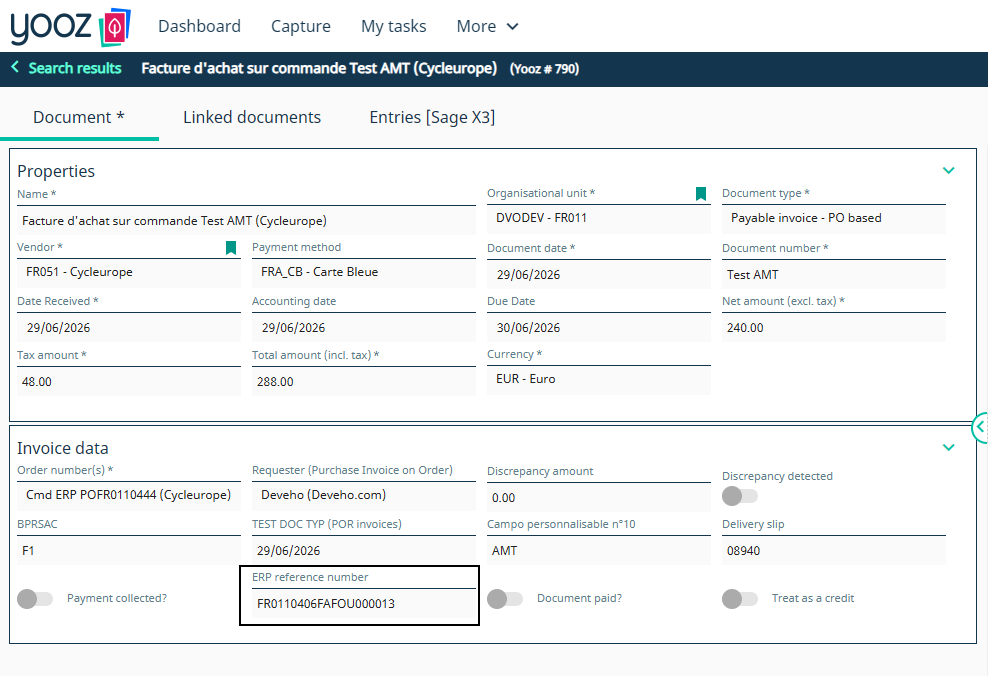
3.3 - Synchronization of the payment voucher (Flow Yooz ➔ Sage X3)
The "Approved for Payment" (BAP) status authorizes the payment of an invoice. Please note, Sending this status from Yooz to X3 is not automatic by default. Its triggering depends strictly on the construction of the customer workflow in Yooz. The export is linked to a specific step chosen during setup (for example, during final approval by a manager).
⚙️ Prerequisites: Invoices must be created in Sage X3 with an initial status of "Pending" (user setting NEWBONPAYE set to "Pending").
-
Update (Template XRJ31BAP) The information is transmitted to Sage X3 via a dedicated export. This model simply updates the due date status of the existing invoice (GACCDUDATE.FLGPAZ), without re-importing the rest of the document.
-
Payment release The invoice status changes to "Approved for Payment" in the ERP system. The supplier payment can then be processed in Sage X3. Any invoice without this status remains strictly blocked for payment.
The payment authorization (BAP) issued by Yooz is completely independent of the accounting validation performed in Sage X3 (which generates the journal entry). Therefore, the BAP status can be applied before or after the accounting validation.
The model XRJ31BAP is strictly for modifying the payment authorization. It cannot be used to correct amounts, taxes, or charges.
3.4 - Payment settlement and feedback (Flow Sage X3 ➔ Yooz)
The supplier payment flow follows the standard logic of Sage X3. The sending of feedback to Yooz is triggered exclusively when the status changes to "In Bank" in order to update the original invoice.
- Input in X3: Use of payment entry (GESPAY - ex: transaction FCHQE) ➔ New ➔ Selection of deadlines (picking on open items) ➔ Entry of the different fields ➔ Accounting (validation).
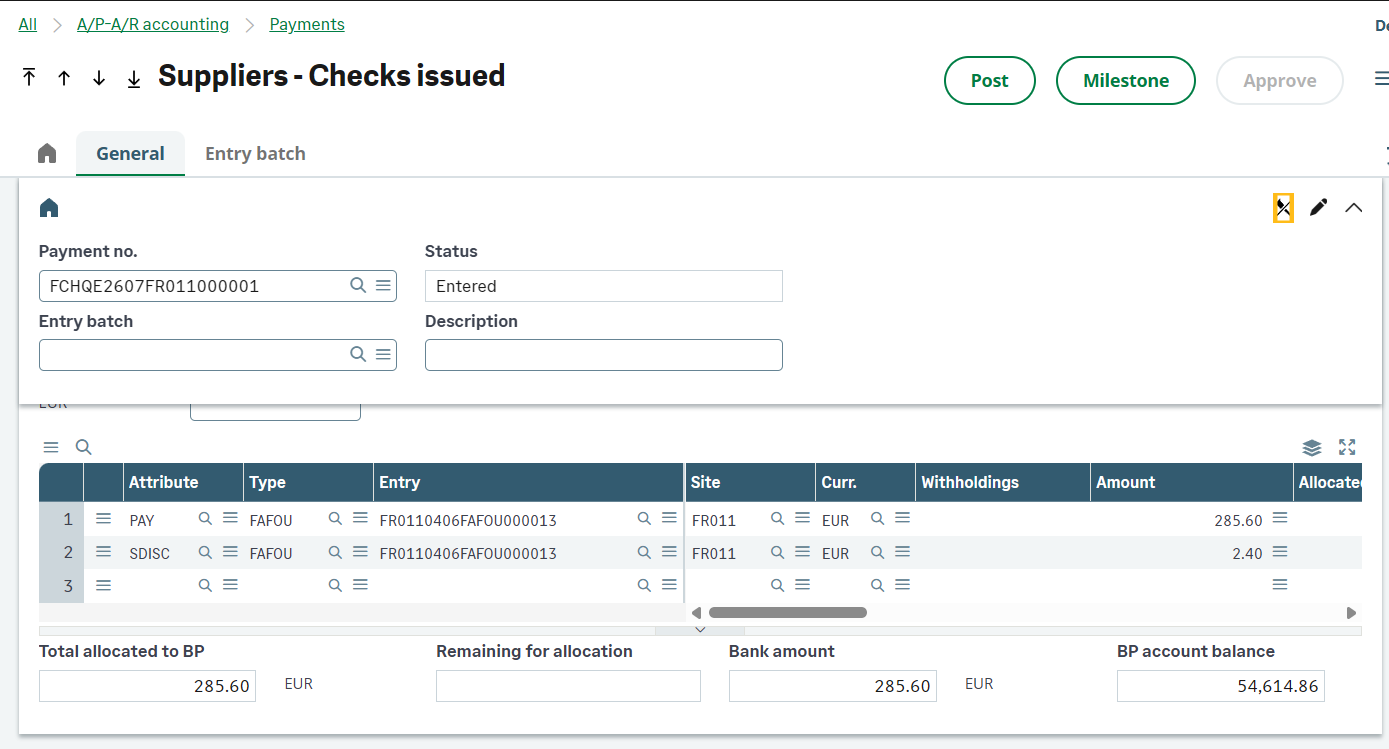
- "In the bank" trigger The accounting action validates the change to "In Bank" status or the use of the automatic payment proposal (PAYPROPAL).

- Yooz Update: Transmission of the amount (YZ_AMOUNT_PAID) and the accounting date (YZ_DATE_OF_PAYMENT) via the task of sending to Yooz XRJ31EXE. The invoice status in Yooz changes from "Awaiting payment" to "Settled".
Partial payments: Natively managed. The Yooz workflow remains on hold until the sum of payments covers the total invoice amount. Cancellation (Negative Flows): If an error occurs in X3, feedback with a negative amount will restore the outstanding balance in Yooz. Important: Cancellation is strictly impossible if the invoice is already considered fully paid (Yooz workflow complete). Asset Independence: The processing of a credit note is completely independent of the settlement (applicable before or after). This point is addressed in chapter 3.5. 🚨 Unsupported cases (no transmission triggered): Invoices settled by simple manual matching, matching with a credit note, or grouped settlements mixing Yooz and non-Yooz invoices.
3.5 - Special case: Import & management of assets
Credit notes must be documented separately, as Yooz and Sage X3 do not share the same functional logic. In X3, a credit note can be represented by an invoice type expected in the purchasing or accounts payable module. In Yooz, the document can be reconciled with the original purchase using negative entries, particularly for returned credit notes.
| Case | Functional origin | Yooz Treatment | Import X3 expected |
|---|---|---|---|
| Having to return to the supplier | Supplier return validated on a receipt already invoiced | The return is sent to Yooz as a negative line item attached to the original order. The supplier then transmits the credit note to Yooz. | Import via PIH / XRJ31PIH with expected type in X3, according to PIVTYP and TYPORI settings. |
| Discount or reduction | Trade difference, discount, or billing element that reduces the amount | The discount is recorded as a negative line item or invoice element. The tax rules must be defined. | Import into the invoice or credit note depending on the business case. Discounts must be transmitted without a VAT code or VAT amount when the billing elements rule applies. |
| Having out of order | Finance correction without purchase document | No order or receipt matching. | Processing via BIS if the document falls under third-party supplier accounting. |
| Credit note on invoice already processed | Correction of an invoice that has already been integrated and validated | To be framed as a corrective document. Yooz links the credit note to the purchase and not to the X3 invoice already recorded. | Do not re-import the original invoice. Use a credit note or accounting correction according to the chosen process. |
-
Step 1 - Identify the nature of the asset. Before importing, a distinction must be made between a credit note on a return, a discount, or a corrective overhead document. The choice determines whether the target flow is PIH or BIS.
-
Step 2 - Maintain the functional connection. For a credit note on a return, the return does not create a new, independent purchase in Yooz. It adds negative entries to the original purchase. Therefore, linking it to the original order remains essential.
-
Step 3 - Import with the correct sign and type. The import model follows the logic of the purchase invoice, with adjustments to the document type fields. Negative amounts or quantities entered in Yooz must be converted to the format expected by Sage X3 in order to generate a credit note and not a new positive invoice.
-
Step 4 - Continue the financial cycle. Once the credit note is imported, the BAP, accounting feedback, and, if applicable, payment rules follow the same principle as other documents. Note that for a credit note, Yooz will systematically transmit the value "3" (Credit Note Pending) for the approval status, unlike standard invoices (1 or 4).
The 2 golden rules for entering assets in Yooz Yooz cannot natively link a "purchase credit note" document to an order. Therefore, the behavior differs depending on the workflow: Having out-of-order items (flow BIS): The user uses the "Purchase Credit Note" document type and enters the amounts as positive. The X3 import will create a third-party supplier credit note. Available on order/return (flow PIH): The user must use the "Purchase Order Invoice" document type with negative amounts (header AND lines) for the template XRJ31PIH to work and create the credit note. Important: quantities must remain positive. When reconciling in Yooz, the user must click on the "orange square" to disable the default search filters; otherwise, the original order will not appear (the filters hide positive orders when a negative entry is made).
Importing a credit note directly linked to an already recorded invoice should not be presented as a standard automated workflow. The documented case is the credit note linked to the purchase or return. Post-accounting corrections must be framed as credit notes or corrective documents.
3.6 - Standard Acceptance Cases
| Case | Objective | Synthetic roll | Expected result |
|---|---|---|---|
| F1 - PIH invoice on order | Confirm the import of a purchase invoice linked to an order. | Match the invoice in Yooz with the order, validate, then export. | A purchase invoice (GESPIH) is created via XRJ31PIH, with the correct supplier, lines, taxes, and axes. The Yooz number (XRJ31NUMYOOZ) and URL fields are populated. |
| F2 - PIH invoice upon receipt | Confirm the import of a purchase invoice linked to a receipt. | Reconcile the invoice with the quantities received, validate and export. | The GESPIH invoice matches the original receipt. The tester verifies that X3 did not require manual entry of any items. |
| F3 - BIS invoice not ordered | Validate the Finance (overhead) flow. | Process a Yooz invoice without an order. Verify that the option "Export as invoice on request" is definitely unchecked. | A third-party invoice (GESBIS) is created via XRJ31BIS. The settings (taxes, analytical accounting) are correctly updated without a fictitious purchase document. |
| F4 - Miscellaneous lines / billing elements | Check the fees (shipping) and discounts at the bottom of the invoice. | Add in Yooz a line with an article code corresponding to the billing element code X3. | X3 imports the line into the billing elements table (and not into the item lines). Note: Surcharges carry a VAT code, discounts (rebates) are exported without a code. |
| F5 - Have on return or Finance | Validate the correct document type (AVO/AVR). | Finance Credit Note: Use the Yooz "credit note" type (amounts > 0). Credit Note on Order: Use the Yooz "Invoice on Order" type with negative amounts. | X3 creates the correct corrective document according to the workflow. Importing negative amounts correctly generates an X3 purchase credit note. |
| F6 - BAP (Good to Pay) | Check the deadline update. | Validate the final approval in Yooz, trigger the BAP export. | The GACCDUDATE.FLGPAZ field of the X3 due date changes to "4" (Approved to pay) without recreating or blocking the existing invoice. |
| F7 - Accounting Feedback | Inform Yooz of the accounting. | Validate (account for) the imported invoice in X3. Check the return via XRJ31EXE. | Yooz receives the X3 invoice number (YZ_POSTING_NUMBER) and the ERP import date. |
| F8 - Payment Feedback | Inform Yooz of the settlement (cash-out). | Settle the invoice via Payment Entry (GESPAY) only. Change the status to "In Bank". | Yooz receives the amount paid and the date. The Yooz status changes to "Paid" (Warning: Manual matching or mixed payments do not trigger the flow by default). |
| F9 - PDF and URL Yooz | Control access to the supporting document from the ERP. | Import an invoice. Click on the Yooz icon in X3. If the "Export PDF to X3" option is active in Yooz, check the attachments. | Invoice X3 contains the clickable Yooz link (XRJ31URLFAC) and the PDF attachment is attached to document X3. |
| F10 - Non-duplicate | Securing the uniqueness of the integration. | Attempting a voluntary re-import of an invoice that has already been integrated into Sage X3. | The connector rejects the import. Expected message in the trace: "This invoice from Yooz has already been imported into Sage X3. Import refused." |
4 - Interface monitoring and error handling
This section is the reference guide for technical support and system administration. It explains how to manage data flows, diagnose rejections, and restart interfaces in case of errors.
The connector's architecture requires a clear distinction between the direction of the flow, as the monitoring tools differ:
-
For outgoing flows (Sage X3 ➔ Yooz): Monitoring is done via the specific Yooz Interfaces dashboard (XRJ31YOOZINT) and reading the traces of the processing XRJ31EXE.
-
For incoming data flows (Yooz ➔ Sage X3): Monitoring is carried out on the Yooz side (export reports) and on the Sage X3 side via the reading of standard traces (LECTRACE) import templates.
4.1 - Outgoing Interface Dashboard (XRJ31YOOZINT)
The Yooz Interfaces function (XRJ31YOOZINT) is the main monitoring screen for controlling outgoing interface flows between Sage X3 and Yooz. It must be used during acceptance testing, error analysis, and in production when documents are pending or fail to send.
Step 1 - Check the synthesis of interfaced objects
The first block of the function presents a summary by Sage X3 entity interfaced with Yooz (columns: Number of records to be transmitted, transmitted, in error). For chapter 5, here is what the key object counters represent:
| Object / function | Usage in Chapter 5 | Expected control in XRJ31YOOZINT |
|---|---|---|
| POQ | Sending purchase orders and receipts (case A). | The number of headers or order/receipt lines waiting to be sent to Yooz, transmitted, or blocked in error. |
| PND | Sending supplier returns related to the original purchase. | The number of validated return vouchers that need to be pushed to Yooz. |
| PIH | Sending accounting feedback for purchase invoices. | The number of accounting validation confirmations (return of document number X3) to be sent to Yooz following the validation of a GESPIH invoice. |
| BIS | Sending accounting feedback for third-party invoices. | The number of accounting validation confirmations to be sent to Yooz following the validation of a GESBIS invoice. |
| PAY | Sending payment feedback. | The number of settlement statuses ("In Bank") that must be sent back to Yooz to settle the invoice. |
Step 2 - Analyze the details in XRJ31YOOZSUI
The second block lists the tracking records from the XRJ31YOOZSUI table. It serves to understand precisely which document is involved, which event triggered the interface, and what the technical result of the processing is.
| Information to be checked | Role in the analysis |
|---|---|
| Chrono | Unique identifier of the interface line. Essential for retrieving the details of an error in the trace file (.tra) of the XRJ31EXE processing. |
| Object | Allows identification of the relevant outgoing flow: POQ, PND, PIH, BIS, PAY, etc. |
| Key | This allows you to retrieve the source document in Sage X3 (e.g., order number or invoice number). This is the starting point for user analysis. |
| Event code | Allows you to distinguish the triggered action. The standard codes are C (Create), M (Modify) or A (Cancel/Delete). |
| Status | Internal execution status X3. Indicates whether the record is "To be executed" (0), "Executed successfully" (1), or "Executed with error" (-1). |
| Code | HTTP return code returned by the Yooz API. A 2xx code (200, 201, 202, 204) indicates success. A 4xx code (400, 403, 404) or 5xx code (500, 502, 504) indicates an error (invalid data, insufficient permissions, timeout, etc.). |
| Date and time | Timestamp of the line creation or its last execution attempt to Yooz. |
| [Action] Error message | Accessible via the action icon (three dots) at the beginning of the line. Allows you to display the complete JSON message returned by Yooz detailing the reason for the rejection (e.g., invalid SIRET, unknown analytical axis). |
| [Action] Download the file | If the XRJ31FILGN parameter value is set to "Yes", the JSON file containing the payload sent to the API can be downloaded via the row's action icon for analysis. |
Case study:
In the case of a 403 error in a purchase order export
Creation in Yooz: Purchase order POFR0120078 1000 1
Ligne 2 : 403 {"code":"INSUFFICIENT_PERMISSION","message":"You do not have the necessary permissions.","technicalDetails":{},"isFormattedError":true}*
This concerns a limitation of your rights in Yooz; you must contact your Yooz representative.
4.2 - Execution and error handling
Step 3 - Launch or restart the processes
Outgoing data flows (X3 ➔ Yooz) are processed by the Yooz Web Services (XRJ31EXE). In case of rejection by the Yooz API, analysis and individual retries are performed from the Yooz Interfaces dashboard (XRJ31YOOZINT).
Prerequisite: In order to download and analyze JSON call files, the XRJ31FILGN parameter value (File generation) must be set to "Yes" at the folder level.
| Action | X3 Screen | Time of use | Expected result |
|---|---|---|---|
| Manual execution | Web service Yooz (XRJ31EXE) | During the recipe or to immediately force the sending of a blocked feed. | The "To be executed" recordings are sent to Yooz. The "Download all call files" option allows you to obtain an immediate ZIP file. |
| Batch execution | Subscription Management (GESABA) | In normal operation (XRJ31EXE_T subscription). | Synchronization runs automatically in the background according to the selected frequency (e.g., every 2 minutes). |
| Download the file / all files | Interfaces Yooz (XRJ31YOOZINT) | Technical analysis of an error returned by Yooz. | Retrieving the generated JSON on the line or in a ZIP to compare the sent data with the expected mapping. |
| Retry the request / all requests | Interfaces Yooz (XRJ31YOOZINT) | After correcting in X3 a piece of data that had been rejected by Yooz. | The internal status of the line reverts to 0 ("To be executed") to be returned on the next pass of XRJ31EXE. |
The queue only handles outgoing flows. Therefore, there is no risk of creating a duplicate purchase invoice in Sage X3 by sending a reminder. Similarly, on the Yooz side, resubmitting a purchase order (POQ) updates the document if it already exists. The real concern is with payment feedback (PAY) and repository changes: do not blindly resubmit a payment feedback if the target invoice workflow is already closed on the Yooz side. Always analyze the JSON error message before resubmitting.
Step 4 - Read the errors according to the direction of the flow
The analysis process differs slightly depending on the interface direction. X3 to Yooz flows are primarily analyzed from the XRJ31YOOZINT dashboard and the XRJ31EXE processing unit. Yooz to X3 flows (which utilize SOAP web services) must first be checked on the Yooz side in the export report, and then on the X3 side in the import logs.
In Sage X3 trace screens, text display is limited by default. If an error message is displayed in a truncated form, click the action icon (the three dots ⋮) on the relevant line, then select Comment to view the full message.
| Direction of flow | Examples from Chapter 5 | Where to check first | Common mistakes |
|---|---|---|---|
| Sage X3 ➔ Yooz (Sortant - API REST) | Orders, receipts, returns, accounting feedback, payment feedback. | 1. XRJ31YOOZINT screen (Block 2: Error message) 2. Reading traces (LECTRACE) for the XRJ31EXE batch 3. JSON call file (if XRJ31FILGN is active). | Business issue: Yooz organization not in the mapping, repository not synchronized, line not billable, payment already transmitted. Technical issue: Invalid API/token (error 401), network timeout. |
| Yooz ➔ Sage X3 (Entrant - API SOAP) | Yooz orders, Yooz receipts, PIH invoices, BIS invoices, BAP. | 1. Yooz export report (indicates the raw HTTP or X3 error) 2. Reading traces (LECTRACE) in X3 for imports (e.g., error on XRJ31PIH) 3. Documents created (GESPIH, GESBIS, GESDUD). | Business: Missing supplier or item, incorrect site, invalid tax or account, unusable custom field, invoice already imported (Yooz timer rejected), inconsistent date (XRJ31CTLDO). Technical: Inactive/non-existent SOAP pool ("Error 146" or "Machine inaccessible"), error 403 (IP not whitelisted). |
Step 5 - Correct and then check the business result
The correction must always address the root cause: missing reference, incorrect mapping, inconsistent parameter, or workflow error.
-
Identify the document. Search for the object, key and status in the tracking interface (XRJ31YOOZINT) for sending, or in the import trace (LECTRACE) for receiving.
-
Download the call file if available. Download the call file. Note: If the file is empty or missing, set the XRJ31FILGN parameter value to "Yes", restart the process to generate the JSON, then analyze it.
-
Correct the source data. The correction is made on the X3 side, on the Yooz side or in the connector settings.
-
Restart the flow.
-
Outgoing stream (X3 ➔ Yooz): Restart from XRJ31YOOZINT to limit the scope, then execute XRJ31EXE.
-
Incoming feed (Yooz ➔ X3): Return to the Yooz application, find the failed document and trigger the "Re-export" action.
-
-
Check the result. Check the timestamp (XRJ31YOOZDAT), the Yooz Number field (XRJ31NUMYOOZ), the creation of document X3, or the correct update of the status in Yooz.
| Type of errors | Concrete example | Recommended corrective action |
|---|---|---|
| Reference frame not available | Supplier, account, or item not available in the target application. | Use the Yooz Data Recovery function (XRJ31YOOZREP) to force synchronization of the missing repository, then relaunch the document. |
| X3 settings inconsistent | PTHDIR (allowing direct reception) is active, or XRJ31CTLDO is blocking dates. | Correct the parameter value in the ADPVAL function, then retest on a clean document. |
| Case A / Case B flow poorly chosen | Attempt to manage a reception in Yooz requiring lots or locations. | Switch the receiving process to Sage X3 (case A) or define this logistical limit with the client. |
| Duplicate | X3 rejected because the Yooz invoice already exists (XRJ31NUMYOOZ already present in the database). | Do not persist. Cancel or close the failed export document on the Yooz side to clear the queue. |
| Workflow Yooz | Payment feedback sent even though the Yooz invoice is not at the "Awaiting payment" stage. | Advance the invoice in the Yooz workflow, then retest the matching/payment in X3. |
| Custom fields | Custom field Yooz missing, incorrectly mapped, or not taken into account in an X3 import. | Modify the mapping in the function Customized inbound fields. Imperative: Republish the Web Service (GESAWE) and restart the SOAP pool to apply the change. |
5 - Final validation criteria (Go-Live)
At the end of the execution of the business scenarios, the following criteria confirm the success of the integration and authorize the transition to production:
-
Documents created: Orders, receipts, purchase invoices (PIH), third-party invoices (BIS), BAP due dates and expected payments exist in the target application and comply with the standard mapping.
-
Traceability: Yooz timecode numbers (XRJ31NUMYOOZ), clickable URLs to Yooz (XRJ31URLFAC), and transmission timestamps (XRJ31YOOZDAT) are present.
-
Financial Consistency: The amounts excluding tax / including tax, taxes, currencies, payment terms, accounts and analytical dimensions are strictly identical between Yooz and Sage X3.
-
Technical stability: The monitoring dashboard (XRJ31YOOZINT) contains no unexplained errors. Retries (after data correction) are successful without creating duplicates.
-
Acceptable framing limits: The inherent limitations of the connector (physical returns, stored purchases in case B, additional invoices/approach fees) have been tested, understood and validated by key users.
-
Editor's Checklist: Test completion aligns with the standard validation checklist provided by the connector vendor to secure deployment.
The recipe scenarios below should only be executed if the X3 environment is technically ready (open network flows, service user equipped with an ERPFULL badge) and if the Test folder is strictly frozen (no overwriting by production data is allowed under penalty of deleting the connector installation).
5B-Purchasing and Finance Flows (short version)
Context and objective
Purchases: Orders and Receipts (managed in X3 or Yooz). Invoices: Integration of purchase invoices on orders (PIH).
Finance: Invoices outside of orders / general expenses (BIS). Management of Payment Approvals (BAP) and Payment Returns (subject PAY / feedback).
This document covers the Purchasing and Finance flow of the Yooz connector for Sage X3. It describes the expected operation of orders and receipts, whether managed in Sage X3 or in Yooz, as well as the integration of supplier invoices into X3.
This document addresses these phases of implementation:
| ▼ | ▼ | |||||
|---|---|---|---|---|---|---|
| Pre-sales | Initialization | Framing | Installation | Setup | Recipe | Production launch |
Scope covered and reading prerequisites
Before continuing with this chapter, ensure that the others have been completed in their entirety, up to and including the synchronization of the repositories. Specifically, this includes Yooz organizations, users, suppliers, accounts, analytical axes, taxes, payment terms, and, if necessary, items, must be available on the Yooz side before performing the billing tests.
⚙️USEFUL PARAMETER VALUES
The Yooz connector only handles flows linked to a purchase order. Therefore, the entry of isolated documents must be blocked in the Sage X3 parameter values (Setup > General parameters > Parameter Values (function ADPVAL):
-
PTHDIR (ACH / REC): Set to "No" (receipt must be made on order).
-
PNHDIR (ACH / RET): Set to "Yes" in the settings (in order not to block the client's inter-site return flows). Technical note: The connector will dynamically force this value to "No" on X3 input screens if the user attempts to make a direct return to an external provider.
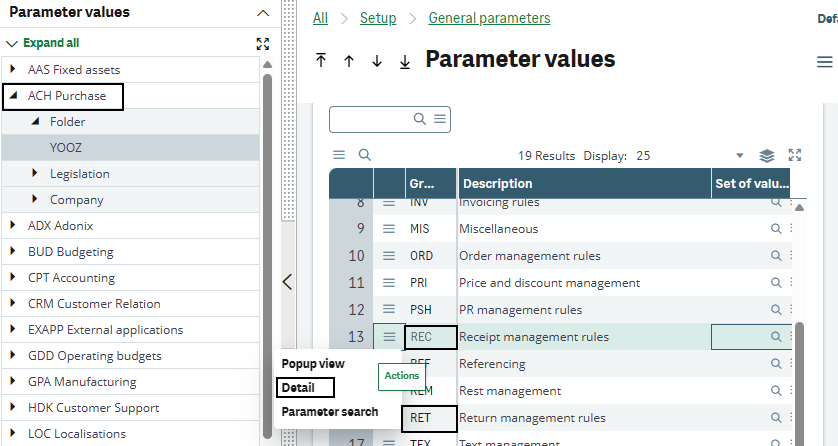
Flow of Procure-to-Pay
The connector covers two main modes of operation:
- Purchases are created in Sage X3 and then sent to Yooz for reconciliation and invoice processing.
- The order and/or receipt is initiated in Yooz and then imported into Sage X3 so that X3 generates the entries, keeps the documents and ensures accounting follow-up.
Case A: Purchase flows are managed in Sage X3
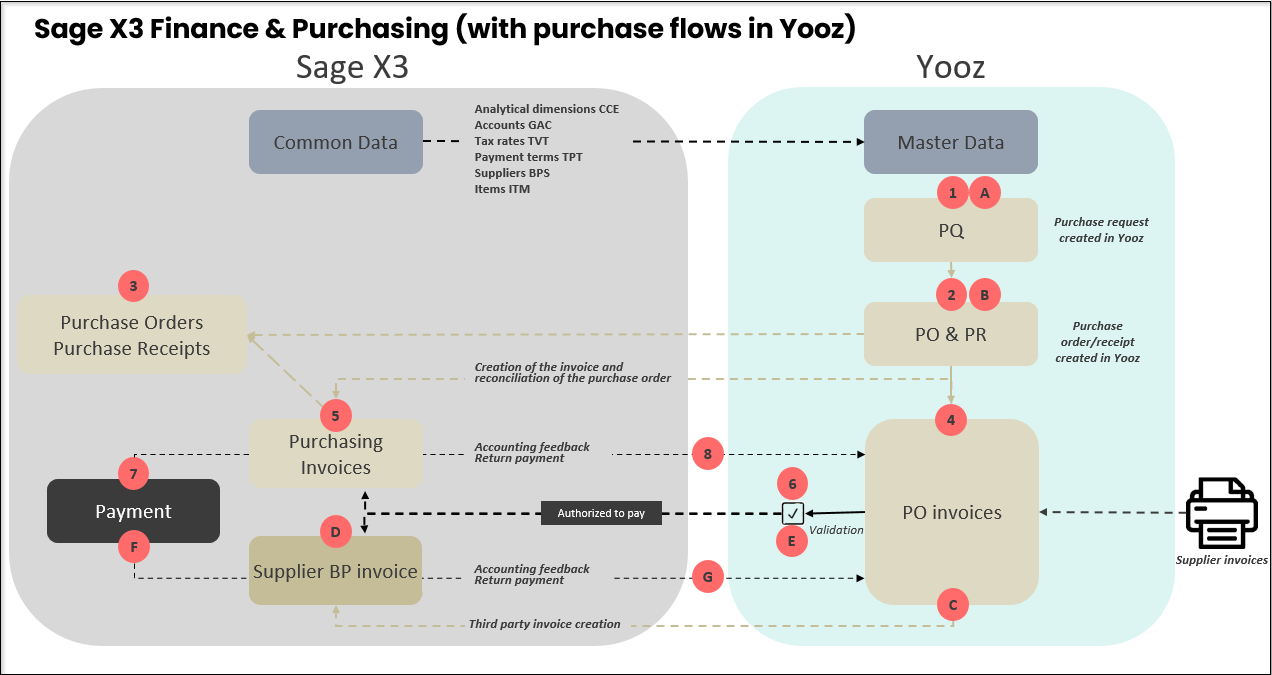
Case B: Purchase flows are managed in Yooz
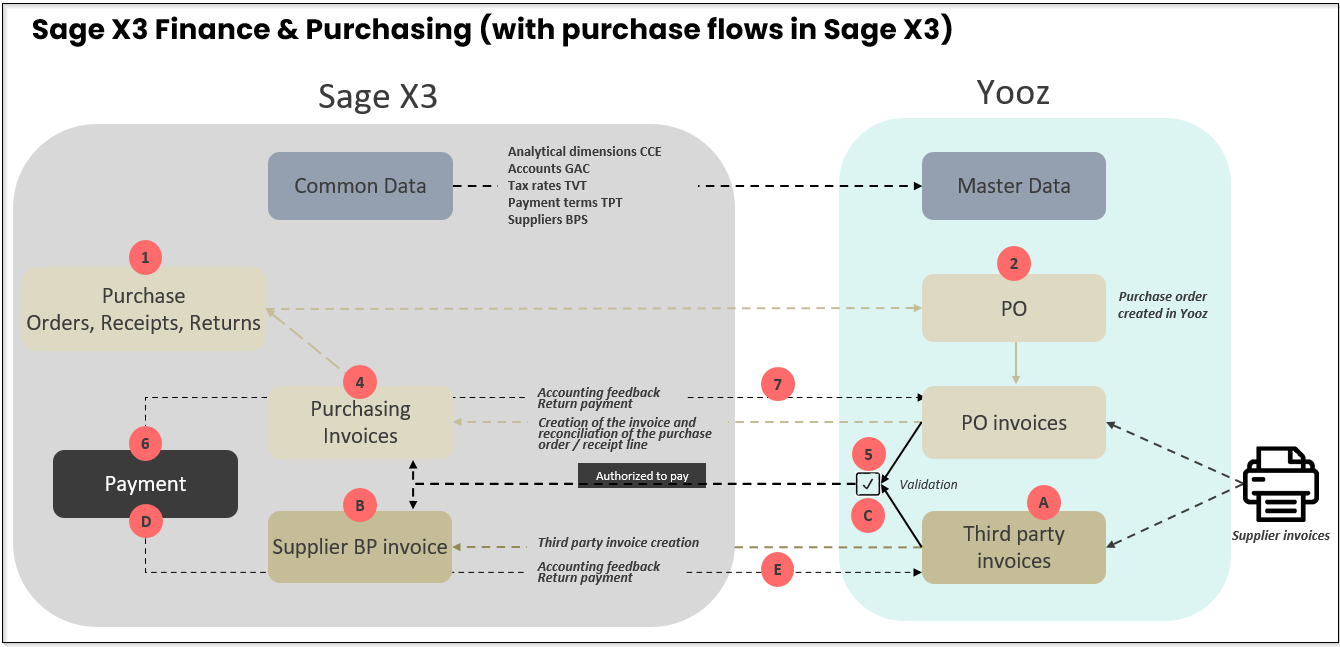
1 - Case A: Purchases managed in Sage X3
→ Sage X3 is the master application for creating and updating purchase orders, receipts, and supplier returns
→ Yooz then receives the necessary data to enable the capture of the supplier invoice, its reconciliation with the order or receipt, and then its validation before import into Sage X3.
1.1 General flow logic (X3 master)
The workflow should be viewed as a single chain, from the purchase in Sage X3 to the invoice payment. In case A, orders and receipts are not created in Yooz; they are created in Sage X3 and then transmitted to Yooz so that the supplier invoice can be matched with the corresponding purchase order.
Here are the functions used in the flows for case A:
| Stage | Master application | Function / Object | Role in the flow |
|---|---|---|---|
| 1 | Sage X3 | GESPOH / POH | Creation of the purchase order. The order may contain lines subject to receipt and lines not subject to receipt. |
| 2 | Sage X3 | GESPTH / PTH | Creation of the receipt when the item is submitted for receipt.The receipt then becomes the basis for invoice reconciliation on Yooz's side. |
| 3 | Sage X3 | XRJ31YOOZSUI then XRJ31EXE | Queuing in the XRJ31YOOZSUI table and then sending, receiving or returning orders to Yooz via the XRJ31EXE batch task. For commands: only the lines (POQ) are sent to Yooz. |
| 4 | Yooz | PO / PO invoices | Matching the supplier invoice with the order or receipt transmitted by Sage X3. |
| 5 | Sage X3 | GESPIH / PIH | Import the validated purchase invoice into Yooz using the XRJ31PIH import template. The invoice remains linked to the original order or receipt. |
| 6 | Sage X3 then Yooz | Feedbacks / PAY | Accounting return after invoice validation in X3, then payment return after settlement. |
Additional costs The transmission of billing elements (shipping costs, customs, discounts) to Yooz is done via the addition of outgoing customs fields on purchase orders (line 18). Prerequisite: the code for element X3 must exist in the Yooz repository. Analytics The analytical dimensions entered on the X3 order are transmitted to Yooz. Any subsequent manual modification directly in Yooz risks desynchronizing the original data with X3.
1.2 Reception Management (Conditional)
For receipts, the main rule is indicated by the "Received product" box in the product record, corresponding to the field ITMMASTER.RCPFLG. This rule determines whether Yooz should match the invoice with the order or with the receipt.
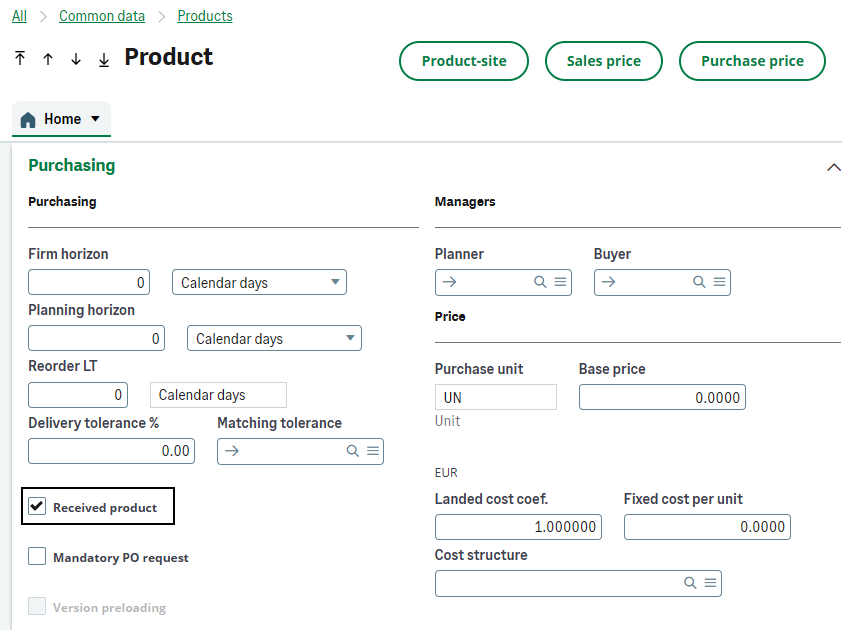
| Case | Sage X3 Rule | Sending time to Yooz |
|---|---|---|
| 1 - Product not subject to receipt | The "Received product" box is not checked. The purchase does not wait for physical receipt in X3. | The command line is sent to Yooz as soon as the order is broadcastable according to the X3 process, including after editing/printing if this control is used. |
| 2 - Product subject to receipt | The "Received product" box is checked. | The line is normally only sent to Yooz after the X3 reception has been created. |
| 3 - Order sent before receipt | Exceptional case for a line normally subject to reception. | A manual send button allows you to send the order without waiting for receipt, if the order has not already been sent to Yooz. |
For case 1: the order is added to the sending queue with each new print job. If an order is modified, it must be reprinted for the update to be sent to Yooz.
Case 1: Purchase not subject to receipt
- The fundamental principle: Without waiting for stock receipt or physical delivery, the Sage X3 purchase order is transmitted directly to Yooz. It then becomes the immediate basis for reconciling the supplier invoice.
- Instant processing: Yooz doesn't wait for any receipt action. As soon as the supplier invoice arrives on the platform, it can be processed and matched directly with the X3 order.
- Data transmitted: Yooz receives the complete purchase order. This order natively includes the analytical dimensions provided by the X3 order line, and can be enriched, if needed, with custom outgoing fields.
Case 2: Purchase subject to receipt
- The fundamental principle: For items requiring stock entry (
RCPFLG= 2), the initial command is never sent alone. It is the validation of receipt which triggers the sending to Yooz. The transmitted data then combines the order and the actual delivery to guarantee a match exactly as per the supplier invoice.
The 3 prerequisites for operation:
- Site configuration: The X3 receiving site must be linked to a Yooz organization.
- Traceability (Items by batch): The breakdown of quantities must be entered precisely in the quantity details of the receipt, and not globally on the line.
- Exclusion native: Lines marked as non-billable are not sent to Yooz.
Case of multiple receptions:
The connector adapts to all X3 logistics (partial deliveries, backorders, group orders) and Yooz always bases its matching on the quantities actually delivered.
1.3 - Special case: Forcing the shipment of an order before receipt
This mechanism is a strict exception to the basic rule, used only when the schedule requires it.
In this scenario, a specific button "Send to Yooz without receiving" allows the order to be sent to Yooz for immediate invoice reconciliation.
So that the button "Send to Yooz without receiving" either clickable on the command (GESPOH), three cumulative conditions are required:
-
Not transmitted: The order must not have already been sent to Yooz (empty Yooz timestamp).
-
Signed: The X3 signature workflow must be completed (if configured).
-
Printed: The order must have been printed at least once.
The functional consequences of this button are:
-
In Yooz The invoice will be linked directly to the order, and not to a receipt.
-
In Sage X3 The invoice imported from Yooz will be linked to the purchase order. The physical receipt of the goods can still be entered later in X3 to update the inventory.
1.4 - Modifications, cancellations and balance management
The connector's role is to keep Yooz aligned with the state of Sage X3. Functional changes must therefore be reflected as soon as they concern a document already sent to Yooz.
See the detailed documentation
1.5 - Physical returns to suppliers (PNH/PRT)
For supplier returns (PNH/PRT):
The flow only concerns purchases subject to receipt. Validating the return in Sage X3 does not create a new "Return" object in Yooz, but directly updates the original order by adding new lines.
The valuation logic (Quantity vs. Amount):
On these new lines added to Yooz, the quantity remains positive (to allow reconciliation with the future supplier credit note), but the unit price and total amount are sent as negative.
The trigger to have (Trigger):
It is the presence of this negative amount that triggers the connector. During the final export from Yooz to Sage X3, the system will detect this "-" sign to understand that it is a reverse flow and automatically generate the credit note (AVR/AVO) in the ERP.
2 - Case B: Purchases managed in Yooz
In this scenario, Yooz is the master application for entering purchases.
Everything is initiated on the operational side in Yooz (purchase request ➔ order ➔ possible receipt), then replicated in Sage X3. The ERP remains the reference application for accounting, the payment authorization and the settlement.
The 3 implementation scenarios:
-
Orders in Yooz / Without delivery Basic workflow. The validated order is exported to X3, then the invoice is reconciled directly.
-
Orders in Yooz / Receipts in Sage X3 Classic and fully functional hybrid flow. Physical logistics are maintained within the ERP.
-
Orders and deliveries in Yooz Rare case. The receipt is entered in Yooz and then exported to X3. Each addition of quantity received in Yooz creates a receipt in X3.
Case B is not simply the inverse of case A. Purchases involving advanced logistics (batch management, sub-batch management, serial numbers, locations) must absolutely remain managed in Sage X3.
Reminder of prerequisites:
-
The supplier, site, currency, items, units, taxes, and necessary analytical axes must exist or be properly synchronized before testing.
-
The X3 site must be consistent with the Yooz organization. An incorrectly configured organization will result in an incorrect order site or an import rejection.
-
The order number and line identifiers must remain stable so that the invoice and receipts can find the correct original document.
-
The order imported from Yooz must not be re-entered in X3, otherwise the flow may create duplicates or a reconciliation on the wrong document.
2.1 - General logic of the flow (Yooz master)
The workflow is a continuous chain, from the purchase request in Yooz to the payment in Sage X3. Yooz handles the request, business validation, and invoice reconciliation. Sage X3 receives the validated data to create the documents in the ERP system and continue the accounting cycle.
| Stage | Master application | Object / function | Role in the flow |
|---|---|---|---|
| 1 | Yooz | Purchase Request (PR) | Creation of the purchase request and execution of the business validation workflow. |
| 2 | Yooz | Order (PO) | The order is created after the requirement has been validated. This document becomes the business reference for the workflow. |
| 3 | Sage X3 | Order (GESPOH) | Purchase order imported. Strict replica prohibiting any direct modification. Automatic read-only locking following import by the system user. |
| 4 | Yooz | Reception (GR) | Logistical receipt entry (if required by the item) directly on the Yooz order line. |
| 5 | Sage X3 | Reception (GESPTH) | Import of the receipt. Creation of an X3 document for each new quantity received and transmitted. |
| 6 | Yooz | Invoice | Capture, control, reconciliation (on order or receipt) and validation of the supplier invoice. |
| 7 | Sage X3 | Purchase invoice (GESPIH) | Import of the validated purchase invoice. Accounting management, payment approval and settlement then resume the standard cycle (see Finance section). |
2.2 - Step 1: Creating and importing purchase orders
The purchase order originates in Yooz (usually from an approved purchase request). Its validation triggers transmission to Sage X3 (model XRJ31POH) to generate an exact replica in the function GESPOH. The ERP thus has the reference document for future invoice reconciliation.
Creation of the purchase request
Sending to the ERP The "Confirm PO sending" action closes the task on the Yooz side. The data is instantly pushed to Sage X3 via a SOAP web service call. The order is physically created in the ERP.
Once imported, the order remains managed exclusively by Yooz. Any direct manual modification in Sage X3 will result in desynchronization and invoice reconciliation failure. Corrections must be made in Yooz before being applied to the ERP system via the import process.
2.3 - Step 2: Reception Management
Case 1: Purchase not subject to receipt (general expenses, services, etc.)
For an item not subject to receipt (field ITMMASTER.RCPFLG Positioned at 1), the logistics step is ignored. The purchase order is sufficient to carry the flow.
-
Rapprochement The supplier invoice is directly reconciled with the original order in Yooz.
-
Integration The invoice is exported and integrated into Sage X3 as a purchase invoice (GESPIH function, XRJ31PIH model).
This flow excludes any physical validation in the ERP. To require a "service rendered" check (even on a non-stocked service), the item must be configured as "receivable" to switch to Case 2.
Case 2: Purchase subject to receipt (goods, stocked purchases...)
The receipt entered in Yooz is always executed on an existing command line. It is never an isolated document.
⚙️ Yooz configuration required:
In Settings and preferences > Document processing preferences > Purchase orders > Order receipt:
- Check "Enable default receipt on purchase request".
- In the Process Customization section, activate "Generate a receiving task on orders generated in Yooz" and "Generate a missing receiving blocking task on the invoice on order".
The ERP creates a receipt for each new quantity transmitted by Yooz via the import model XRJ31PTH.
Logistics management rules:
-
Prerequisite articles Strictly incompatible with items managed by batch, sub-batch, serial number or location.
-
Direct receptions These are completely prohibited in this scenario. The flow must retrieve the original command and line in X3.
2.4 - Modifications, corrections and deviation management
In case B, the master application is Yooz. All operational corrections must be initiated there. The ERP receives updates but should never be used as a direct correction area for an imported order.
Modification and return rules:
-
Control lock: An order imported via the technical user Yooz is automatically locked in read-only mode in Sage X3. The aim is to prevent any manual desynchronization between the two systems.
-
Quantity adjustments: In case of adjustment of quantities in Yooz, only the difference (the delta) is transmitted to Sage X3 to create a line or an additional part.
Security and invoice control (Anti-duplicate):
- Strict import restrictions: The system prevents any double integration. If the Yooz number (
XRJ31NUMYOOZ) is already present in Sage X3, the import or validation is automatically blocked with an error message. - Manual duplication possible (workaround): It is still possible to manually duplicate an invoice directly in the ERP for business needs. To avoid triggering the duplicate alert, the connector automatically clears the Yooz-specific fields (
XRJ31NUMYOOZ,XRJ31URLFAC,XRJ31YOZDAT) on the newly generated part.
2.5 - Physical returns initiated in Yooz
Native handling of "Physical Return" type documents does not exist in the Yooz-driven purchasing flow (case B). Processing requires a strict distinction between the financial flow (credit note) and the logistical flow (inventory).
Financial processing (Credit note on order) in Yooz:
-
Negative amount method: Since the Yooz application does not have a "Purchase credit note on order" type, the operation requires the use of a classic "Purchase invoice on order".
-
Reverse entry: Amounts (header and lines) must be entered as negative (using the "-" sign). Note: the quantities entered must remain positive.
-
Automatic conversion: During export, the connector detects these negative amounts and automatically generates the appropriate document in Sage X3 (credit note of type AVO or AVR).
Using a negative invoice in Yooz does not replace or settle a physical transaction in the ERP system. If the supplier return has a logistical impact (stock, batch, location, traceability), the physical return must be entered and managed directly in Sage X3 (see case A).
3 - Common financial processing: PIH, BIS, BAP and feedback
The integration of the financial document into Sage X3 follows two distinct flows: the model PIH is used for invoices linked to an order or receipt, while the model BIS includes overhead invoices (excluding orders).
Once the part is created, the import XRJ31BAP the system then updates the "Approved for Payment" status in the ERP. Finally, the cycle concludes with feedback being sent to Yooz to automatically confirm the accounting and payment of the invoice.
| Treatment | Function X3 | Model / object | Functional role |
|---|---|---|---|
| Purchase invoice upon order or receipt | Purchasing > Invoices > GESPIH Invoices | PIH / XRJ31PIH | Create in X3 a purchase invoice linked to the original order or receipt. |
| Invoice outside of order / overhead costs | A/P-A/R accounting > Invoicing > GESBIS supplier invoices | BIS / XRJ31BIS | Create in X3 a third-party supplier invoice without linking it to a purchase document. |
| Attachment (PDF of the invoice) | Attachments (from GESPIH or GESBIS) | XRJ31IPDF | Physically import the validated PDF document into Yooz to attach it to the invoice in Sage X3. |
| Good to pay | A/P-A/R accounting > GESDUD invoice due dates (or via GESPIH/GESBIS) | XRJ31BAP / GACCDUDATE.FLGPAZ | Update the payment status without re-importing the entire invoice. |
| Accountant feedback | PIH or BIS validation/accounting | API: /yooz/v2/api/feedbacks | Return invoice number X3 to Yooz (YZ_POSTING_NUMBER) and the ERP import date (YZ_IMPORT_DATE_ERP). |
| Payment feedback | A/P-A/R accounting > Payments > Payment/Receipt entry GESPAY | Objet PAY / Action PAYMENT | Inform Yooz that the invoice has been settled when the payment reaches the expected status ("In Bank") in X3. |
3.1 - Importing invoices into Sage X3 (Flow Yooz ➔ Sage X3)
3.1.1 - Reconciliation in Yooz and import of the purchase invoice
This flow only concerns supplier invoices linked to a purchase document (order or receipt). In Yooz, the expected document type for these items is strictly "purchase invoice on order".
The goal of the connector is to maintain end-to-end traceability: the invoice validated in Yooz is automatically imported into Sage X3 as a purchase invoice, without ever losing its link to the original document.
| Scenarios | Example | Close-up document in Yooz | Point of vigilance |
|---|---|---|---|
| Purchase not subject to receipt | General expenses, services | Purchase order | The invoice can be processed in Yooz as soon as the order is visible there. |
| Purchase subject to receipt | Goods, stock | Receipt or quantities received | The reconciliation must meticulously follow the quantities actually received and billed. |
| Order sent before receipt | Grand Import | Purchase order | The physical receipt of the goods can be entered later in Sage X3. |
| Additional unforeseen charges | Various line | Order/receipt completed in Yooz | The unit and article used must be framed; the unit can be forced to “ONE” if the line origin does not provide a unit. |
-
Discrepancy management and supplementary lines If additional costs not included in the order are incurred (shipping, customs), supplementary lines can be added directly in Yooz. These lines require precise allocation (generic item, unit, account, tax, analytical) to ensure error-free integration into the ERP system.
-
Yooz validation and export to Sage X3 After validation in the Yooz workflow, the invoice is exported to Sage X3 (according to the established workflow). The connector imports the invoice via the template XRJ31PIH. According to the legislation, the model can be adapted.
-
Invoice creation in GESPIH Exporting creates a purchase invoice PIH in X3. The connector populates the Yooz traceability information for part X3, including the Yooz number, the URL link to the Yooz image, and the information needed for subsequent feedback. The PDF can also be physically imported as an attachment via XRJ31IPDF.
To ensure error-free integration of invoices into Sage X3, several business rules are automatically applied. (See detailed documentation)
Purchase management in X3 (Case A) vs in Yooz (Case B) The main difference between these two operating modes lies solely in the direction of synchronization of the original documents. The method for creating and importing the final purchase invoice into Sage X3 remains exactly the same for both scenarios.
Various lines and assets A line item entered in Yooz without an item code is imported into the ERP system as a "miscellaneous line item". The connector natively handles negative amounts on these lines for the creation of credit notes or deductions. Attachment (PDF) Exporting the invoice PDF from Yooz for automatic integration as an attachment in X3 is possible. Prerequisite: Enable the Yooz Web Service XRJ31IPDF and configure the destination XRJ31AIMMS with the value MESSPDF in the ERP.
3.1.2 - Third-party supplier invoices (invoices not linked to an order)
Invoices not linked to a purchase order should not be treated as regular purchase invoices PIH. They fall under the Finance stream.
In Yooz, they are treated as "third-party invoices", and the connector will automatically create them in Sage X3 as "supplier third-party invoices" GESBIS.
The invoice is captured in Yooz and processed as a "non-PO invoice". The accountant will have to manually allocate it using the reference data synchronized with X3.
After validation, Yooz exports the invoice to Sage X3. The connector calls the template XRJ31BIS in order to create a third-party supplier invoice in the function GESBIS.
The bill BIS must retain the Yooz number, the Yooz image URL and, if the feed is enabled, the physically attached PDF via XRJ31IPDF.
The third-party invoice then follows its usual X3 validation cycle
When these invoices are entered into Yooz, the data is interpreted by Sage X3 as follows:
-
Payment terms: The payment condition entered in Yooz takes precedence. It overrides the default condition set on the supplier's record in Sage X3.
-
Comments and Label: The first comment entered in the header of the Yooz invoice is automatically retrieved by Sage X3 to become the "label" of the generated accounting document.
-
Fixed assets: The "Purchase Type" field allows you to identify if a specific line relates to a fixed asset, so that Sage X3 can process it correctly.
-
Collective accounts: If a posting line uses a collective account, Sage X3 requires that a third party be linked to it. If this third party is not specified on the line in Yooz, the connector automatically uses the header provider to force the line and prevent a block.
-
Specific adaptations: The connector natively handles the injection of Yooz custom fields into Sage X3, as well as specific legal obligations.
3.2 - Synchronization of the payment voucher (Flow Yooz ➔ Sage X3)
The "Approved for Payment" (BAP) status authorizes the payment of an invoice. Please note, Sending this status from Yooz to X3 is not automatic by default. Its triggering depends strictly on the construction of the customer workflow in Yooz.
⚙️ Prerequisites: Invoices must be created in Sage X3 with an initial status of "Pending" (user setting NEWBONPAYE set to "Pending").
The invoice status changes to "Approved for Payment" in the ERP system. The supplier payment can then be processed in Sage X3. Any invoice without this status remains strictly blocked for payment.
The payment authorization (BAP) issued by Yooz is completely independent of the accounting validation performed in Sage X3 (which generates the journal entry). Therefore, the BAP status can be applied before or after the accounting validation.
The model XRJ31BAP is strictly for modifying the payment authorization. It cannot be used to correct amounts, taxes, or charges.
3.3 - Accounting validation & feedbacks (Flow Sage X3 ➔ Yooz)
Feedback closes the loop between Sage X3 and Yooz. Once the invoice is integrated into the ERP, information known only after this integration (accounting document number, import date) is sent back to Yooz.
This feedback relies on the API***/yooz/v2/api/feedbacks*** and requires identification of the original document. Therefore, invoice X3 must include the Yooz number entered in the field PINVOICE.XRJ31NUMYOOZ.
The accounting feedback is sent when the invoice from Yooz is validated in Sage X3. The following fields are then updated in the block YZ_INVOICE from Yooz:
| Field Yooz | Source Sage X3 |
|---|---|
| YZ_POSTING_NUMBER | PINVOICE.NUM or X3 part number used as accounting reference |
| YZ_IMPORT_DATE_ERP | ERP validation or import date, for example PINVOICE.UPDDAT |
3.4 - Payment settlement and feedback (Flow Sage X3 ➔ Yooz)
Payments are managed in Sage X3. Information is sent to the Yooz platform only when the payment is "In bank" or when using the automatic payment proposal (PAYPROPAL) to update the invoice.
The transfer of the amount (YZ_AMOUNT_PAID) and the accounting date (YZ_DATE_OF_PAYMENT) is done via the task of sending to Yooz *XRJ31EXE. The invoice status in Yooz changes from "Awaiting payment return" to "Settled".
Partial payments: Natively managed. The Yooz workflow remains on hold until the sum of payments covers the total invoice amount. Cancellation (Negative Flows): If an error occurs in X3, feedback with a negative amount will restore the outstanding balance in Yooz. Important: Cancellation is strictly impossible if the invoice is already considered fully paid (Yooz workflow complete). Asset Independence: The processing of a credit note is completely independent of the settlement (applicable before or after). 🚨 Unsupported cases (no transmission triggered): Invoices settled by simple manual matching, matching with a credit note, or grouped settlements mixing Yooz and non-Yooz invoices.
3.5 - Special case: Import & management of assets
Credit notes must be documented separately, as Yooz and Sage X3 do not share the same functional logic. In X3, a credit note can be represented by an invoice type expected in the purchasing or accounts payable module. In Yooz, the document can be reconciled with the original purchase using negative entries, particularly for returned credit notes.
| Case | Functional origin | Yooz Treatment | Import X3 expected |
|---|---|---|---|
| Having to return to the supplier | Supplier return validated on a receipt already invoiced | The return is sent to Yooz as a negative line item attached to the original order. The supplier then transmits the credit note to Yooz. | Import via PIH / XRJ31PIH with expected type in X3, according to PIVTYP and TYPORI settings. |
| Discount or reduction | Trade difference, discount, or billing element that reduces the amount | The discount is recorded as a negative line item or invoice element. The tax rules must be defined. | Import into the invoice or credit note depending on the business case. Discounts must be transmitted without a VAT code or VAT amount when the billing elements rule applies. |
| Having out of order | Finance correction without purchase document | No order or receipt matching. | Processing via BIS if the document falls under third-party supplier accounting. |
| Credit note on invoice already processed | Correction of an invoice that has already been integrated and validated | To be framed as a corrective document. Yooz links the credit note to the purchase and not to the X3 invoice already recorded. | Do not re-import the original invoice. Use a credit note or accounting correction according to the chosen process. |
The 2 golden rules for entering assets in Yooz Yooz cannot natively link a "purchase credit note" document to an order. Therefore, the behavior differs depending on the workflow: Having out-of-order items (flow BIS): The user uses the "Purchase Credit Note" document type and enters the amounts as positive. The X3 import will create a third-party supplier credit note. Available on order/return (flow PIH): The user must use the "Purchase Order Invoice" document type with negative amounts (header AND lines) for the template XRJ31PIH to work and create the credit note. Note: quantities must remain positive. When reconciling in Yooz, the user must click on the "orange square" to disable the default search filters; otherwise, the original order will not appear (the filters hide positive orders when a negative entry is made).
4 - Interface monitoring and error handling
This section is the reference guide for technical support and system administration. It explains how to manage data flows, diagnose rejections, and restart interfaces in case of errors.
The connector's architecture requires a clear distinction between the direction of the flow, as the monitoring tools differ:
-
For outgoing flows (Sage X3 ➔ Yooz): Monitoring is done via the specific Yooz Interfaces dashboard (XRJ31YOOZINT) and reading the traces of the processing XRJ31EXE.
-
For incoming data flows (Yooz ➔ Sage X3): Monitoring is carried out on the Yooz side (export reports) and on the Sage X3 side via the reading of standard traces (LECTRACE) import templates.
4.1 - Outgoing Interface Dashboard (XRJ31YOOZINT)
The Yooz Interfaces function (XRJ31YOOZINT) is the main monitoring screen for controlling outgoing interface flows between Sage X3 and Yooz. It must be used during acceptance testing, error analysis, and in production when documents are pending or fail to send.
Step 1 - Check the synthesis of interfaced objects
The first block of the function presents a summary by Sage X3 entity interfaced with Yooz (columns: Number of records to be transmitted, transmitted, in error). For chapter 5, here is what the key object counters represent:
| Object / function | Usage in Chapter 5 | Expected control in XRJ31YOOZINT |
|---|---|---|
| POQ | Sending purchase orders and receipts (case A). | The number of headers or order/receipt lines waiting to be sent to Yooz, transmitted, or blocked in error. |
| PND | Sending supplier returns related to the original purchase. | The number of validated return vouchers that need to be pushed to Yooz. |
| PIH | Sending accounting feedback for purchase invoices. | The number of accounting validation confirmations (return of document number X3) to be sent to Yooz following the validation of a GESPIH invoice. |
| BIS | Sending accounting feedback for third-party invoices. | The number of accounting validation confirmations to be sent to Yooz following the validation of a GESBIS invoice. |
| PAY | Sending payment feedback. | The number of settlement statuses ("In Bank") that must be sent back to Yooz to settle the invoice. |
Step 2 - Analyze the details in XRJ31YOOZSUI
The second block lists the tracking records from the XRJ31YOOZSUI table. It serves to understand precisely which document is involved, which event triggered the interface, and what the technical result of the processing is.
| Information to be checked | Role in the analysis |
|---|---|
| Chrono | Unique identifier of the interface line. |
| Object | Allows identification of the relevant outgoing flow. |
| Key | Allows you to retrieve the source document in Sage X3. |
| Event code | Allows you to distinguish the triggered action. C = creation, A = cancellation, M = modification. |
| Status | Internal execution state X3: "To be executed" = 0, "Executed successfully" = 1, "Executed with error" = -1 |
| Code | HTTP return code sent by the Yooz API. A 2xx code indicates success. A 4xx or 5xx code indicates an error (invalid data, insufficient permissions, timeout...). |
| Date and time | Timestamp of the line creation or its last execution attempt to Yooz. |
| [Action] Error message | Accessible via the action icon (three dots) at the beginning of the line. Displays the full JSON message returned by Yooz, detailing the reason for the rejection. |
| [Action] Download the file | If the XRJ31FILGN parameter value is set to "Yes", the JSON file containing the payload sent to the API can be downloaded via the row's action icon for analysis. |
4.2 - Execution and error handling
Step 3 - Launch or restart the processes
Outgoing data flows (X3 ➔ Yooz) are processed by the Yooz Web Services (XRJ31EXE). In case of rejection by the Yooz API, analysis and individual retries are performed from the Yooz Interfaces dashboard (XRJ31YOOZINT).
Prerequisite: In order to download and analyze JSON call files, the XRJ31FILGN parameter value (File generation) must be set to "Yes" at the folder level.
| Action | X3 Screen | Time of use | Expected result |
|---|---|---|---|
| Manual execution | Web service Yooz (XRJ31EXE) | During the recipe or to immediately force the sending of a blocked feed. | The "To be executed" recordings are sent to Yooz. The "Download all call files" option allows you to obtain an immediate ZIP file. |
| Batch execution | Subscription Management (GESABA) | In normal operation (XRJ31EXE_T subscription). | Synchronization runs automatically in the background according to the selected frequency (e.g., every 2 minutes). |
| Download the file / all files | Interfaces Yooz (XRJ31YOOZINT) | Technical analysis of an error returned by Yooz. | Retrieving the generated JSON on the line or in a ZIP to compare the sent data with the expected mapping. |
| Retry the request / all requests | Interfaces Yooz (XRJ31YOOZINT) | After correcting in X3 a piece of data that had been rejected by Yooz. | The internal status of the line reverts to 0 ("To be executed") to be returned on the next pass of XRJ31EXE. |
The queue only handles outgoing flows. Therefore, there is no risk of creating a duplicate purchase invoice in Sage X3 when sending a reminder. Similarly, on the Yooz side, resubmitting a purchase order (POQ) updates the document if it already exists.
Re-engagement & duplicates Regarding payment feedback (PAY) and repository changes: do not blindly resubmit payment feedback if the target invoice workflow is already closed on Yooz's end. Always analyze the JSON error message before resubmitting.
Step 4 - Read the errors according to the direction of the flow
The analysis process differs slightly depending on the interface direction. X3 to Yooz flows are primarily analyzed from the XRJ31YOOZINT dashboard and the XRJ31EXE processing unit. Yooz to X3 flows (which utilize SOAP web services) must first be checked on the Yooz side in the export report, and then on the X3 side in the import logs.
In Sage X3 trace screens, text display is limited by default. If an error message is displayed in a truncated form, click the action icon (the three dots ⋮) on the relevant line, then select Comment to view the full message.
| Direction of flow | Examples from Chapter 5 | Where to check first | Common mistakes |
|---|---|---|---|
| Sage X3 ➔ Yooz (Sortant - API REST) | Orders, receipts, returns, accounting feedback, payment feedback. | 1. XRJ31YOOZINT screen (Block 2: Error message) 2. Reading traces (LECTRACE) for the XRJ31EXE batch 3. JSON call file (if XRJ31FILGN is active). | Business issue: Yooz organization not in the mapping, repository not synchronized, line not billable, payment already transmitted. Technical issue: Invalid API/token (error 401), network timeout. |
| Yooz ➔ Sage X3 (Entrant - API SOAP) | Yooz orders, Yooz receipts, PIH invoices, BIS invoices, BAP. | 1. Yooz export report (indicates the raw HTTP or X3 error) 2. Reading traces (LECTRACE) in X3 for imports (e.g., error on XRJ31PIH) 3. Documents created (GESPIH, GESBIS, GESDUD). | Business: Missing supplier or item, incorrect site, invalid tax or account, unusable custom field, invoice already imported (Yooz timer rejected), inconsistent date (XRJ31CTLDO). Technical: Inactive/non-existent SOAP pool ("Error 146" or "Machine inaccessible"), error 403 (IP not whitelisted). |
Step 5 - Correct and then check the business result
The correction must always address the root cause: missing reference, incorrect mapping, inconsistent parameter, or workflow error.
-
Identify the document. Search for the object, key and status in the tracking interface (XRJ31YOOZINT) for sending, or in the import trace (LECTRACE) for receiving.
-
Download the call file if available. Download the call file. Note: If the file is empty or missing, set the XRJ31FILGN parameter value to "Yes", restart the process to generate the JSON, then analyze it.
-
Correct the source data. The correction is made on the X3 side, on the Yooz side or in the connector settings.
-
Restart the flow.
-
Outgoing stream (X3 ➔ Yooz): Restart from XRJ31YOOZINT to limit the scope, then execute XRJ31EXE.
-
Incoming feed (Yooz ➔ X3): Return to the Yooz application, find the failed document and trigger the "Re-export" action.
-
-
Check the result. Check the timestamp (XRJ31YOOZDAT), the Yooz Number field (XRJ31NUMYOOZ), the creation of document X3, or the correct update of the status in Yooz.
| Type of errors | Concrete example | Recommended corrective action |
|---|---|---|
| Reference frame not available | Supplier, account, or item not available in the target application. | Use the Yooz Data Recovery function (XRJ31YOOZREP) to force synchronization of the missing repository, then relaunch the document. |
| X3 settings inconsistent | PTHDIR (allowing direct reception) is active, or XRJ31CTLDO is blocking dates. | Correct the parameter value in the ADPVAL function, then retest on a clean document. |
| Case A / Case B flow poorly chosen | Attempt to manage a reception in Yooz requiring lots or locations. | Switch the receiving process to Sage X3 (case A) or define this logistical limit with the client. |
| Duplicate | X3 rejected because the Yooz invoice already exists (XRJ31NUMYOOZ already present in the database). | Do not persist. Cancel or close the failed export document on the Yooz side to clear the queue. |
| Workflow Yooz | Payment feedback sent even though the Yooz invoice is not at the "Awaiting payment" stage. | Advance the invoice in the Yooz workflow, then retest the matching/payment in X3. |
| Custom fields | Custom field Yooz missing, incorrectly mapped, or not taken into account in an X3 import. | Modify the mapping in the function Customized inbound fields. Imperative: Republish the Web Service (GESAWE) and restart the SOAP pool to apply the change. |
5 - Final validation criteria (Go-Live)
Before authorizing the Yooz / Sage X3 connector to go into production, the project team and key users must validate all of the following checkpoints:
- ☐ Creation of parts in accordance with regulations: Orders, receipts, PIH invoices, BIS invoices, BAP and payments are created without error in the target application.
- ☐ Guaranteed traceability: The Yooz chrono number (XRJ31NUMYOOZ), image URL (XRJ31URLFAC) and timestamps (XRJ31YOOZDAT) are fed on all X3 pieces.
- ☐ Financial Accuracy: The amounts excluding tax, including tax, VAT amounts, currencies, payment terms and analytical breakdowns are strictly identical between Yooz and Sage X3.
- ☐ PDF attachment: The PDF file of the invoice is physically accessible as an attachment on the GESPIH and GESBIS invoices in Sage X3.
- ☐ Queue stability: The XRJ31YOOZINT tracking screen contains no unexplained blocking and the XRJ31EXE batch runs regularly in the background.
- ☐ Technical qualifications: The user of the service dedicated to the Web Service has an active ERPFULL badge.
6-Sales Invoices Flow
Context and objective
Integration of sales invoices (SIH) and third-party customer invoices (BIC). Compliance concepts related to the approved platform / Yooz PDP.
This document addresses these phases of implementation:
| ▼ | ▼ | |||||
|---|---|---|---|---|---|---|
| Pre-sales | Initialization | Framing | Installation | Setting | Recipe | Production launch |
Scope of application
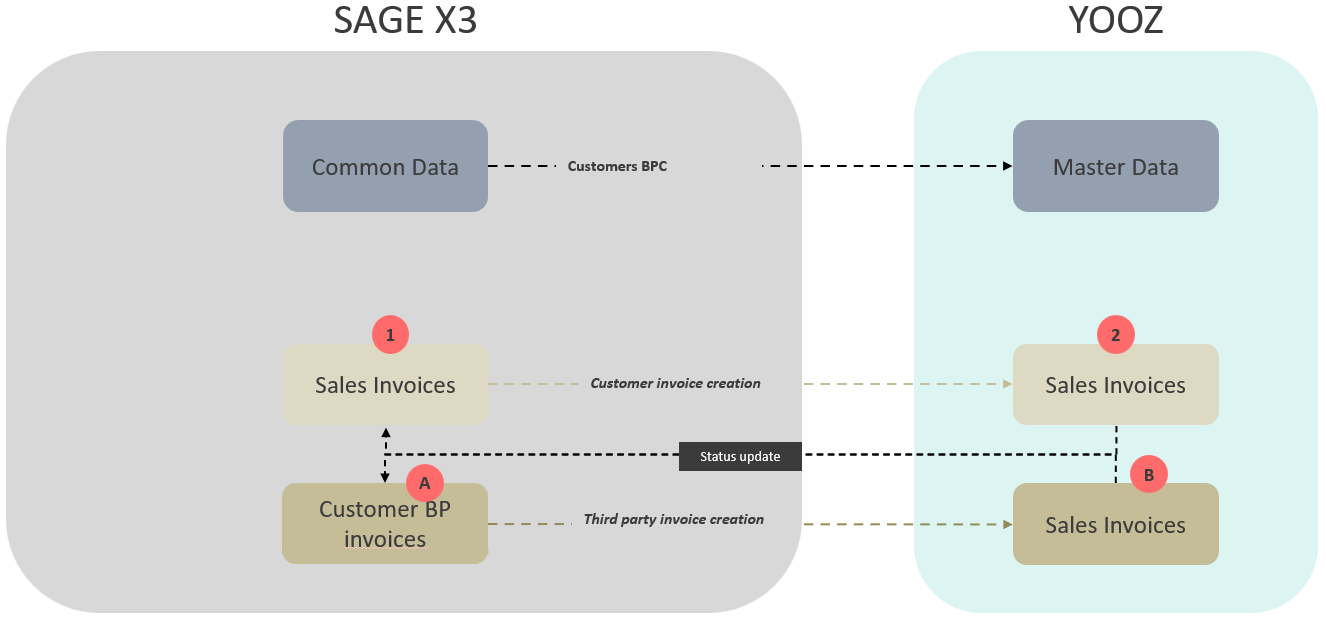
Prerequisites and preparation
To ensure the transmission of sales invoices from Sage X3 to Yooz, standard e-invoicing information must be available. Therefore, two scenarios are possible:
- Case 1: E-invoicing is activated on the Sage X3 solution
- Case 2: E-invoicing is not enabled on the Sage X3 solution or e-invoicing is not available for the version of Sage X3
In case 1, you can proceed to the next step in this chapter.
For case 2, you must go through this preliminary step: 9-RFE Management of incompatible Sage X3 versions
Parameter values
The parameter values are in the EXAPP chapter and the YOOZ group.
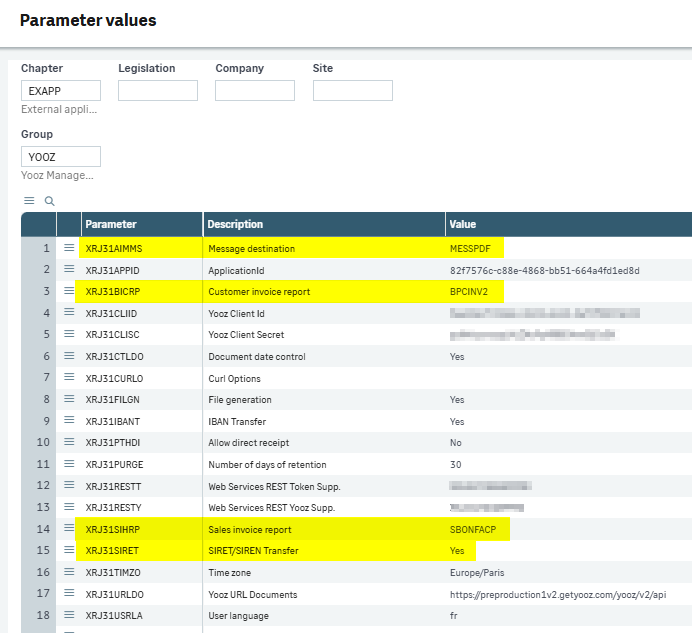
The parameter value XRJ31AIMMS is used to define a "Message" type print destination in Sage X3. Its role is to enable the generation and printing of PDF files (particularly for sales invoices) so that they can be automatically sent to the Yooz application.
The XRJ31BICRP parameter (Customer Invoice Report): This parameter defines the print state to use for customer invoices (invoices entered directly into third-party accounting). The standard value typically entered is the code BPCINV2.
The XRJ31SIHRP parameter value (Sales Invoice Report): This parameter defines the print state to be used for sales invoices (invoices generated by the sales management module). The standard value is usually the code SBONFACP (or sometimes SBONFACP2).
Important details:
You need to enter the codes of the Crystal Reports states that are actually used by the client to print their invoices.
These settings offer some flexibility: they can be configured globally at the folder level, or broken down more precisely at the company or site level.
Site
For each X3 site that issues sales invoices, you must provide the following information:
the Yooz organization code (only on the Financial website)
the email address as the sender
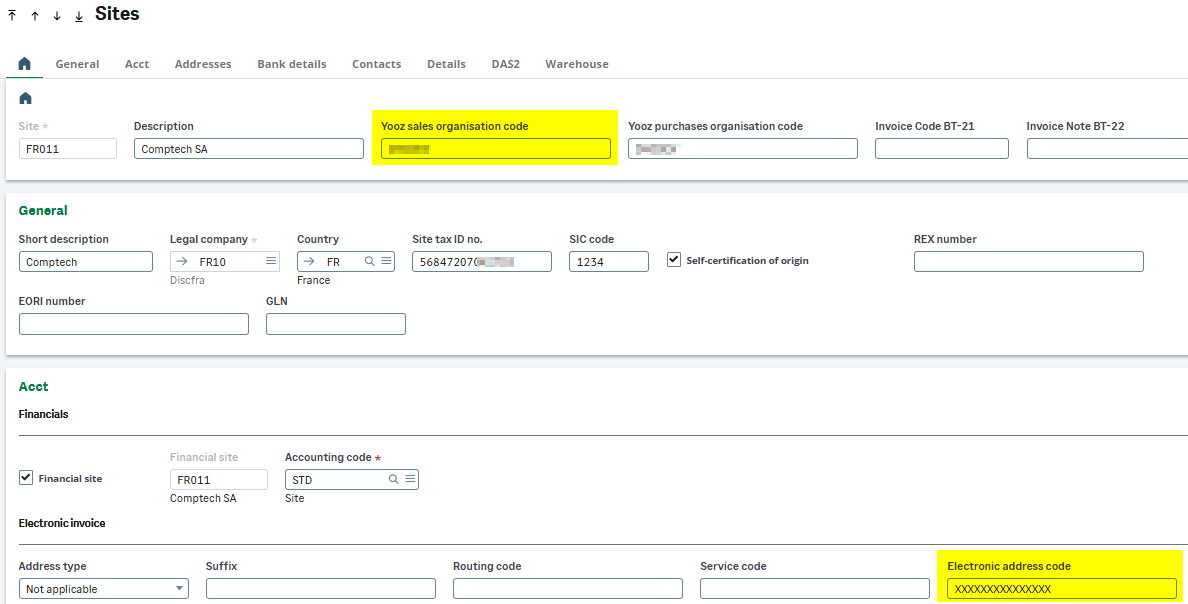
Invoice type
You need to check the Yooz box for the types of invoices that need to be sent.
Awaiting confirmation of e-invoice type code information
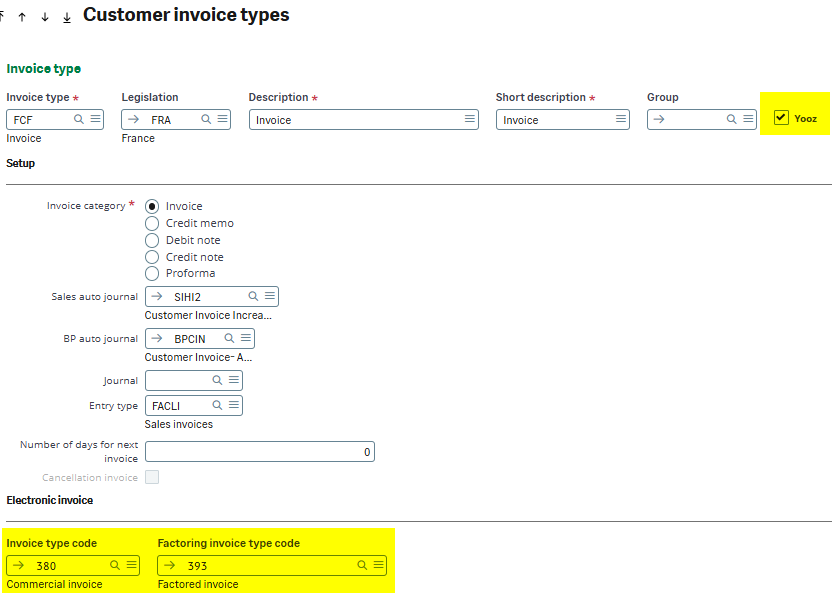
Customer categories
In the Yooz organizational code you need to provide the following information:
- either a Yooz organization code that will receive customers in this category
- either several Yooz organization codes (separated by a semicolon ';')
- either the value ‘YZ_CUSTOMER’ for a globalized reference
Check the box Yooz to activate sending to Yooz for customers in this category.
The area Yooz Formula allows you to enter a formula that will be evaluated in order to restrict which customers can transmit.
The check box Third Party/Company Reference manages multi-company configuration exceptions when sending customer repositories from Sage X3 to Yooz. Specifically, it determines the data source (such as payment terms, discounts, tax regime, or accounting code) that will be sent to Yooz:
- If the box is unchecked: The connector sends the standard global information entered on the main customer record
- If the box is checked: The connector will read the exceptions table of the Third Party/Company function. This allows you to create a customer record in Yooz containing specific values applicable only to a given X3 company.
Therefore, if a specific Third Party/Company rule exists for company X3, these exception data will be sent to the corresponding Yooz organization. For all other Yooz organizations listed in the customer category that do not have a configured exception, the connector will send the standard values from the customer record.

Customers
On the customer records, you must check and, if necessary, complete this data:
- SIRET code and intra-community VAT number ('Identity' section)
- email address code ('Identity' block)
- Local menu ‘RFE Selection’ (block ‘Commercials’ which can take the values ‘E-Invoicing’, ‘E-Reporting’ or ‘Out of Scope’).
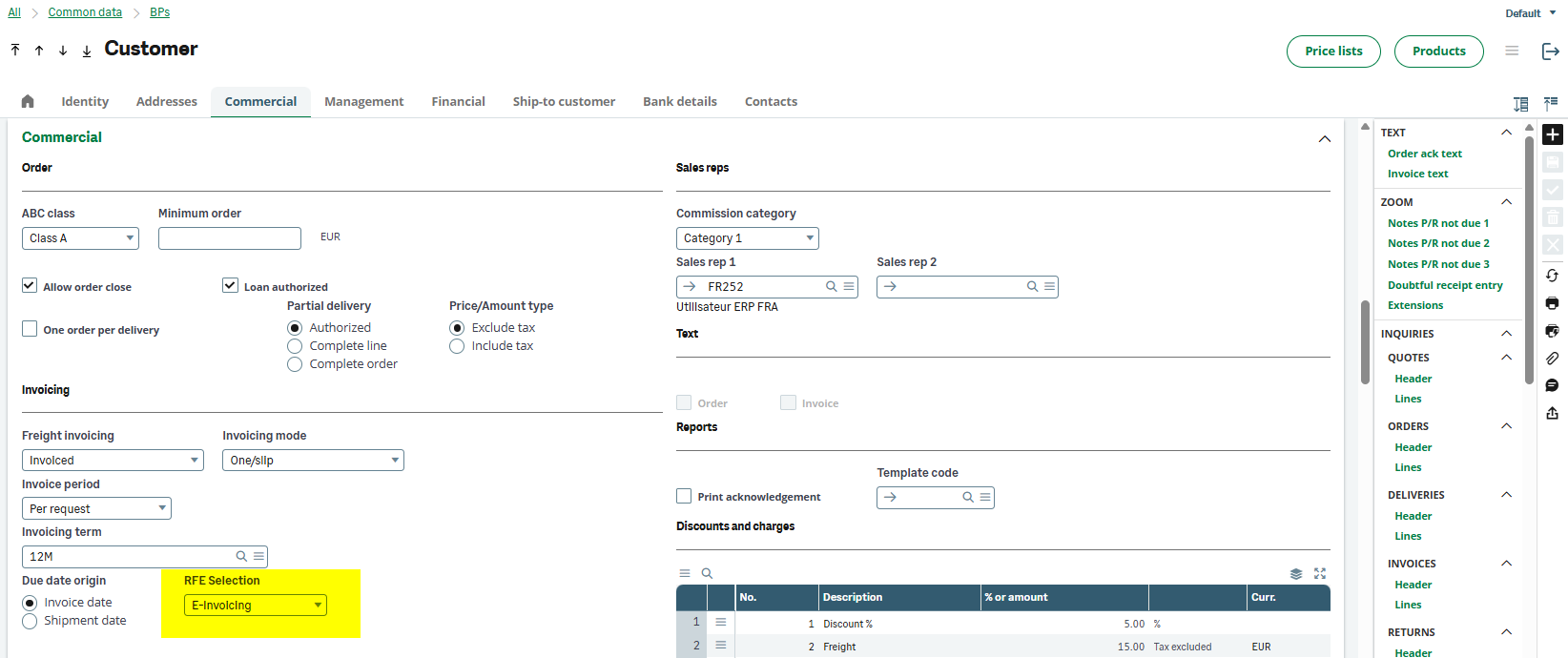
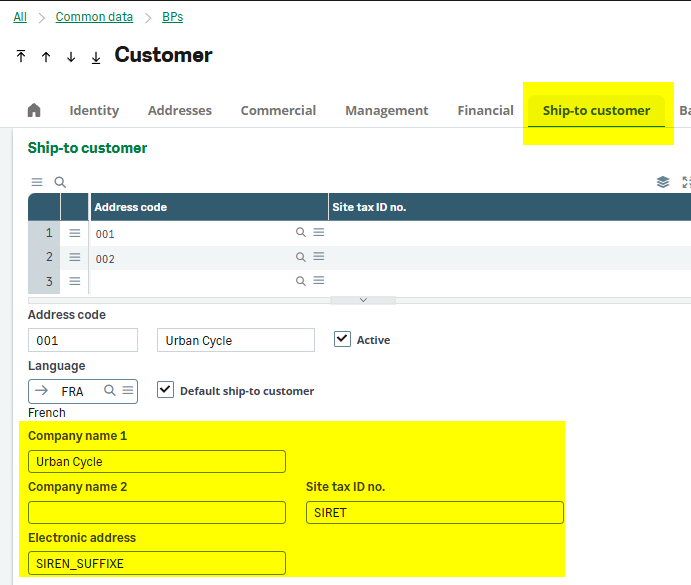
Payment methods
On the payment method sheets, add the AFNOR code
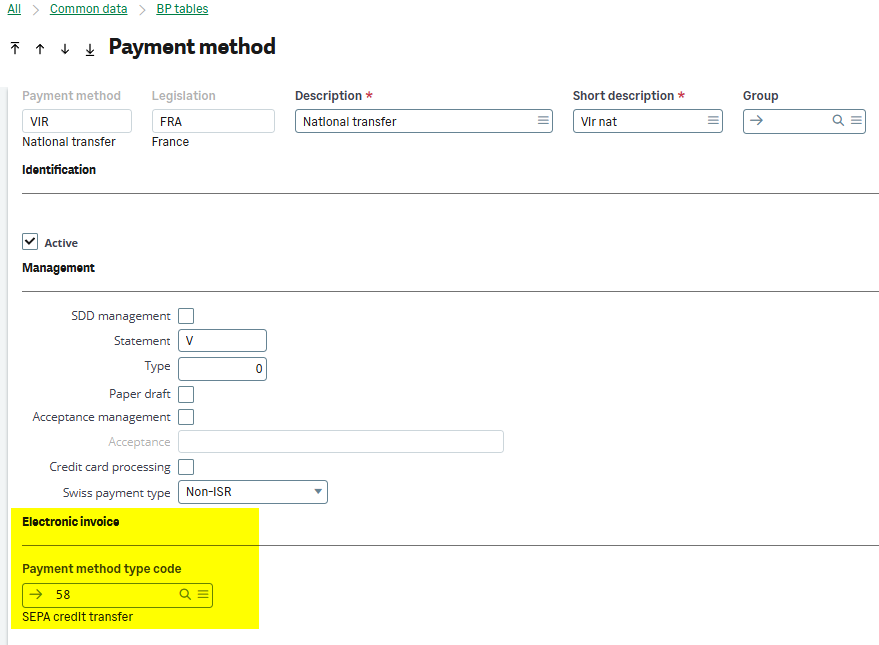
Tax rates
On the tax rate sheets, enter the AFNOR codes for each value. If the code is exempt, specify the reason for exemption.
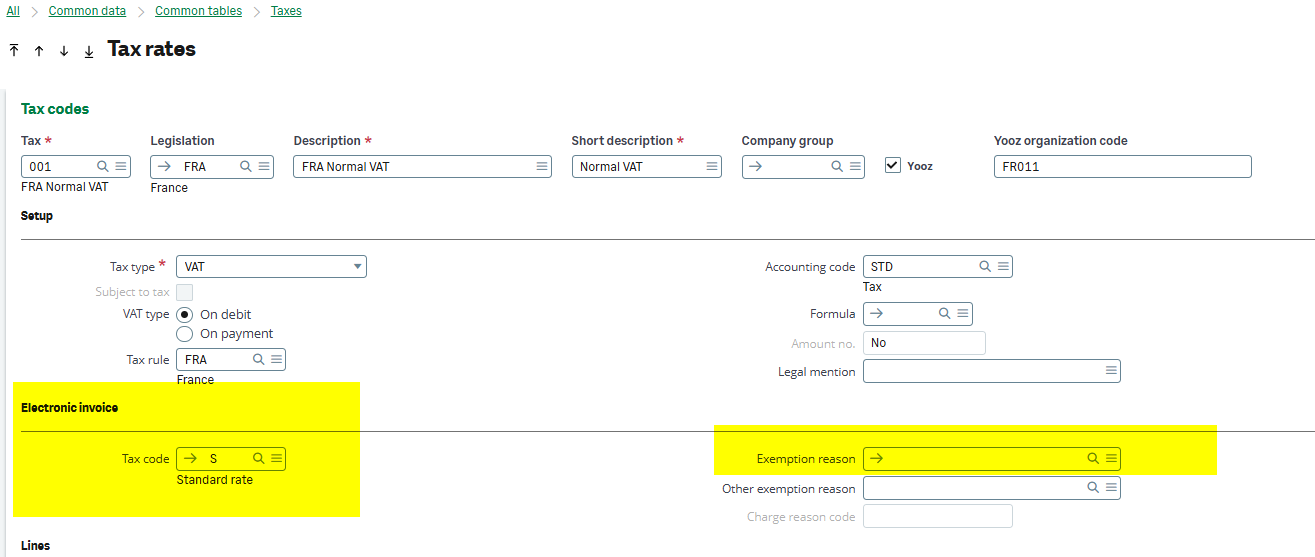
Units
The CEE-ONU codes must be entered in the GESTUN function

Other parameters dedicated to e-invoicing
You can consult this section ‘Configuration tasks’ in the chapter 9-RFE Management of incompatible Sage X3 versions.
Operating procedure
This flow concerns the 2 functions invoice module (GESSIH) sales and third-party accounting (GESBIC).
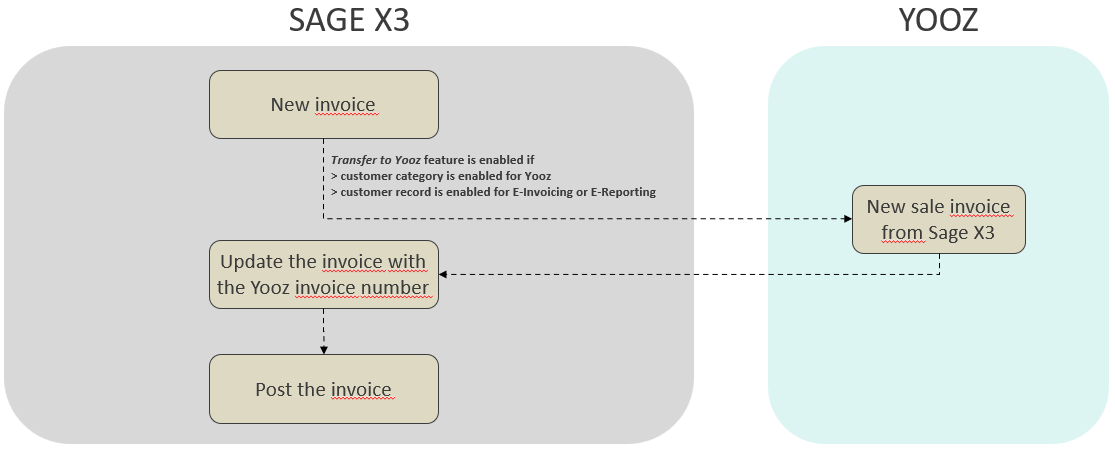
From the invoices (sales and third-party accounting module), the ‘Transmit to Yooz’ button is active if
- The sales site has a Yooz organization code
- The invoice type is selected Yooz
- The customer category is activated for Yooz.
- The client is configured with the value ‘E-Invoicing’ or ‘E-Reporting’ for ‘RFE Selection’.
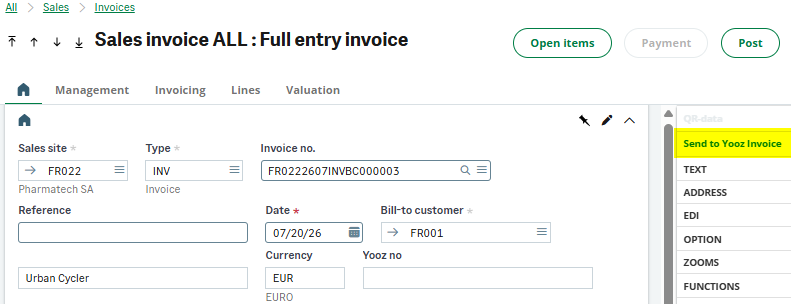
The invoice can be recorded in the tracking table individually using this button.
And also in bulk via the function Send invoices to Yooz (XRJ31INVSD).
The invoice is transmitted to Yooz when the Yooz Web Service function (XRJ31EXE) is executed.
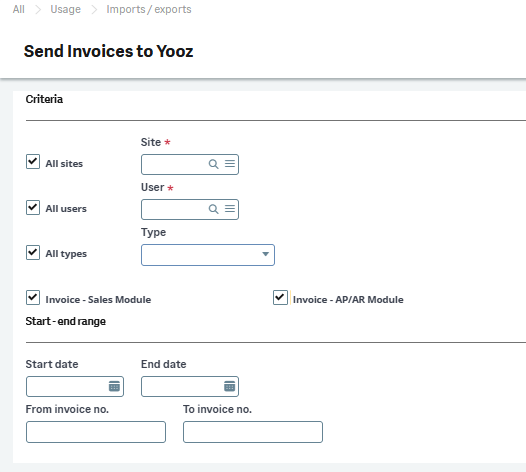
The transfer of the Sage X3 invoice to Yooz therefore takes place BEFORE the validation step.
This allows for invoice modifications in the event that sending to Yooz fails.
A failure is indicated by an error message in the tracking table and also by the absence of an assigned Yooz invoice number.
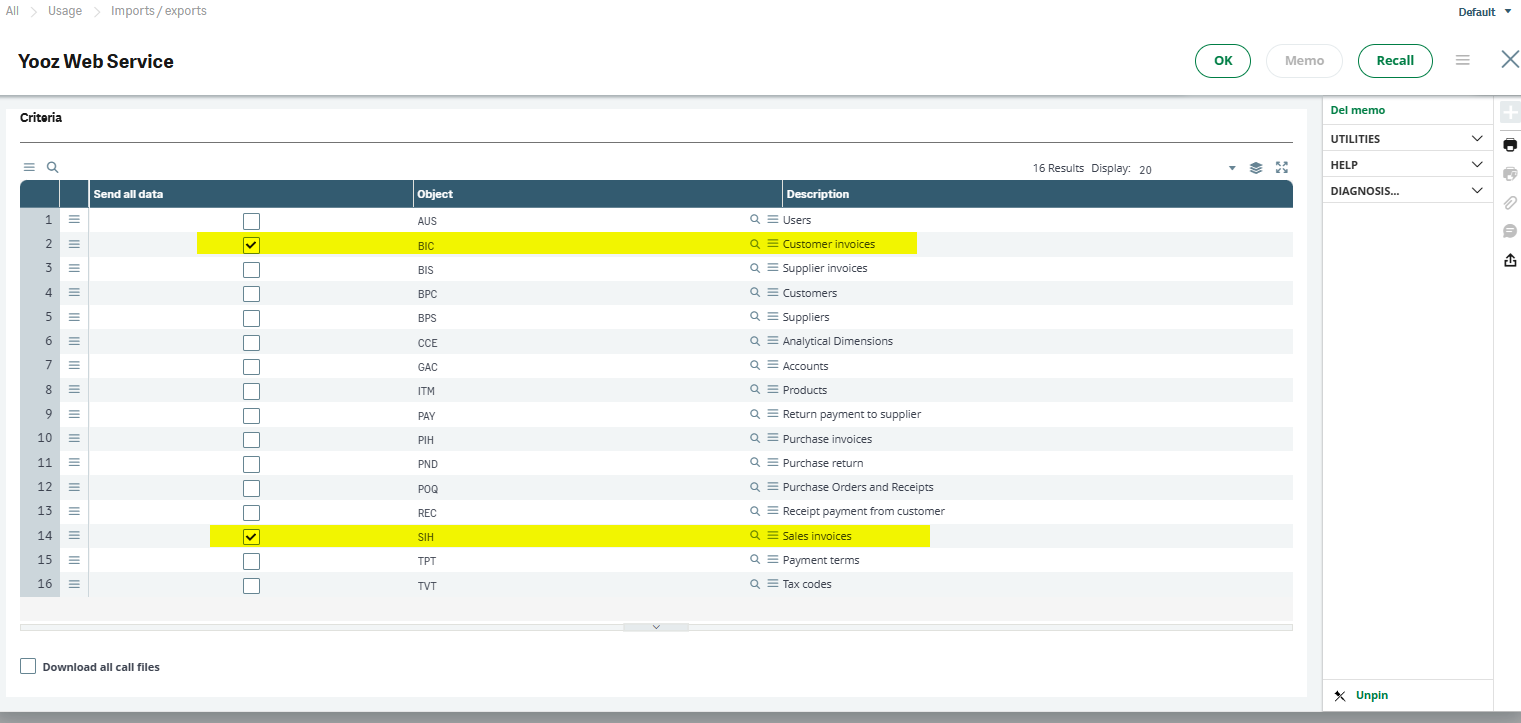

7-Administration, Monitoring, and Utilities
Context and objective
List of functions for permissions (define Yooz user or Yooz admin levels). Functionality of the recurring task (XRJ31EXE), the bulk data recovery tool (XRJ31YOOZREP), the connector integrity check function. Error and trace management (YOOZ-LOG workflow which sends error logs by email) and the interface monitoring table (XRJ31YOOZSUI).
This chapter addresses these phases of implementation:
| ▼ | ▼ | ▼ | ||||
|---|---|---|---|---|---|---|
| Pre-sales | Initialization | Framing | Installation | Setting | Recipe | Production launch |
Documentation to come.
8-Advanced Customization
Context and objective
The use of outbound (to Yooz) and inbound (to X3) custom fields. The use of entry points for specific adaptations (e.g., forcing a tax code, modifying the central account).
This chapter addresses these phases of implementation:
| ▼ | ▼ | |||||
|---|---|---|---|---|---|---|
| Pre-sales | Initialization | Framing | Installation | Setting | Recipe | Production launch |
1. Custom Yooz Fields
The Sage X3 connector for Yooz supports the custom fields functionality of Yooz, for both outbound and inbound flows.
- For the outbout flows (Sage X3 > Yooz), you can fill in up to 10 custom Yooz fields for each of the following objects/documents:
- Suppliers (GESBPS)
- Customers (GESBPC)
- Analytical dimensions (GESCCE)
- Accounts (GESGAC)
- Users (GESAUS)
- Tax rates (GESTVT)
- Payment terms (GESTPT)
- Products (GESITM)
- Purchase/receipt orders (GESPOH/GESPTH) – up to 10 Yooz custom fields for header and lines.
- Supplier returns (GESPNH) – up to 10 Yooz custom fields for header and lines.
- For the inbound flows (Yooz > Sage X3), you can send up to 10 Yooz custom fields to Sage X3 for the following invoices:
- Purchase invoices (GESPIH)
- Accounts payable invoices (GESBIS)
- Purchase orders (GESPOH)
- Receptions (GESPTH)
Custom fields are subject to constraints imposed by Sage X3 standards or by the specific context of the application.
Yooz custom fields outbound feed
Setup > Usage > Imports/Exports > Yooz custom fields out flows
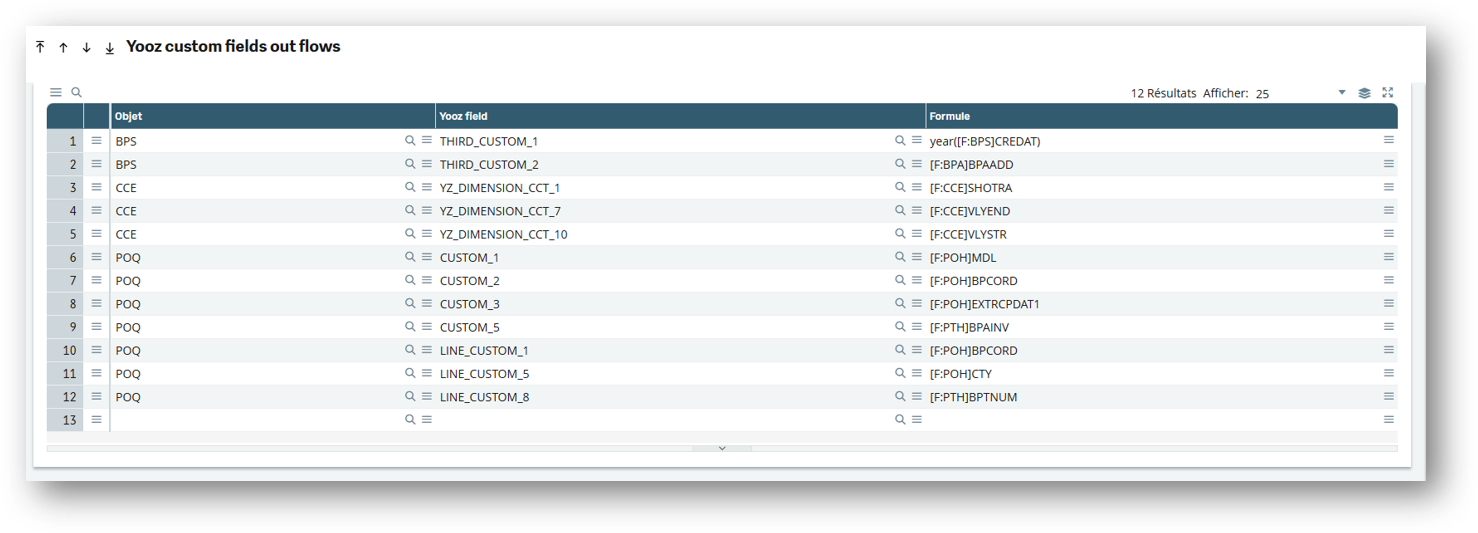
- Add the object on which you want to configure a custom field.
- Select a location between 1 and 10.
- Enter a formula that will return a string (You can use the formula wizard to help you if needed).
Example of how to indicate the year of creation in custom field #1 of the "Supplier" form in Yooz (cf: line 1 of the screenshot above)
Once the Yooz custom fields are configured, changes made to these fields will be transmitted to Yooz during the next submission (recurring task or manually via the web service).

Yooz custom fields inbound feed
Setup > Usage > Imports/Exports > Yooz custom fields in
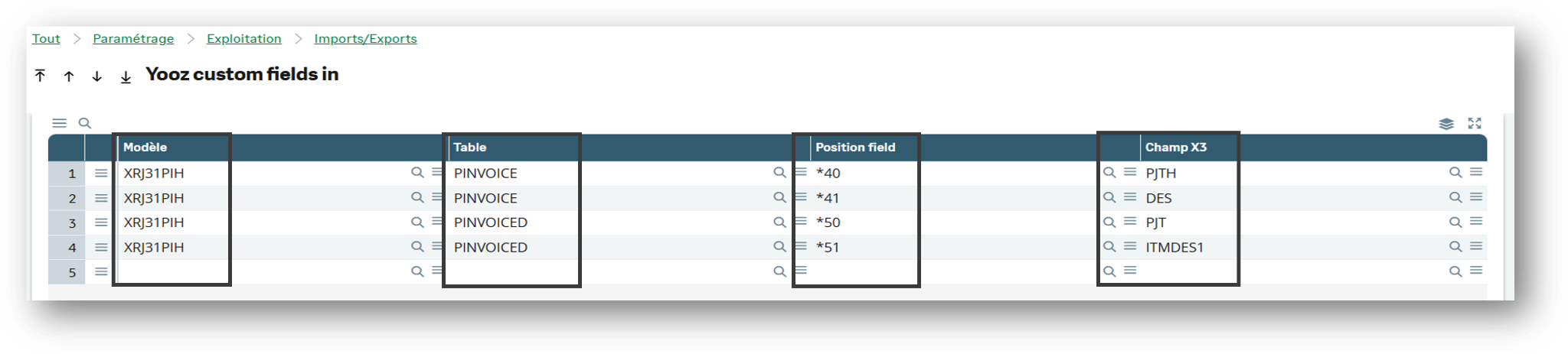
- Select the corresponding model, for example XRJ31PIH for invoices, XRJ31BIS for third-party invoices, etc.
- Select the X3 table that you want to enrich with data from Yooz.
- Select the position field present in the import; there are 10 positions available for each table.
- Select the X3 field that you want to fill with data from Yooz.
Example of indicating designations and business codes in both the header and the line
(see: lines 1 to 4 of the screenshot above)
By importing this file:

The header clearly shows:
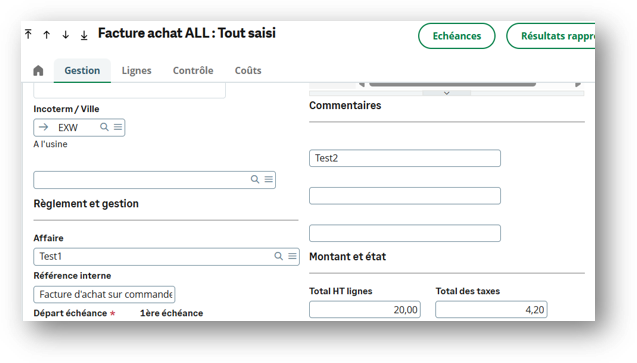
And in line:
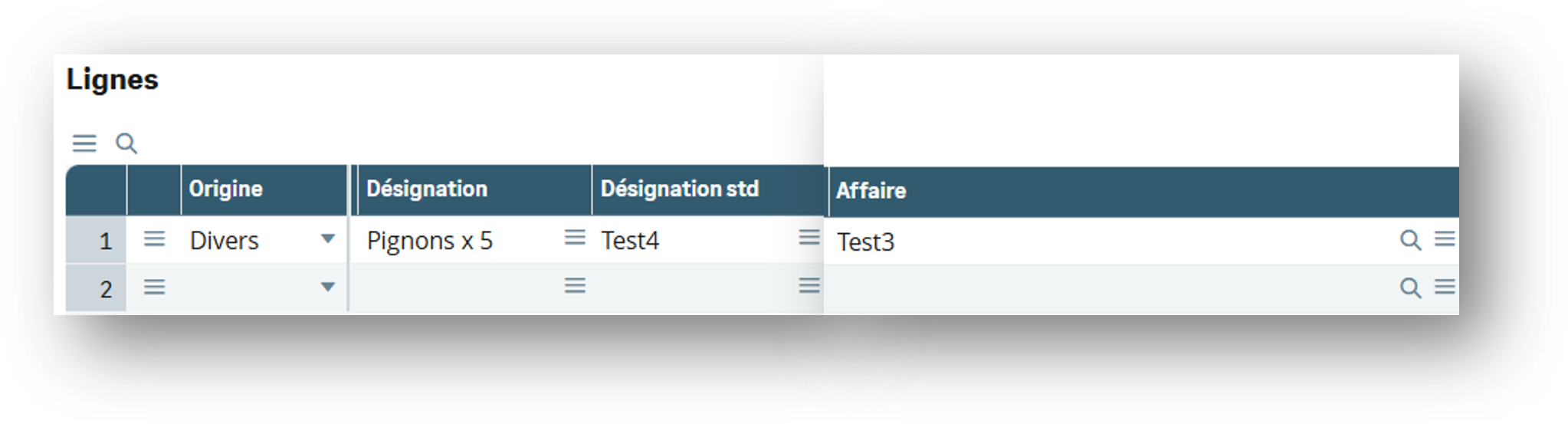
2. Entry Points
Several entry points have been put in place to allow specific development via the Yooz connector.
XRJ31BICLIB
PARAM_ETAT
This entry point is called just before printing the PDF of the supplier invoice to be sent to Yooz.
If you wish to add a new parameter to the printout:
[L]NBPAR += 1 : [L]TBPAR([L]NBPAR) = 'societe' : [L]TBVAL([L]NBPAR) = [F:SIH]CPY
Tables populated with significant values:
- COMPANY [F:CPY]
- FACILITY [F:FCY]
- GACCDUDATE [F:DUD]
- SINVOICE [F:SIH]
- XRJ31YOOZSUI [F:XRJ31YS]
---
PE_CHANGEBIC
This entry point allows modification of the content of the third-party customer invoice.
Here is the list of variables you can modify
- [L]YZ_PURCHASE_ORDER_NUMBER - BT-13
- [L]YZ_MARKET_NUMBER - BT-12
---
XRJ31IMPBIS
=ACTION
This script is called specifically for importing supplier invoices from Yooz. For each action in this import process (IMPORT, IMP_ZONE, etc.), an entry point with the same name is called.
---
XRJ31IMPPIH
=ACTION
This script is called specifically for importing purchase invoices from Yooz. For each action in this import (IMPORT, IMP_ZONE, etc.), an entry point with the same name is called.
DEF_UOM
This entry point allows you to modify [M:PIH3]UOM(nolign-1) of a miscellaneous line which is filled with 'ONE' by default.
---
XRJ31IMPPOH
=ACTION
This script is called specifically for importing purchase orders from Yooz. For each action in this import (IMPORT, IMP_ZONE, etc.), an entry point with the same name is called.
---
XRJ31IMPPTH
=ACTION
This script is called specifically for importing purchase receipts from Yooz. For each action in this import (IMPORT, IMP_ZONE, etc.), an entry point with the same name is called.
---
XRJ31PNDLIB
SPEFLD
This entry point allows modification of the content of purchase returns.
Here is the list of variables you can modify
- [L]YBPSNUM - The supplier
---
XRJ31SIHLIB
PARAM_ETAT
This entry point is called just before printing the PDF of the sales invoice to be sent to Yooz.
Si vous souhaitez ajouter un nouveau paramètre à l'impression :
[L]NBPAR += 1 : [L]TBPAR([L]NBPAR) = 'sitedeb' : [L]TBVAL([L]NBPAR) = [F:SIV]SALFCY
Tables populated with significant values:
- COMPANY [F:CPY]
- FACILITY [F:FCY]
- SINVOICE [F:SIH]
- SINVOICEV [F:SIV]
- GACCDUDATE [F:DUD]
- XRJ31YOOZSUI [F:XRJ31YS]
---
PE_CHANGESIH
This entry point allows you to modify the content of the sales invoice.
Here is the list of variables you can modify
- [L]YZ_PURCHASE_ORDER_NUMBER - BT-13
- [L]YZ_MARKET_NUMBER - BT-12
---
XRJ31YOOZLIB
BEFNEWSUI
The connector uses a queue to list all items to be sent to Yooz, and these items will be sent when the XRJ31EXE function is executed (usually as a recurring task).
This entry point is called before adding a record to the queue.
A transaction is opened, the entry point is called just before the write *write [F:XRJ31YS]*.
If you wish to ignore this creation:
[L]XRJ31SKIP = 1
If you wish to generate a new timer:
Call NUMERO('YOOZ','',date$,'',[F:XRJ31YS]CHRONO,WRET) From SUBANM
Tables populated with significant values:
- XRJ31YOOZSUI [F:XRJ31YS]
PE_CHANGEPO
This entry point allows modification of the purchase order content.
Here is the list of variables you can modify
- [L]YBPSNUM - The supplier
- [L]YFCY - The site
- [L]YITMDES - The description of the product
- [L]XRJ31WTRAIT - contains the calling script
3. Specific Developments
Some specific developments are common to many clients; here are some easy-to-implement examples.
Orders sent without a receipt
If you wish to send orders without waiting for a receipt, set the value 2 for the field XRJ31SKPRCP in PORDER.
For example, if you want to send all default commands, you can use/add the following script to the script SPEPOH. This allows you to filter the behavior if necessary.
$ACTION
  Case ACTION
    When "INICRE" : Gosub INICRE
  Endcase
Return

$INICRE
  [F:POH]XRJ31SKPRCP=2
Return
Don't worry: the order won't be sent immediately. It will follow the standard process, which means you'll still need to sign and print the order form.
---
Force the tax code (VAT) when importing an invoice based on a purchase order
When you want to import purchase invoices linked to a purchase order and you want to force the imported VAT code (PINVOICED.VAT field) rather than letting the standard system recalculate it, you can:
- Create an entry point on the standard process TRTX3 (Contact your integrator if you need help with this).
- Use the following script to call the standard entry point ALIVATCOD
# Script : YTRTX3PE
# 2026-08-24 JAT : YOOZX3-1109 : check that the value is not empty

$ACTION
  Case ACTION
    When "ALIVATCOD" : Gosub ALIVATCOD
  Endcase
Return

$ALIVATCOD
  If GIMPORT & dim([F:AOE]OBJ)>0 & find([F:AOE]OBJ,"PIH")
    If !clalev([F:XRJ31FI]) : Local File XRJ31SPEFLDI [F:XRJ31FI] : Endif
    Filter [XRJ31FI] Where TEMPLATE=[F:AOE]EXT & TABLE="PINVOICED"
    For [F:XRJ31FI]
      If find([F:XRJ31FI]FLD,"VAT","VAT(0)")
        If evalue("GIMP("+right$([F:XRJ31FI]POSITION,2)+")") <> ''  # 2026-08-24 JAT
          [L]TAXES(0) = evalue("GIMP("+right$([F:XRJ31FI]POSITION,2)+")")
          GPE=1
        Endif
      Endif
    Next
  Endif
Return
Then, configure the "Yooz custom fields in" connector function as follows (code: GESXRJ31FI):

Add the product's accounting code during export
When transferring items from Sage X3 to Yooz, if you wish to retrieve the purchase accounts defined on the product's accounting code, the following elements must be configured:
- Check that the XRJ31YOOZLIB treatment is up to date.
- In the "Yooz custom fields out flows" function (code: GESXRJ31FO), add a line for the ITM object.
- Select the Yooz destination field to which the purchase account should be transferred.
- Enter the following formula in the processing field:
func XRJ31YOOZLIB.GETACCOUNT([F:ITM]ACCCOD,"FRA")
In this formula, the FRA value corresponds to the used accounting plan code. It must therefore be adjusted if a different accounting plan has to be used.
This configuration allows the purchase account associated with the product's accounting code to be automatically retrieved and transmitted to Yooz.

9-RFE Managing Incompatible Sage X3 Versions
Context and objective
This chapter addresses the following context:
- Yooz acts as the payment administrator for issuing sales invoices.
- Sage X3 is not compatible with e-invoicing (X3 v12 prior to 2024 R1 or X3 v11)
This chapter details the operating procedures for:
-
The enrichment of the Sage X3 dictionary, partly through patches and partly through manual actions.
-
configuration tasks
This document addresses these phases of implementation:
| ▼ | ▼ | |||||
|---|---|---|---|---|---|---|
| Pre-sales | Initialization | Framing | Installation | Setting | Recipe | Production launch |
Operating procedure
Sage X3 patch update
Some of the modifications can be made using a Sage X3 patch.
This relates to activity codes, various tables, and local menus/messages.
Start by retrieving the Sage X3 patch file
Go to the download URL dedicated to the appropriate version of Sage X3
📄 Télécharger le patch SRC_YOOZX3-EINV_1_v12_p39.dat
Format :.dat — Taille : 2.5 MB — Version : 1Next, integrate this patch into the client's Sage test or production folder. An initial integration in a test environment is strongly recommended.
Check for the presence of the following tables: 18, 206, 207, 208, 209, 210, 211, 212, 970, 971, 972. And the local menu/message 7796.
The presence of these elements confirms the successful completion of this part.
Manual modifications
This involves adding fields to the standard tables and areas to the standard screens.
The details of the additions to be made are specified below. The activity code XRJ31 must be entered in all these new areas to avoid any data loss.
Where possible, zone labels are shared.
It should be noted that the various tables are already available, via the integration of the patch in the previous paragraph.
Details for the standard tables. The table must be validated after saving changes. This operation must therefore be performed without a user session. Place an XRJ31 activity code on each field.
| Table | Column | Title | Type | Linked table | Expression | Cancelation | Verification | Mandatory |
|---|---|---|---|---|---|---|---|---|
| SINVOICE | BUSPROTYP | Code type e-facture | ADI 207 | ATABDIV | 207;BUSPROTYP | Blocker | Yes | No |
| TABSIVTYP | EINVTYP1 | Code type e-facture | ADI 206 | ATABDIV | 206;EINVTYP1 | Blocker | Yes | No |
| FACILITY | ELCADD | Email address | A 125 | |||||
| FACILITY | XRJ31EINBT22 | Note | A 250 | |||||
| FACILITY | XRJ31EINBT21 | Code type e-facture | A 3 | |||||
| TABUNIT | INTSAU | Code CEE-ONU | ADI 18 | ATABDIV | 18;INTSAU | Blocker | Yes | No |
| TABVAT | VATCAT | Code type e-facture | ADI 208 | ATABDIV | 208;VATCAT | Blocker | Yes | No |
| BPARTNER | INTSRVCOD | Code service | A 100 | |||||
| BPARTNER | ELCADD | Email address | A 125 | |||||
| FACTOR | XRJ31CRN | SIRET number | A 125 | |||||
| FACTOR | XRJ31ELCADD | Email address | A 125 | |||||
| TABPAM | PAYMETTYP | Code type e-facture | ADI 211 | ATABDIV | 211;PAYMETTYP | Blocker | Yes | No |
| SFOOTINV | DISCRGREACOD | Code type e-facture | ADI 212 | ATABDIV | 212;DISCRGREACOD | Blocker | Yes | No |
| BPDLVCUST | XRJ31ELCADD | Email address | A 125 | |||||
| BPDLVCUST | XRJ31CRN | SIRET number | A 125 |
Adding the zones to the FACTOR table is not necessary if you do not have the case of entrusting your invoices to a factor. And adding the fields on the BPDLVCUST (delivered customer) table is not useful if you do not need to read the invoice addressing information on the delivered customer.
Regarding the standard screens, it is of course necessary to validate the screen after saving the changes.
The location of the zones is suggested, but it is possible to proceed differently. Place an XRJ31 activity code on each zone.
| Screen | Field | Position | Title | Type | Link | Input | Activity Code | Mandatory |
|---|---|---|---|---|---|---|---|---|
| SIH1 | BUSPROTYP | in last position of block 1 | Code type e-facture | ADI 207 | Long | Enter | No | |
| TSV1 | EINVTYP1 | in last position of block 2 | Code type e-facture | ADI 206 | Long | Enter | No | |
| FCY4 | ELCADD | in last position of block 1 | Email address | A 125 | Enter | No | ||
| FCY0 | XRJ31EINBT22 | in last position of block 1 | Note | A 250 | Enter | XRJ31 | No | |
| FCY0 | XRJ31EINBT21 | in last position of block 1 | Code type e-facture | A 3 | Enter | XRJ31 | No | |
| TUN1 | INSAU | in last position of block 1 | Code CEE-ONU | ADI 18 | No | Enter | No | |
| TVT1 | VATCAT | in last position of block 2 | Code type e-facture | ADI 208 | Long | Enter | No | |
| BPR1 | INTSRVCOD | in last position of block 1 | Code service | A 100 | Enter | No | ||
| BPR1 | ELCADD | in last position of block 1 | Email address | A 125 | Enter | No | ||
| BPC1 | INTSRVCOD | in last position of block 1 | Code service | A 100 | Enter | No | ||
| BPC1 | ELCADD | in last position of block 1 | Email address | A 125 | Enter | No | ||
| FCT1 | CRN | in last position of block 1 | SIRET number | A 125 | Enter | No | ||
| FCT1 | ELCADD | in last position of block 1 | Email address | A 125 | Enter | No | ||
| TAM1 | PAYMETTYP | in last position of block 3 | Code type e-facture | ADI 211 | Long | Enter | No | |
| SFI1 | DISCRGREACOD | in last position of block 5 | Code type e-facture | ADI 212 | Long | Enter | No | |
| BPC4 | XRJ31ELCADD | in last position of block 1 | Email address | A 125 | Invisible | XRJ31 | No | |
| BPC4 | XRJ31CRN | in last position of block 1 | SIRET number | A 125 | Invisible | XRJ31 | No | |
| BPC4 | XXRJ31ELCADD | in last position of block 2 | Email address | A 125 | Enter | XRJ31 | No | |
| BPC4 | XXRJ31CRN | in last position of block 2 | SIRET number | A 125 | Enter | XRJ31 | No | |
| BPD1 | XRJ31ELCADD | in last position of block 1 | Email address | A 125 | Enter | XRJ31 | No | |
| BPD1 | XRJ31CRN | in last position of block 1 | SIRET number | A 125 | Enter | XRJ31 | No |
Regarding the modification of the SIH1 screen, it will be necessary to launch the transaction validation function (GENMSKTRT) for the SLI and SLA transaction codes.
Adding the zones to the FACTOR table is not necessary if you do not have the case of entrusting your invoices to a factor. And adding the fields on the BPDLVCUST (delivered customer) table is not useful if you do not need to read the invoice addressing information on the delivered customer.
Configuration tasks
From this point, the essential areas for electronic invoicing are in place, you can proceed to input the values.
We will now review the different entities that need to be configured.
You can, of course, limit yourself to configuring only the data that is used. Indeed, you may have configuration tables containing a lot of information, not all of which is useful. This point applies to all elements and will not be repeated every time.
Units
This is the GESTUN function from the Common data > Common tables menu.
You must fill in the column Code CEE-ONU. A list of values is provided to help you select the correct information.
Payment method
This is the GESTAM function in the Common data > BP tables menu.
You must fill in the area Code type e-facture. A list of values is provided to help you select the correct information.
Tax rate
This is the GESTVT function in the Common data > Common tables > Taxes menu.
You must fill in the area Code type e-facture. A list of values is provided to help you select the correct information.
Billing elements
This is the GESSFI function in the Setup > Sales menu.
You must fill in the area Code type e-facture. A list of values is provided to help you select the correct information.
Types of customer invoices
This is the GESTSV function in the Setup > Sales > Document types menu.
You must fill in the area Code type e-facture. A list of values is provided to help you select the correct information.
Depending on your business management scenarios, it may be necessary to add new types of customer invoices.
Sites
This is the GESFCY function in the Setup > Organizational structure menu.
You must fill in the area Email address. This is the email address of the website issuing the invoice. Therefore, it is your email address, according to the qualification "seller's email address", which corresponds to the business term BT-34. This information is mandatory.
You can also enter a note and its code for electronic invoicing. This information is optional.
Here is a list of possible codes for the note
AAI: General information (often used for footer elements on paper invoices)
BLU: Eco-participation (WEEE) or other environmental taxes
ACC: Subrogation clause for factoring
ON: Supplier's unsolicited remarks
CUS: Customs Information
Factors
This is the GESFCT function in the Common data > BPs menu.
You must fill in the areas SIRET number And Email address on the factor(s) involved in customer electronic invoicing flows.
Clients / Tiers
These are the GESBPR or GESBPC functions of the Common data > BPs menu.
You must fill in the areas Code service And Email address on all customers concerned by electronic invoicing.